
-
OBS Studio
- Size: 150M
- Language: Simplified Chinese
- Category: Video recording software
- System: Winall






OBSThat is the abbreviation of Open Broadcaster Software,OBS StudioIt is a software that takes up less resources and has relatively low configuration requirements.Live broadcastRecording software. The recording format is MP4, no need to recompress,OBS Studiowith its excellentRecordingKnown for quality and a completely free experience. Huajun Software Park provides you with free download of OBS Studio, come and experience it!

OBS Studio FAQ
How about obs studioRecord screen?
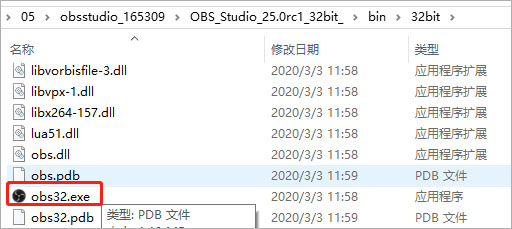
1. Download and unzip, find the .exe file in bin, double-click it to run, no installation required;
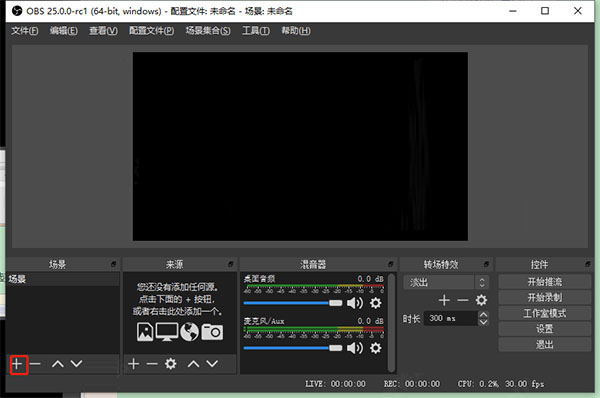
2. In the dialog box, click the "+" button in the scene bar below;
3. Open the dialog box to add a scene and enter the name of the scene. Select the default here and click the OK button directly;
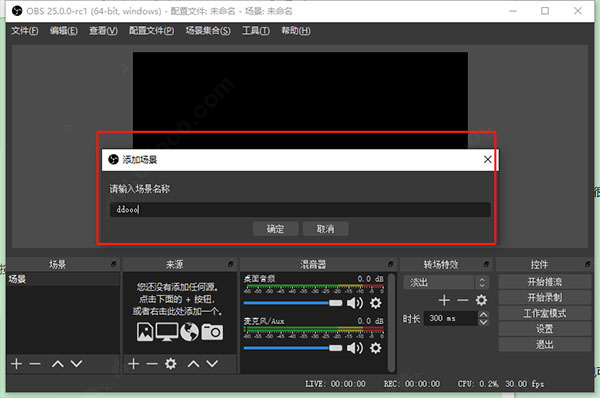
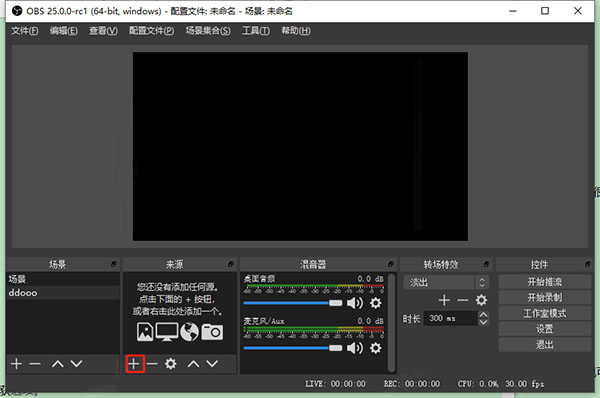
4. Click the Add button in the source column options;
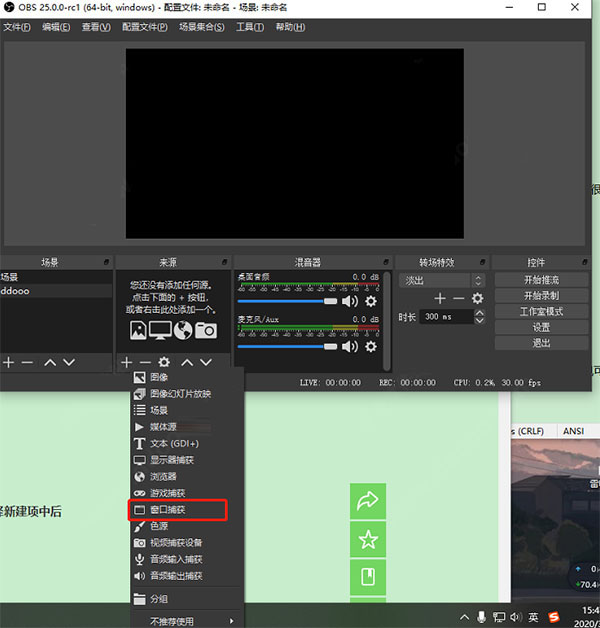
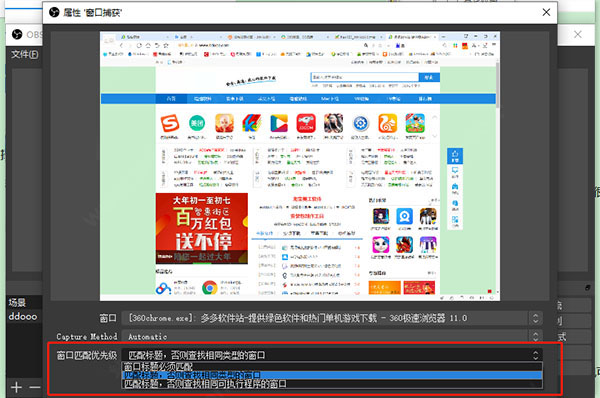
5. Open the list option and select the source type. For example, here you want to record the window, so select the window capture option;
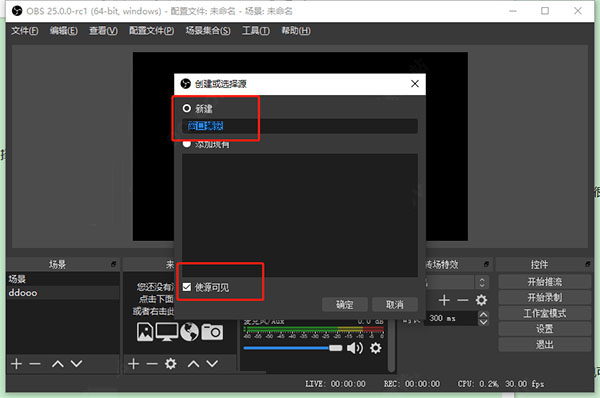
6. In the Create or Select Source dialog box, there are two items, New or Add Existing. If there is no existing item, select the New item and enter the name. Check Make Source Visible to preview the current screen. Click the OK button at this time;
7. In the Properties window capture dialog box, select the type in the window matching priority column and click the OK button;
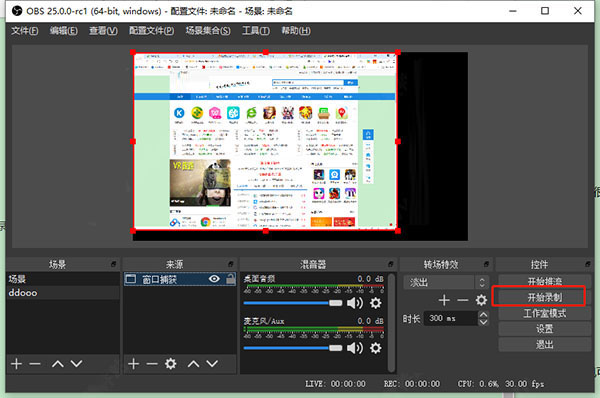
8. Return to the main interface and click the Start Recording button. When the recording is completed, click the Stop Recording button.
Why is there no virtual camera in the tool options of obs studio?
Install the virtual camera plug-in in the same directory, and then restart obs. You can use the virtual camera.
How to set the picture quality in obs studio?
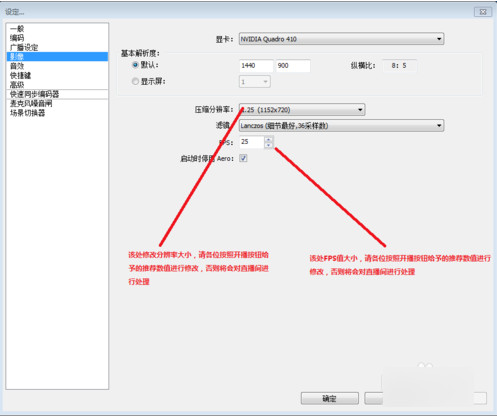
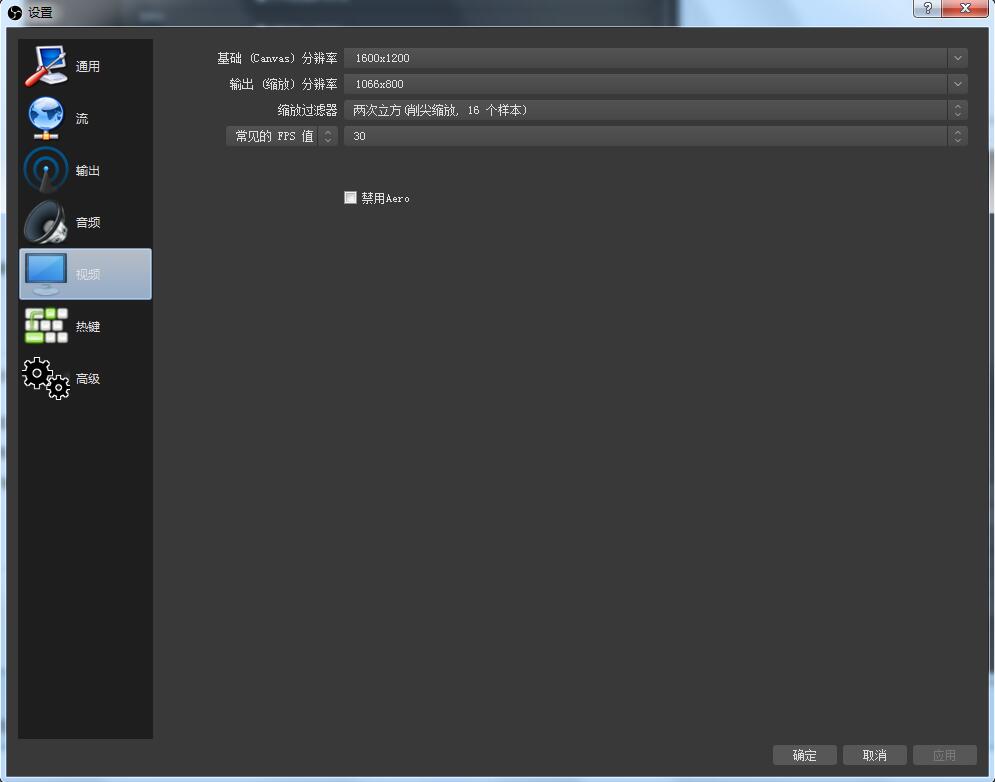
First, open the settings panel, switch the left tab to video, and adjust it here. The editor recommends: frame number 25, code rate 1100-1500, quality 6 or 7, and leave the rest alone. The video compression ratio is 1280x720, and it doesn’t matter whether the live broadcast delay is enabled or not.
OBS Studio function introduction
Multi-source recording and live streaming
Supports window capture, game screen, camera, picture, text, browser and other video sources, and can record multiple sources at the same time.
Supports full-screen recording, area recording and window recording to meet the needs of different scenarios.
Supports RTMP streaming and can be pushed to mainstream live broadcast platforms such as Twitch, YouTube, Douyu, Huya, and Bilibili.
Audio Mixing and Control
Built-in audio mixer supports multi-audio track recording, and can adjust the volume of microphone, system sound, background music, etc. separately.
Supports noise gate, noise suppression, gain and other filters to optimize sound quality.
Supports VST plug-ins to meet professional audio processing needs.
Multiple scene switching and transition
It supports unlimited scene switching, and can preset multiple scenes (such as game screens, camera screens, PPT demonstrations, etc.), and switch with one click during live broadcast.
Supports custom transition effects to make scene switching smoother.
Video Encoding and Output
Supports multiple video formats (MP4, FLV, MKV, etc.) and encoding methods (H.264, H.265).
The resolution, frame rate, and bit rate can be customized to meet different definition requirements.
Supports hardware accelerated encoding (NVENC, AMD VCE) to reduce CPU pressure and improve performance.
OBS Studio Features
High performance and low latency
Optimized rendering engine and hardware acceleration support (such as NVIDIA NVENC, AMD AMF, Intel Quick Sync) to keep CPU usage low even at 4K/120fps.
The built-in "low latency mode", combined with the adjustment of encoding parameters on the streaming side, can achieve second-level delay, which is suitable for highly interactive live broadcasts (such as games with microphones).
Highly customizable
Everything from interface layout to streaming parameters can be adjusted, supporting custom resolution, frame rate, bit rate, etc. to meet professional-level needs (such as broadcast-level live broadcast).
Interface elements can be dragged and dropped to freely adjust the position, size, and transparency of each source in the scene.
Cross-platform compatibility
Supports Windows, macOS and Linux systems, and experimentally supports the Windows on Arm (WoA) platform, expanding software compatibility.
How to use OBS Studio
Huajun Software Park provides you with how to use this software:
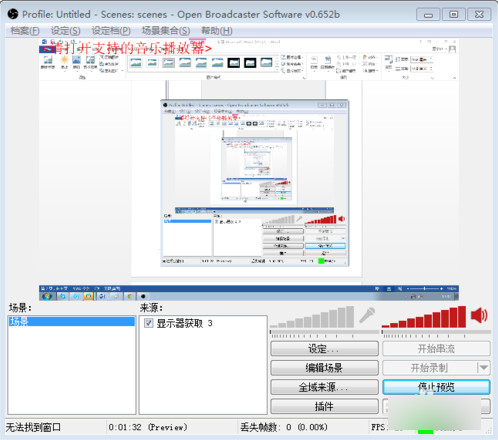
1. Open the main interface.
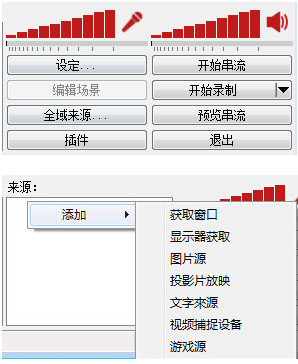
Scene: The scene is equivalent to PS drawing. The scene is the main picture and the source is the layer. You can set several different pictures.
Source: The meaning of layer is the source of the picture you want to show to the audience. Just right click on the source and add it.
1) Get the window: Add a single window for the audience to see.
2) Monitor acquisition: Single screen or multiple screens, select a display to show full screen or part of the screen to the audience (League of Legends selection)
3) Picture source: If you have your own logo or station logo or cute pictures, you can hang them up. If you don’t want the audience to watch your computer operations, you can delete the monitor and put the underlying picture as a desktop. This way you can live broadcast and do other things to prevent unintentional data leakage.
4) Slideshow: Add a variety of pictures by yourself and show them to the audience in the form of a slideshow.
5) Text source: Write some words or tips or advertisements for the audience
6) Video capture equipment:camera, capture card and other capture peripherals screen access port
7) Game source: Full-screen games must be broadcast live using a game source, otherwise the audience will see a black screen. Borderless or windowed full screen, you can directly add a window for live broadcast. (dota2, Hearthstone selection, League of Legends)
③Settings: Live broadcast program settings
④Start streaming: Start live broadcast
⑤Edit scene: Manually adjust the live broadcast screen, such as text and picture position adjustment or scaling.
⑥Start recording: Use OBS to record the screen.
⑦Global source: overall source, basically no need to set.
⑧Preview streaming: simulate the live broadcast screen without live broadcast, and can test whether frame skipping, code rate changes, screen adjustment and other data.
Note: For all games, the game source is selected first, the second is the monitor acquisition, and the third is the acquisition window.
PS: Two red bars, the left represents the microphone output volume, and the right represents the sound output volume. Click the red bar to adjust the output volume, and click the icon to directly mute the device.
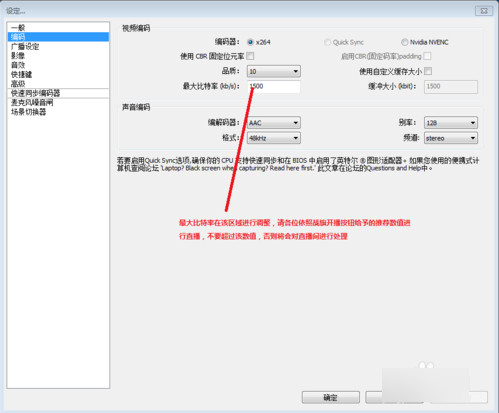
2. Encoding settings such as maximum bit rate
PS: The higher the final number, the better. Generally speaking, the bit rate settings are adjusted according to the game. The following is an introduction to the optimal bit rate:
Other competitive games 1800kb/s (such as League of Legends, DOTA, etc.)
Shooting and stand-alone games 2000kb/s (such as: CSGO, World of Tanks, etc.)
Nostalgic memory: 1500kb/s (such as War of the Three Kingdoms, MC, etc.)
Game screening room: 1500kb/s
3. Broadcast settings
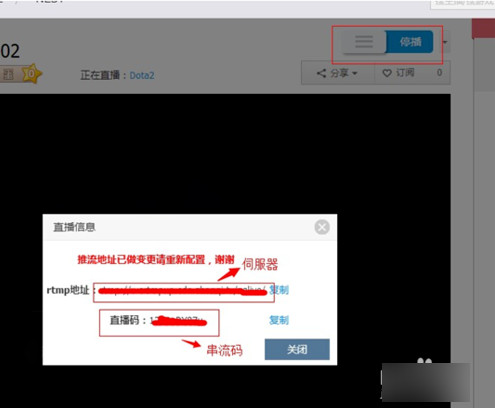
4. The FMS URL streaming code acquisition address is as follows: (Fill in the corresponding top and bottom and copy in)
5. Resolution, frame rate (fps) and other settings
Try to use 720P or lower for notebooks. Please choose 720P for desktop I3 and I5. For I5 overclocking, the I7 series can be increased to 1080P. AMD please test it yourself.
ps:
Recommended settings for each game:
Other competitive games 30FPS 1920X1080 (League of Legends, DOTA2, etc.)
Shooting and stand-alone games 30FPS 1920X1080 (CSGO and other shooting stand-alone masterpieces)
Nostalgic Memories 25FPS 1280X720
Game screening room 25FPS 1280X720
6. Sound effect settings
7.Microphonesettings
8. OBS interface for fools to quickly get started setting up (lol)
Add a scene: Move the mouse to the scene, right-click to add the scene, no settings are required, just confirm.
Source: Right click, add game source, as shown in the figure:
9. After the addition is completed, enter the game loading screen and follow the above steps to add a game source. After ensuring that the server and streaming codes are filled in correctly, select start streaming. After entering the game, change the image to borderless or full-screen mode.
The above is the overall usage method of OBS Studio for your reference.
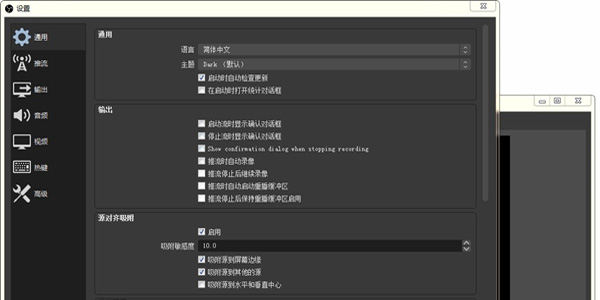
Comparison between OBS Studio and similar software
BandicamIt is a high-definition video recording tool developed in South Korea and has low computer configuration requirements. Bandicam can record high-quality videos with a resolution of up to 2560×1600. At the same time, you can add your own LOGO to it when recording. This can be a picture in bmp, png and jpeg format. It is easy to operate and is a good video recording tool.
BandicamDownload link:http://softwaredownload4.com/soft/117623.htm
Through the above editor’s introduction to OBS Studio, I believe everyone has seen how powerful it is. Its biggest feature is that it takes up little resources and is free. OBS Studio can not only record games, record video tutorials, but also record live broadcasts. Compared with other recording tools, it is more powerful in game live streaming and the video quality is also better.
OBS Studio update log
Added the ability to capture Vulkan-based games using the game capture feature. Many thanks to Ubisoft for the help! [Littlematth/jpark37/ Jim]
NOTE: This may not currently work with Rainbow 6 Siege until the game is updated to support the new hook
A new capture method has been added to window capture that allows capturing browsers, browser-based windows and Microsoft Store (UWP) programs [jpark37]
By default, it will use Automatic, which will use the regular method on most windows, and will work on browsers, browser-based windows, and Microsoft Use new methods on Store (UWP) applications
The disadvantage of the new method is that it may cause some cursor lag and highlighted borders around the captured window. However, the border itself is not captured.
You can choose which capture method to use in the window capture properties
Browser plug-in implemented on Linux [bazukas/cg2121]
Added advanced scene collection import (on the menu bar, Scene Collection->Import), allowing you to import from other common streaming programs [Dillon]
Added media source hotkeys to control playback (stop/pause/play/restart) [cg2121]
Currently, these are hotkeys only. The user interface is also planned for future updates
Added the ability to drag and drop URLs to create browser sources (after displaying a confirmation prompt to ensure it was intended) [WizardCM]
Developers can add an embed to their web pages that allows them to pre-specify parameters that are automatically set in the source when dragged and dropped into OBS.
Added T-bar in studio mode [cg2121]
Please note that this does not work when using a Stinger transition or a "cut" transition
Added support for SRT protocol
You can use this feature by selecting Custom under Stream Settings > Services and entering the path srt:// in the Server box.
Added a button grid mode to the scene list, which can be toggled by right-clicking on the scene list [Dillon]
Added the ability to lock the volume value of an audio source via the right-click context menu in the mixer [cg2121]
Added source icons to the source list to more visually indicate their functionality (can be disabled in the View menu) [cg2121]
Added support for cube LUT files in LUT filter [jpark37]
Added option to show all audio sources as advanced audio settings [exeldro]
Added option to use percentages instead of dB in advanced audio properties by right-clicking on window [cg2121]
Added a button for saving the replay buffer next to the replay buffer button (similar to the pause button on the record button) [cg2121]
Added support for certain devices that can automatically rotate their camera output, such as the Logitech StreamCam [Jim]
Added the ability to change projector type in the projector's right-click context menu [cg2121]
Added ability to copy/paste multiple selected sources [torresam]
Added the option to enable/disable BTTV and/or FFZ chat extensions when connecting a Twitch account in the Streams section of Settings [Rodney].
Added system tray icon to show when recording is paused [Programmatic]
Added "Custom Quantize Matrix" option to QSV encoder (available on Ice Lake or later) [brittneysclark]
Added an option to switch loops to rolling filters [Dillon]
Added “Fade to Black” option for quick transition in Studio Mode [cg2121]
Added string specifiers to the "Filename Format" option in Advanced Settings, allowing you to specify certain settings (such as resolution and FPS) to record filenames [exeldro]
Added a hotkey to reset stats window/panel [cg2121]
Video settings now show canvas aspect ratio and output resolution [cg2121]
Change/Adjustment
Increase the default size of the color source to the size of the canvas [cg2121]
Increased the default size of text in text sources [cg2121]
Increased the number of files that can be opened at one time through the image slideshow [Jim]
Added various minor performance improvements [jpark37]
The mask filter will now automatically reload the mask if the mask file has been modified [omkelderman]
Browser sources will now use the custom CSS property [WizardCM] to use a monospaced font.
The Decklink output UI has been redesigned by combining start and stop buttons and highlighting them when the output is active. [cg2121]
Bug fix
Fixed an issue where window capture could select an unexpected window when opening its properties [Jim/Dillon]
Fixed an issue where the browser source could not load files with hash characters in the path [Dillon]
Fixed a bug where importing configuration files in portable mode did not work properly [WizardCM]
Fixed a bug where dock could not be resized when hotkeys were disabled while OBS was in focus [WizardCM]
Fixed a bug where the preview was not completely disabled when minimizing [R1CH]
Fixed a bug where the program could crash on startup if Flash was installed on the system [R1CH/Jim]
Fixed a bug where media sources would sometimes lock on the frame [Jim]
Fixed a bug where the Twitch browser panel would not use dark theme on first run [Jim]
Fixed a bug where the audio bitrate was too low when using custom recording quality in simple output mode [Fenrir]
Fixed a bug where reconnected streams would drop to 0 kbps and disconnect if using track 2 [R1CH]
Fixed a bug where the wrong game would sometimes be captured when using multiple game captures [Dillon]
Fixed a crash issue when entering high resolution in video settings [cg2121]
Fixed a crash caused by PulseAudio on Linux [cg2121]
Fixed an issue that could cause crash on shutdown after using the automatic configuration wizard [R1CH]
Fixed an issue where VLC and slide show sources crashed when adding a directory containing files with many Unicode characters [R1CH]
Fixed a crash on startup if the plugin saves spaces to its configuration file (this mainly affects Tuna plugins) [R1CH]
Fixed a crash when no Decklink output is available (e.g. input is active at the same time) [cg2121]
Fixed a crash issue when starting output without selecting the Decklink output device [cg2121]
Fixed some minor memory leaks [jpark37]
Fixed an issue where the program would not let you know that the record path was invalid [Lqlsoftware]
|
Huajun editor recommends: OBS Studio is a very practical video recording software with a more comprehensive feature set and a more powerful API. It can set multiple scenes for users to switch at any time to meet different recording needs of users. This site also providesNextPVR,BandicamDownload, don’t miss it if you need it. |
Version: 31.1.2 | Update time: 2025-10-23
Similar recommendations





Latest updates




OBS Studio Review
-
1st floor Huajun netizen 2022-03-07 08:49:55OBS Studio is very useful, thank you! !
-
2nd floor Huajun netizen 2022-03-05 11:58:35OBS Studio is not bad, the download is very fast, I give you a good review!
-
3rd floor Huajun netizen 2022-03-21 02:08:36Download OBS Studio, it’s really good! ! !
Recommended products









- Diablo game tool collection
- Group purchasing software collection area
- p2p seed search artifact download-P2P seed search artifact special topic
- adobe software encyclopedia - adobe full range of software downloads - adobe software downloads
- Safe Internet Encyclopedia
- Browser PC version download-browser download collection
- Diablo 3 game collection
- Anxin Quote Software
- Which Key Wizard software is better? Key Wizard software collection