-
Translation software QTranslate
- Size: 0.86M
- Language: Simplified Chinese
- Category: translation software
- System: Win All






QTranslate integrates 5 online translation engines, namely Google Translate, Microsoft Translate, Promet Mobile, SDL and Yahoo Translate. After entering a piece of text, you can query the translation results of the five translation engines through QTranslate, allowing you to get the most accurate translation.
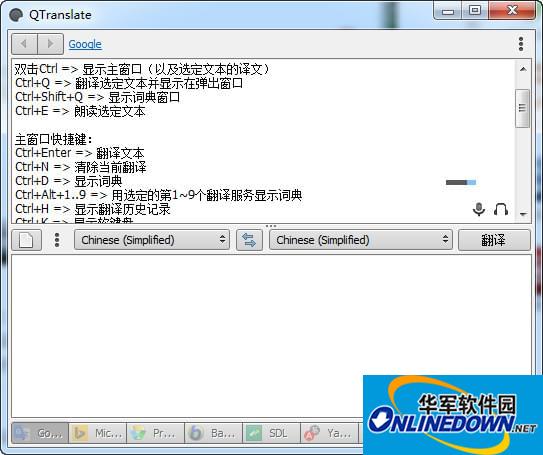
Function introduction
QTranslate currently supports translation engines or information services such as Babylon, Definr, Google Search, Google Translate, ImTranslator, Microsoft Translator, Multitran, Promt, Reverso, SDL, Wikipedia, WordReference, Yandex and Youdao Translation.
The interface is simple, automatically recognizes the input text language, selects the translation language, and has functions such as virtual keyboard, voice reading, automatic saving of translation history, multiple translation engines, word-marking translation, and multi-mode translation.
Supports text translation in any application
speech recognition
Image text recognition (by providing OCR API OCR.SPACE)
text-to-speech synthesis
Search in online dictionary
Search in offline XDXF dictionary
spell check
Word suggestions/autocomplete
Translation history
virtual keyboard
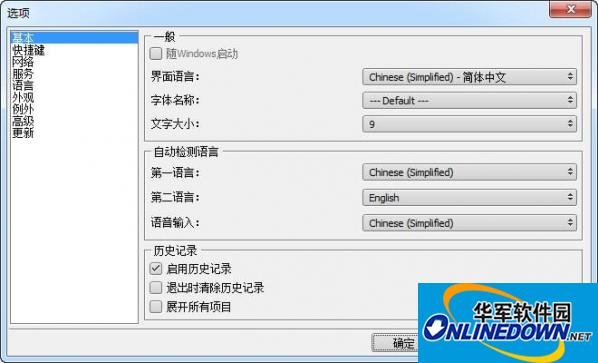
How to use
QTranslate can use shortcut keys to pronounce, and supports translation immediately after selecting text. The same is true in the browser, without installing any extensions.
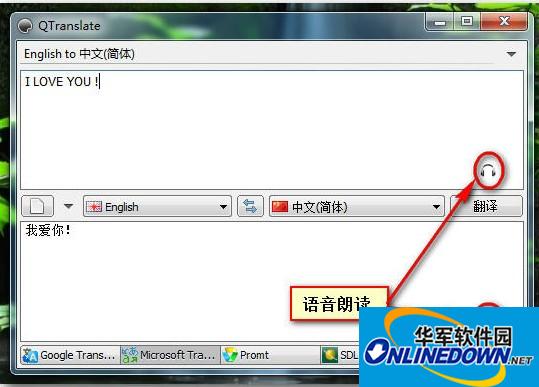
Global shortcut keys (default):
Double click on Ctrl => Show main window (and translation of selected text)
Ctrl+Q => Translate selected text and display in popup window
Ctrl+Shift+Q => Show dictionary window
Ctrl+E => Speak selected text
Main window shortcut keys:
Ctrl+Enter => Translate text
Ctrl+N => Clear current translation
Ctrl+D => Show dictionary
Ctrl+Alt+1..9 => Display dictionary with selected translation services 1~9
Ctrl+H => Show translation history
Ctrl+K => Show soft keyboard
Ctrl+Tab/Ctrl+Shift+Tab/Ctrl+1..9 => Switch to the next/previous/1st~9th translation service
Shift+Esc => Reset language combination to auto-detect
Ctrl+Shift+1..9 => Select language combination
Ctrl+I => Swap translation direction
Ctrl+Space => Show Suggestions/Autocomplete drop-down menu
F1 => show help
Alt+Left Arrow => Go to previous translation
Alt+right arrow => go to next translation
Ctrl+Up Arrow => Copy the translation to the text input box
There are three translation modes for mouse-selected text:
1) Display icon (select text in the program - the icon of the program will appear near the mouse pointer. Click the icon and the translation of the selected text will be displayed in a pop-up window);
2) Show translation (select text in the program - the translation of the selected text appears immediately in a pop-up window).
3) Display the translation and read it aloud (the former plus read the selected text aloud).
Operation:
- Left-click the program icon in the system tray to enable/disable mouse selection mode;
- Double-click the program icon in the system tray with the left button to display the main window;
- Double-click the title bar of the pop-up window with the left button to open the main window containing the current translation;
- Left-clicking on the service name in the pop-up window will change the current service and re-translate the text.
Change log
Added Microsoft Translator API
Added support for Windows XP or Vista/7 High-DPI
Added Khmer, Telugu languages
Added Hebrew and Vietnamese localization
Added Arabic, Bulgarian and Croatian OCR languages
Added F11 to open/close the main/dictionary window full screen mode
Repair Youdao Service
Fix Czech OCR language
Repair urban dictionary
Fix "Click the system icon to switch mouse mode" option does not support these items" working mode
Improvement: Translation history is automatically saved every 3 minutes
Version: v6.4.0 green version | Update time: 2024-12-30
Similar recommendations







Latest updates





How to take screenshots in Video Pioneer? -How to take screenshots in Video Pioneer
Stickman War Legacy web version entrance-Stickman War Legacy online play
How does kimi generate PPT? -Kimi’s operation process for generating PPT
Peace Elite instant play entrance-Peace Elite web version online play entrance without login
Forest Ice and Fire Man online free to play-Forest Ice and Fire Man web version entrance
Play directly in the web version of Subway Surfers - Free entrance to online play in Subway Surfers
Quark web version entrance_Quark web version entrance official website
Translation Software QTranslate Review
-
1st floor Huajun netizen 2020-09-13 07:54:36The translation software QTranslate has an interface design that is easy to use and has rich functions. I highly recommend it!
-
2nd floor Huajun netizen 2021-11-16 23:30:52The translation software QTranslate is very easy to use, the download speed is very fast, and it is very convenient!
-
3rd floor Huajun netizen 2018-04-13 19:14:43The translation software QTranslate feels good overall and I am quite satisfied with it. The installation and operation are very smooth! Followed the installation step-by-step instructions and it went very smoothly!
Recommended products







- Diablo game tool collection
- Group purchasing software collection area
- p2p seed search artifact download-P2P seed search artifact special topic
- adobe software encyclopedia - adobe full range of software downloads - adobe software downloads
- Safe Internet Encyclopedia
- Browser PC version download-browser download collection
- Diablo 3 game collection
- Anxin Quote Software
- Which Key Wizard software is better? Key Wizard software collection