KimiIt is an AI intelligent assistant with an ultra-long lossless memory that can answer questions and speed reading for you at any time.File, organizeinformation, inspire, assistcreate. So how does kimi generate PPT? Kimi's operation process for generating PPT? Let the editor give you the answer below!

How to generate kimiPPT?
1. Start “PPT Assistant”
Within the Kimi platform, there are two ways to start "PPT Assistant":
Method 1: Click the "Kimi+" button on the left sidebar, enter and select "PPT Assistant".
Method 2: Directly enter @PPT Assistant in Kimi’s session chat box to enter the PPT Assistant interface.
2. Enter the PPT prompt word or upload the document
in "PPT Assistant” interface, you have two ways to generate PPT:
Enter the PPT prompt word: describe the theme, purpose and requirements of the PPT through natural language, for example, "I am an AI application popular science editor. Please use this document to make an introduction to AI enthusiasts about using AI to title and illustrate articles."PPT, the text style is concise and clear, use thepictures, can be moderately humorous. ” Kimi will automatically generate an outline of the PPT based on these prompt words.
Upload documents: If you have existing documents (e.g.Word textfile, PDF, etc.), you can directly upload it to Kimi and enter the corresponding prompt words, such as "Please convert this document to PPT, request..." Kimi will generate PPT based on the document content and your prompt words.
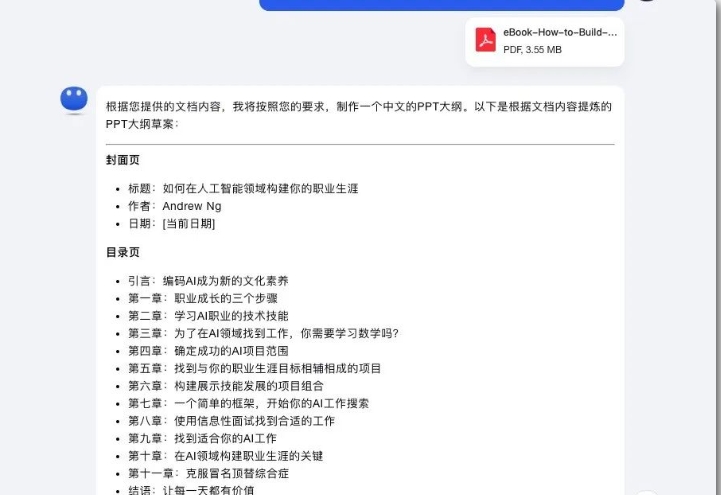
3. Check and adjust the outline
After Kimi generates the PPT outline, you can check whether the outline meets your requirements. You can always adjust or regenerate your outline if you're not satisfied.
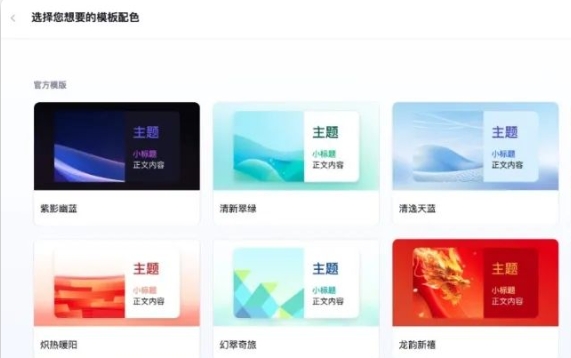
4. Generate PPT with one click and select a template
After confirming that the outline is correct, click the "Generate PPT with one click" button and Kimi will start generating PPT. At this time, you can choose the appropriate PPT template based on options such as "template scene", "design style" and "theme color".
5. Wait for the PPT to be generated and edit
After a period of waiting (the specific time may vary depending on network conditions and the number of users), Kimi will generate the first draft of the PPT. You can enter the editor to further edit the PPTEditand beautification, including modifying outlines, replacing templates, inserting elements, adjusting text, shapes,pictures, table and other settings.
6. Download PPT
After editing is completed, you can click the "Download" button to download the PPT locally. Kimi supports a variety of download types, including PPT,picturesand PDF etc.

The above is what the editor of Huajun compiled for you.How does kimi generate PPT? The operation process of kimi generating PPTLa, hope this helps.