
Hot search terms: 360 Security Guard Office365 360 browser WPS Office iQiyi Huawei Cloud Market Tencent Cloud Store
Hot search terms: 360 Security Guard Office365 360 browser WPS Office iQiyi Huawei Cloud Market Tencent Cloud Store
1. Check battery information;
After running the software, double-click the taskbar icon, and the battery status display interface will pop up. In the "Details" interface, you can also check the battery loss, discharge cycle, and calibration times;
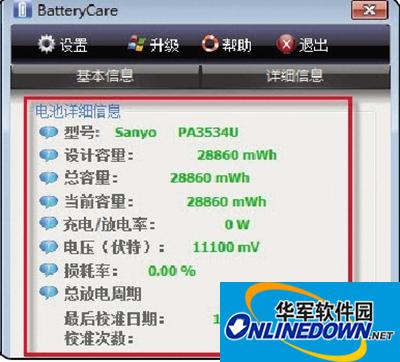
Check battery information with BatteryCare
2. Perform "optimization" settings;
Click the "Settings" button, in the "General" tab, check "Automatically start with Windows". If the notebook is pre-installed with Win7 system, in order to maximize energy saving and extend battery life when working on the move, it is recommended to check the first three items under "Optimization";
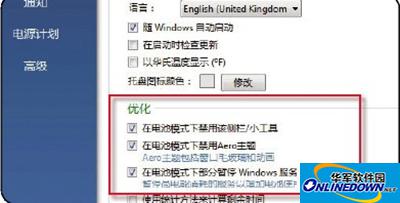
Check the necessary optimization options
3. Set the time for battery alarm;
Switch to the "Notifications" tab, where you can set reminders for battery power usage. For example, when the remaining battery life is less than 30 minutes, a warning notification will be issued to charge as soon as possible. You can also set warnings for low battery power and critical battery power to prevent automatic shutdown and loss of unsaved data documents.
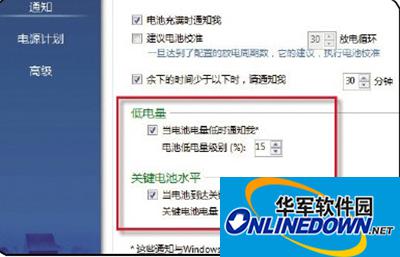
Notify the user to charge when the battery is low

 How to add background music in python-How to add background music in python
 How to configure environment variables in python - How to configure environment variables in python
 How to run python - How to run python
 How to create a project in python - How to create a project in python
 How to make a blue sky background with scratch-How to make a blue sky background with scratch
 Microsoft Edge browser
 Steam
Steam
 Tencent Video
 WPS Office
 iQiyi
iQiyi
 Sohu video player
 Lightning simulator
 MuMu emulator
 Eggman Party
 What to do if there is no sound after reinstalling the computer system - Driver Wizard Tutorial
 How to switch accounts in WPS Office 2019-How to switch accounts in WPS Office 2019
 How to clear the cache of Google Chrome - How to clear the cache of Google Chrome
 How to fire bullets in scratch-How to fire bullets in scratch
