
Hot search terms: 360 Security Guard Office365 360 browser WPS Office iQiyi Huawei Cloud Market Tencent Cloud Store
Hot search terms: 360 Security Guard Office365 360 browser WPS Office iQiyi Huawei Cloud Market Tencent Cloud Store

web browsing Storage size: 1.98MB Time: 2022-03-22
Software introduction: It is a generation of Internet Explorer that was born in Windows 8.1. It has optimized functions based on the previous version and is better than IE1 in terms of performance...
Microsoft's new enterprise mode for IE11 already supports Win8.1 2014 Update and Windows 7 SP1 platforms respectively. However, IE11 uses the standard mode to access websites by default. How to enable this hidden enterprise mode? Below, IT House has also compiled Chinese version graphic tutorials for users of the two platforms.
Win8.1 UpdateChapter:
Previously, the IT House Forum released the English version of "Turn on the enterprise mode of IE11 in Win8.1 Update". The editor also compiled a Chinese graphic tutorial for the convenience of domestic users.
System platform:Win8.1 Update 6.3.9600.16610 Enterprise Edition (64-bit platform)
Operation tutorial:
1. Right-click the taskbar start button, select "Run" to open the run box (or use the key combination Win+R to open run)
2. Enter gpedit.msc to enter the "Local Group Policy Editor" (Note: This function does not support Win8/Win8.1 Core Edition and requires Win8/Win8.1 Professional Edition or above system platform)
3. Navigate to: Computer Configuration》Administrative Templates》Windows Components》Internet Explorer
4. Select the "Allow users to enable and use Enterprise Mode from the Tools menu" option on the right side of "Internet Explorer"
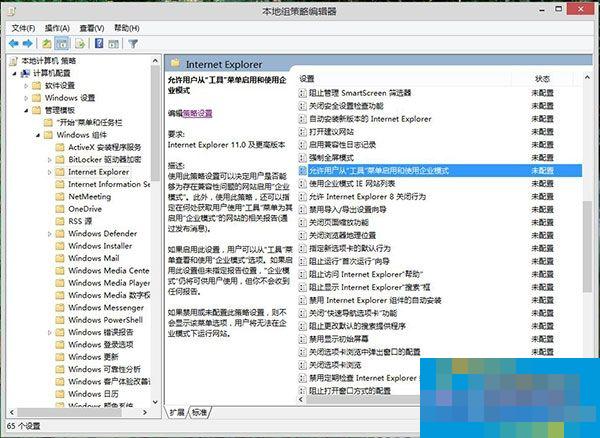
5. Double-click to open "Allow users to enable and use Enterprise Mode from the Tools menu", configure it to "Enabled", and the application will take effect.

6. Restart the current system to take effect.
7. When using IE11 to access relevant websites, you only need to select "Enterprise Mode" on the toolbar to access the webpage in IE8 compatibility mode.
▲After turning on IE11 enterprise mode, and using "User Agent" to query, it is the standard version of IE8 browser
Windows7SP1 article:
System platform:Win7 6.1.7601.17514 Professional Edition (64-bit)
Operation tutorial:Similar toWin8.1 UpdateTutorial, but with a difference.
1. Click the Start button, enter "Run" in the search box to open the Run box (or press the key combination Win+R to open Run)
2. Enter gpedit.msc to enter the "Local Group Policy Editor" (Note: This function does not support Win8/Win8.1 Core Edition and requires Win8/Win8.1 Professional Edition or above system platform)
3. Navigate to: Computer Configuration》Administrative Templates》Windows Components》Internet Explorer
4. Select the "Allow users to enable and use Enterprise Mode from the Tools menu" option on the right side of "Internet Explorer"
5. Double-click to open "Allow users to enable and use Enterprise Mode from the Tools menu", configure it to "Enabled", and the application will take effect.
6. Restart the current system to take effect.
7. When using IE11 to access relevant websites, just press "F12", open the IE11 development tools, switch to "Simulation", change the browser configuration file to "Enterprise", and then you can use IE8 compatibility mode to access the web page.
Source of this article: Win8 Home - "How to enable IE11 enterprise mode in Win7/Win8.1 Update"
WeChat search "IT Home"Pay attention to grab the 6S gift! DownloadIT HomeClients (click here) can also participate in comments to draw floor prizes!

 How to draw a lottery in 360 Software Butler - How to draw a lottery in 360 Software Butler
 Microsoft Edge browser
 Steam
Steam
 Tencent Video
 WPS Office
 iQiyi
iQiyi
 Sohu video player
 Lightning simulator
 MuMu emulator
 Eggman Party
 What to do if there is no sound after reinstalling the computer system - Driver Wizard Tutorial
 How to switch accounts in WPS Office 2019-How to switch accounts in WPS Office 2019
 How to clear the cache of Google Chrome - How to clear the cache of Google Chrome
 How to fire bullets in scratch-How to fire bullets in scratch


