-
PixSmart Live Assistant
- Size: 170M
- Language: Simplified Chinese
- Category: image processing
- System: Win






PixSmart Live Broadcast Assistant is an intelligent auxiliary tool specially designed for e-commerce live broadcasts. It provides functions such as multi-platform streaming, real-time data monitoring, intelligent field control and interactive enhancement. It supports mainstream live broadcast platforms such as Douyin, Taobao, and Kuaishou, helping anchors achieve efficient operations such as high-definition stable push streaming, automatic reply to barrages, one-click product listing, and promotion countdown. The built-in AI data analysis panel monitors audience interaction, traffic trends and conversion effects in real time to help optimize live broadcast strategies. Whether it is an individual anchor or a professional team, PixSmart can significantly improve live broadcast efficiency and audience experience, making every live broadcast smarter, smoother, and more valuable! Friends who like PixSmart Live Assistant, come to Huajun Software Park to download and experience it!
Highlights of PixSmart Live Assistant
Simple and easy to use: The interface is simple and intuitive, even novice anchors with no experience can get started quickly.
Efficient interactive experience: Provide interactive functions such as barrages, likes, and gift-giving to enhance the interaction between the audience and the anchor and make the live broadcast more interesting.
Personalized customization: Supports the foreground layer function. Users can add text, stickers, windows and other stickers, and freely adjust layer size ratio, font, font size, font color and other parameters to create a personalized live broadcast interface.
Safe and reliable: The software has undergone strict security testing, with no ads and no bundling, ensuring user data security and privacy protection during use.

PixSmart Live Assistant Function
Advanced beauty
Exclusive AI fill light function: Even in less than ideal lighting conditions, the intelligent fill light technology can give the anchor a natural beauty.
24 items of exquisite beauty adjustments: covering facial features plastic surgery (such as face slimming, enlarged eyes, rhinoplasty), facial contour adjustment (such as V-face, chin shaping), and detail beautification of dark circles, nasolabial folds, etc., to meet personalized beauty needs.
virtual background
Multiple cutout modes: Supports green screen, blue screen and non-green screen AI real-time cutout, enabling accurate background replacement without the need for complex equipment.
Processing of multiple people and complex backgrounds: Using hair-level segmentation technology to ensure natural and smooth edges, it can easily handle even if there are multiple people in the same frame or the background is complex.
Free background replacement: Supports free replacement of picture and video backgrounds, adding creativity and flexibility to live broadcasts.
real time recording
Multi-scene recording: supports recording PPT, game screens, etc. as background to meet different live content needs.
High-definition image quality: Provides high-definition, Blu-ray, and lossless image quality screen recording options, and the preview effect can be directly made into a video to ensure high-quality presentation of live content.
PixSmart Live Assistant Usage Tutorial
1. Preparation for live broadcast
First, download the PixSmart Live Assistant client (hereinafter referred to as "Live Assistant") and follow the prompts to complete the installation.
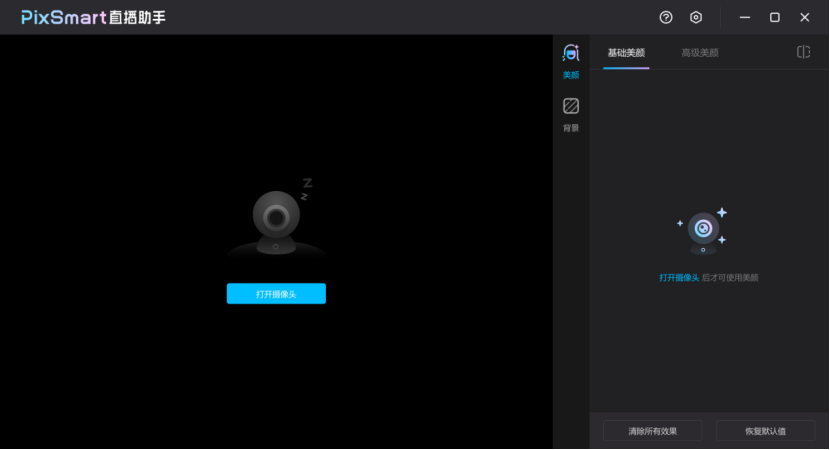
After successful installation, please confirm that the camera is not occupied by other software, and then open the live broadcast assistant; if the camera is found to be unavailable, the following prompt will appear, please click the [Open Camera] button.
Select the camera and resolution in the settings.
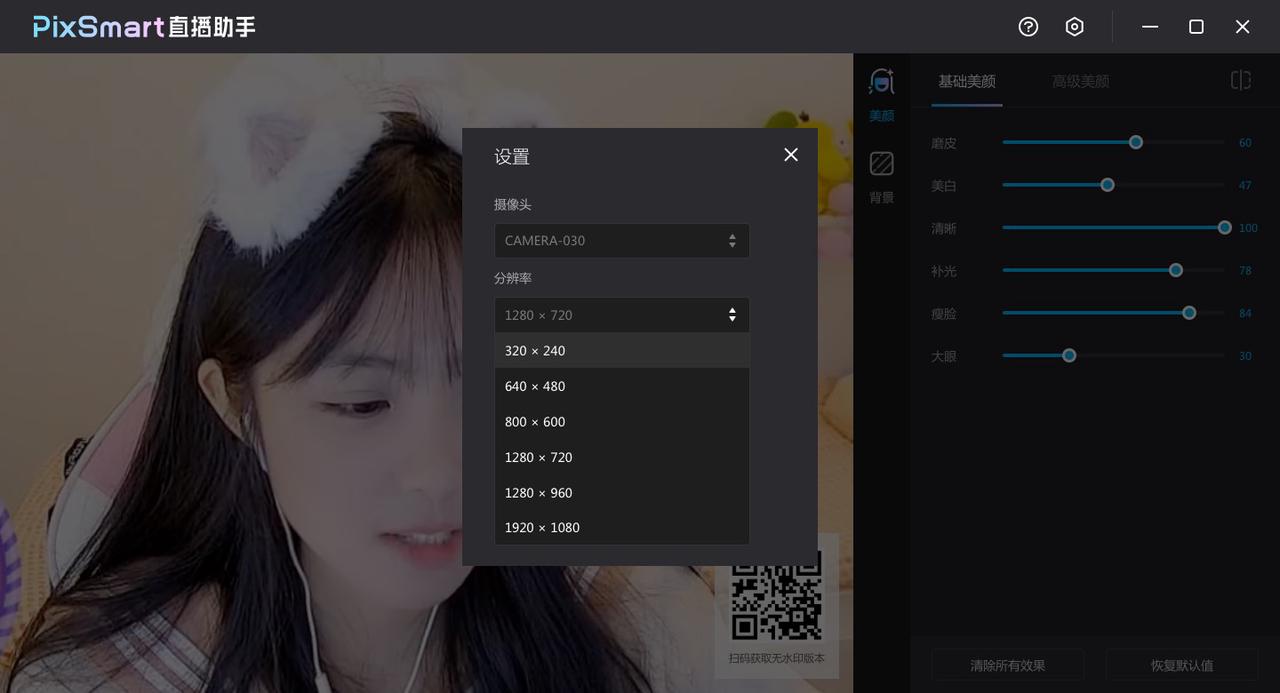
After the settings are completed, click the beauty function to perform basic beauty and advanced beauty adjustments. Basic beautification includes basic contour adjustment and skin beautification, which can achieve quick beautification. If you need more detailed effects, you can perform subdivided adjustments for facial features in advanced beautification.

You can choose whether to use the virtual background function according to your needs. The background supports static and dynamic effects. You can directly select template materials or upload pictures (jpg format) or video (MP4 format) files yourself.

2. Start live broadcast
After adjusting the effect of the live broadcast assistant, you can start the live broadcast.
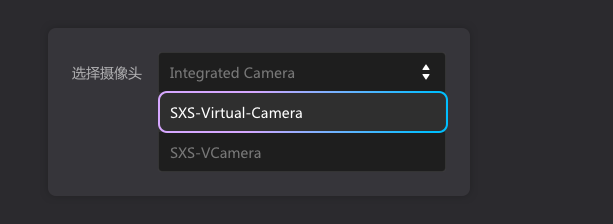
Open the live broadcast application and select the "SXS-Virtual-Camera" camera in the camera settings to use the assistant screen as the live broadcast screen.
How to record live content?
Operation:
Turn on the local recording function in the software "Settings → Recording".
Select the recording format (MP4/FLV) and save path.
Click the "Start Recording" button to automatically save the file after the live broadcast.
How to backup/restore software configuration?
Operation:
Backup: Copy the software configuration folder (path: C:Users[username]AppDataRoamingPixSmart) to another location.
Restore: Delete the current configuration folder, paste the backup folder back to the original path and restart the software.
PixSmart Live Assistant update log
1. Add scene template function to generate decoration live broadcast room with one click
2. Add preset material editing function and customize decoration
3. Fix known bugs
Huajun editor recommends:
PixSmart Live Assistant is a software that does not require learning to use. It is a very simple tool. Users in need can download and use it in the Huajun Software Park to ensure your satisfaction. In addition, there are many similar software of the same type available for download, such as: Adobe Illustrator CC, AutoCad 2020, AutoCad 2020, etc.
Version: Official version | Update time: 2025-12-05
Similar recommendations





Latest updates





How to delete history in Video Pioneer? -How to delete history records by Video Pioneer
How to set the skin for Video Pioneer? -How to set skin for Video Pioneer
How to upgrade software in 360 Software Manager? -How to upgrade software in 360 Software Manager
How to draw a lottery in 360 Software Butler - How to draw a lottery in 360 Software Butler
PixSmart Live Assistant Review
-
1st floor Huajun netizen 2022-06-30 19:49:57PixSmart Live Assistant is awesome! 100 million likes! ! !
-
2nd floor Huajun netizen 2022-06-29 16:27:23The overall feeling of PixSmart Live Assistant is good and I am quite satisfied with it. The installation and operation are very smooth! It went very smoothly following the installation step-by-step guide!
-
3rd floor Huajun netizen 2022-07-08 11:53:49PixSmart live broadcast assistant is not bad, downloads very quickly, I give you a good review!
Recommended products






- Diablo game tool collection
- Group purchasing software collection area
- p2p seed search artifact download-P2P seed search artifact special topic
- adobe software encyclopedia - adobe full range of software downloads - adobe software downloads
- Safe Internet Encyclopedia
- Browser PC version download-browser download collection
- Diablo 3 game collection
- Anxin Quote Software
- Which Key Wizard software is better? Key Wizard software collection