How to use Stellarium virtual planetarium - How to take screenshots with Stellarium
Time: 2021-08-30Source: Huajun Software TutorialAuthor: Aotuman
Recently, many friends have expressed that they still don’t know how to use Stellarium Virtual Planetarium to take screenshots? Below, the editor will share with you how to use Stellarium Virtual Planetarium to take screenshots. Friends in need can come and take a look.
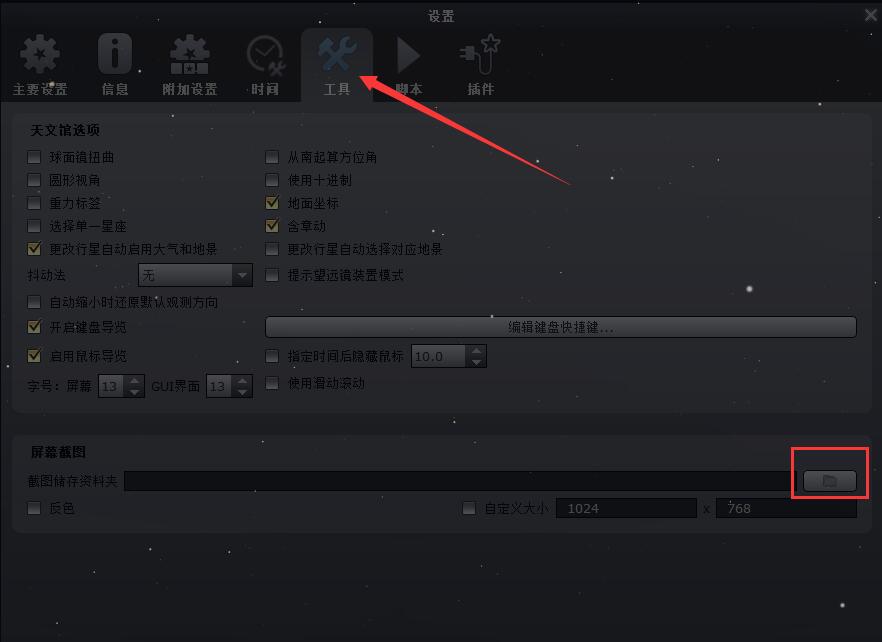
1. First, open the installed Stellarium virtual planetarium on your computer, click the "F2" button on the keyboard to open the software settings window, then use the left button of the mouse to click to switch to the "Tools" tab, and click the folder icon as shown in the figure to select the directory where the screenshots are stored. After selecting, close the settings window and click the "Ctrl" + "S" key combination to take a screenshot.
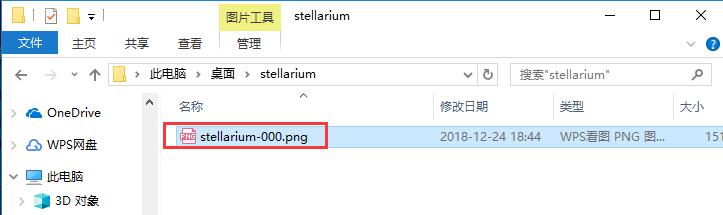
2. Then open the storage folder you set before, and you can find the captured pictures in it.
The above is the method shared by the editor to take screenshots using the Stellarium virtual planetarium. I hope it can help everyone.
Popular recommendations
-
Google Earth Pro
Version: 7.3.6.10201Size: 121.85 MB
Google EarthPro is a software that uses 3D map positioning technology to push the latest satellite images on Google Map to a new level. Use...
-
Google Earth
Version: 7.1.8.3036Size: 29.17 MB
Google Earth is a mapping software developed by Google. Google Earth uses Google's satellite technology to cover anywhere in the world...
-
Google Earth Chinese version
Version: v7.3.6.10201Size: 121.85 MB
Google Earth is a three-dimensional virtual earth developed by Google based on satellite remote sensing, aerial photography and geographic information system (GIS) technology...
-
-
Picture new earth
Version: latest versionSize: 231.40MB
Tuxin Earth official version is a very popular, professional and practical 3D digital earth software. Tuxin Earth official version software is powerful and provides online map browsing...