Don’t you know how to use the Stellarium virtual planetarium for stargazing? If you don’t know how, come and learn how to use the Stellarium virtual planetarium for stargazing with the editor. I hope that this tutorial can help everyone better understand the Stellarium virtual planetarium.
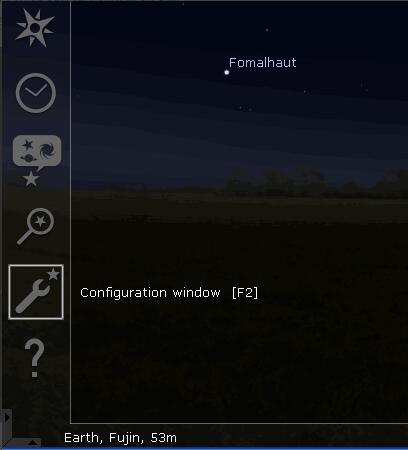
First, open the Stellarium virtual planetarium, move the mouse to the lower left side of the screen or press the F2 key to enter the "Settings" option.
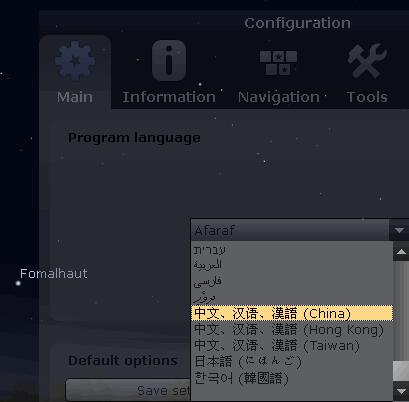
After entering the "Settings" window, find Chinese in the drop-down menu, select it, and the software will display in Chinese. There is no need to save. When you enter the software again, it will be displayed in Chinese. In other words, once a language is selected, it becomes the default language.
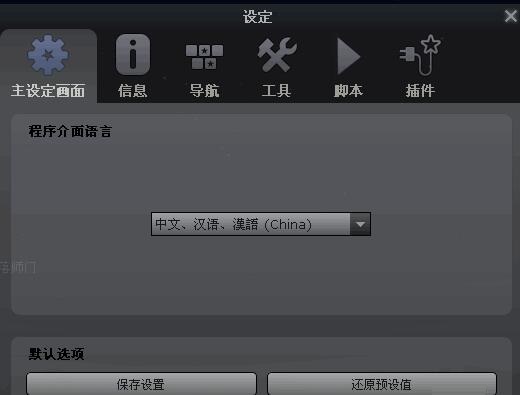
Click "Save Settings" to save the stargazing settings, such as location, observation direction, constellation status selection, window status, etc., not just the language settings.
Location:
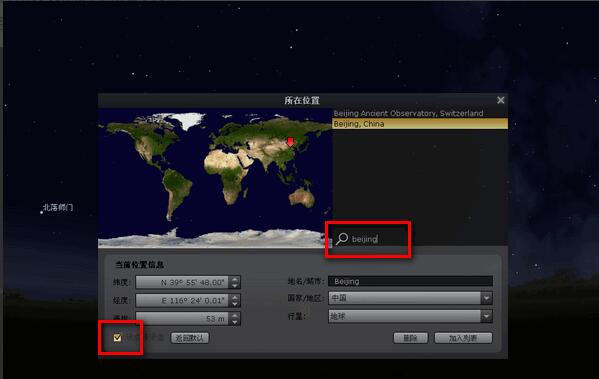
Move the mouse to the lower left side of the screen, select the "Location" option or press the "F6" key.
Enter the name of the city you want to search behind the "magnifying glass" icon. This version does not support Chinese search. Click on the city found above, select "Set as Default", and this location will become the default.
You can also use the mouse to left-click on the map, and the selected place is the observation location.
View help:
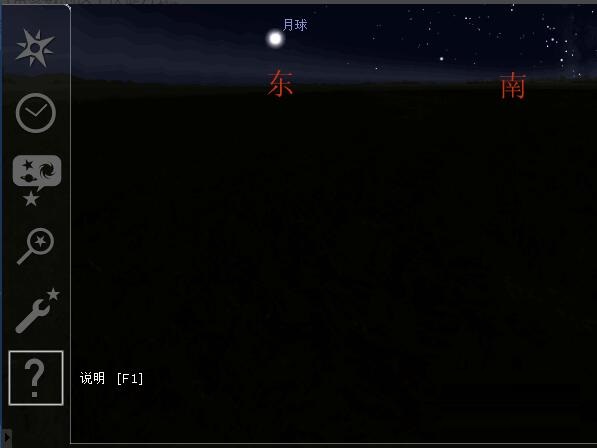
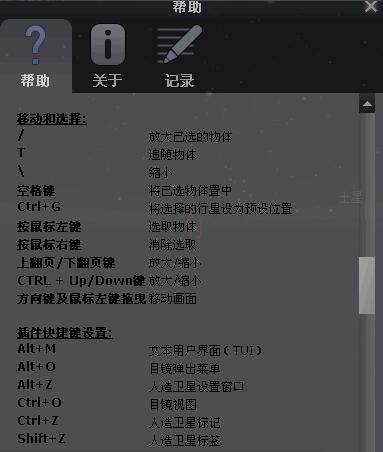
Select the "Help" option or press the "F1" key to enter the help. From here you can master the shortcut keys for various functions of the software.
Hold down the left button and drag the mouse to select the three words "shortcut key", then move the mouse down, and the entire help content will be selected. Press the right button to bring up the menu, select "copy" to copy, then create a new text document and paste the help content into the document. In this way, viewing help is more convenient than in the software.
Menu status:
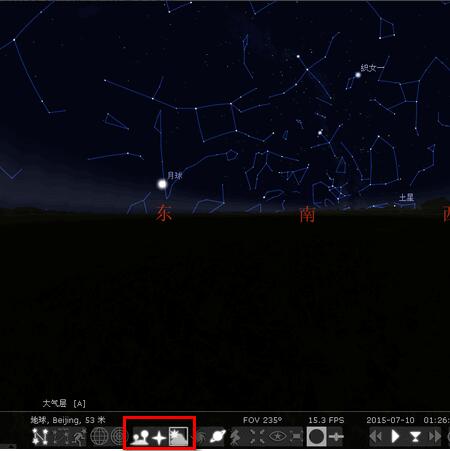
In the menu at the bottom of the screen, there are commonly used function options. After selection, the icon status will light up to indicate that the option is selected. Various effects will be displayed after selection.
For example: If the "Atmosphere" state is not selected, the daytime background will be removed and the starry sky can be clearly displayed.
Eyepiece use:
Click "Eyepiece View" in the menu bar below, and you will be prompted "Before you enable the eyepiece view, please select a celestial body." This means that you must first select a star and then click "Eyepiece View".
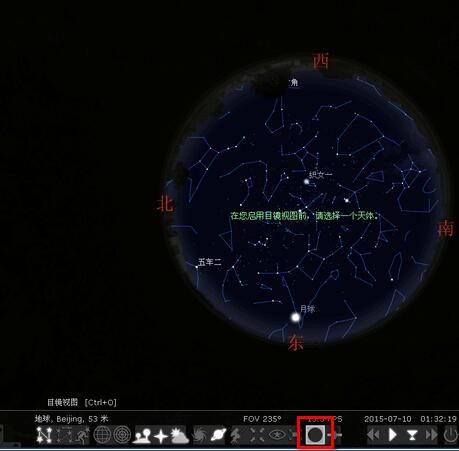
Take "Moon" as an example. First click it with the left button to display the selected state. Information related to the selected star will be displayed in the upper left corner. Right-click anywhere on the screen to cancel the selection and return to the unselected state.
In the selected state, with the selected celestial body as the target, you can use the circle key in the middle of the mouse to shorten the distance to the target celestial body. When you zoom in closer, you'll see a photo of the celestial body's surface. At this time, you can pause the normal time speed and the picture will stop, making it easier to observe close-up.
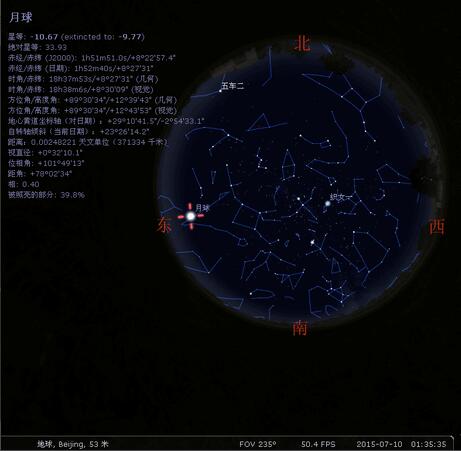
After selecting the target celestial body, click "Eyepiece View" to display the close-up effect of the selected celestial body. Use the direction keys to move the eyepiece, and you will find that you are observing through a telescope.
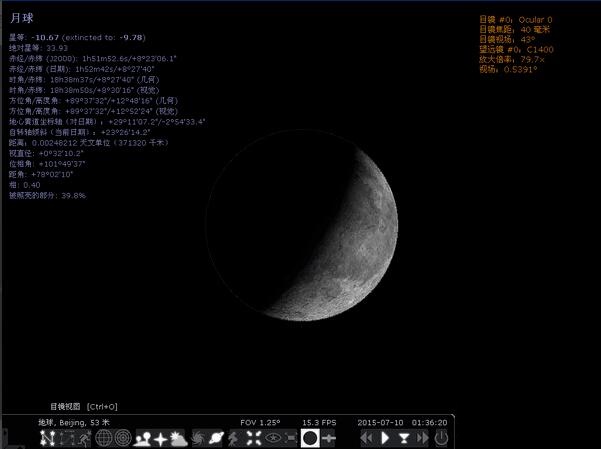
Adjust run time:
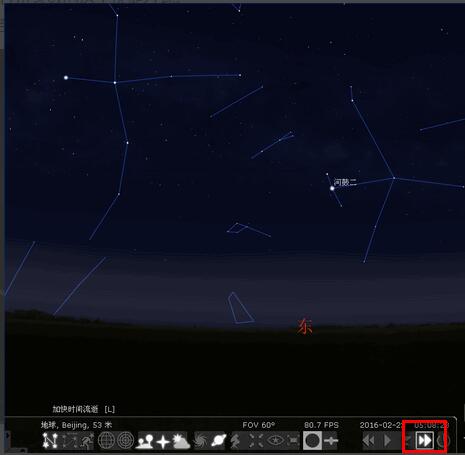
On the right side of the menu bar is the time control area. There are four time modes to choose from, slow down the passage of time, normal time speed, jump to the current time, and speed up the passage of time.
Use "Slow down the passage of time" to turn back time and go back to 100,000 years ago.
"Normal time speed" is synchronized with real time, and the starry sky displayed is the same as what is observed in reality.
"Jump to current time" returns to the starry sky state displayed at the current time.
"Speed up the passage of time", time moves forward rapidly, reaching the state of the starry sky 100,000 years later.
The button on the right side of the time control area is the "Exit" key. Click it and the software will exit.
The above is the operation method of stargazing using Stellarium virtual planetarium shared by the editor. Interested friends can come and take a look.