Recently, some friends have consulted the editor about how to set up the click setting of Huahua Mouse Automatic Clicker. Here is the operation method for setting up and using the Huahua Mouse Automatic Clicker. Friends in need can come and learn more.
1. After the installation is completed, open the software installed on the desktop, and you can see the set interface, as shown in the figure:
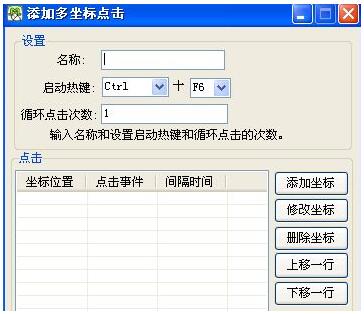
2. Click the single click option above. You can make corresponding settings below, such as: left or right mouse click, number of clicks, content clicked, click frequency,
3. Click the multi-point setting option to modify the script, delete, add or stop hotkeys, start hotkeys or disable and enable scripts, just set them as needed, as shown in the figure:
Huahua mouse automatic clicker click setting tutorial
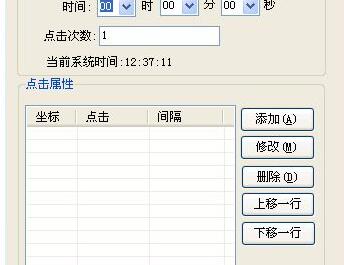
4. Use the left mouse button and set the speed to 5S/when experiencing drawing, which is exactly in line with experience drawing.
5. Shortcut keys can be set in the hot key settings. Start Auto Click by pressing the shortcut key set to Done, which defaults to F5.
6. After using our free lottery, place the mouse on ‘Re-Draw’, and then press F5 to turn on automatic click (automatic lottery)
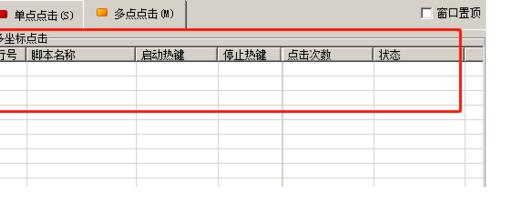
7. The mouse will not move, it will always click on the mouse position. Press the default shortcut key F6 to stop the lottery when you need to.
As an easy-to-use mouse assistance software with zero negative reviews, Huahua Mouse Auto Clicker has been praised by users since its launch on the market. It can be used for playing games, online shopping, and even when buying Spring Festival travel train tickets, and the effect is also very good. Huahua Mouse Automatic Clicker can record mouse clicks according to the user's clicking habits, and set our usage habits to the mouse's macro program, making it easier for us to operate in the future.
The above is all the content brought to you by the editor. Have you all learned it?