Xunlei Cloud Disk is an intelligent cloud storage product that integrates secure storage, extremely fast downloading and convenient sharing. It inherits Xunlei's leading download acceleration technology. Whether you are uploading files to the cloud or downloading them locally, you can enjoy an extraordinary speed experience. It is especially good at processing large files. You can synchronize, access and manage data between multiple devices such as mobile phones and computers at any time, and easily share it with others by generating links. In addition, it also provides special functions such as online preview and lightning mutual transfer. It is a powerful tool that takes into account personal data backup, efficient transmission and collaborative sharing. Next, let the editor of Huajun explain to you how to set up and add directories on Thunder Cloud Disk and how to set up and add directories on Thunder Cloud Disk!
first step
Double-click the Thunder icon on the desktop or launch the program from the Start menu.

Step 2
Click the "three horizontal lines" icon in the lower left corner of the Thunder interface (or the three horizontal lines icon in the menu bar in the upper right corner).

Step 3
In the pop-up menu options, select "Settings Center" or "Settings".

Step 4
In the settings interface, click the "Cloud Disk Settings" option in the left sidebar.

Step 5
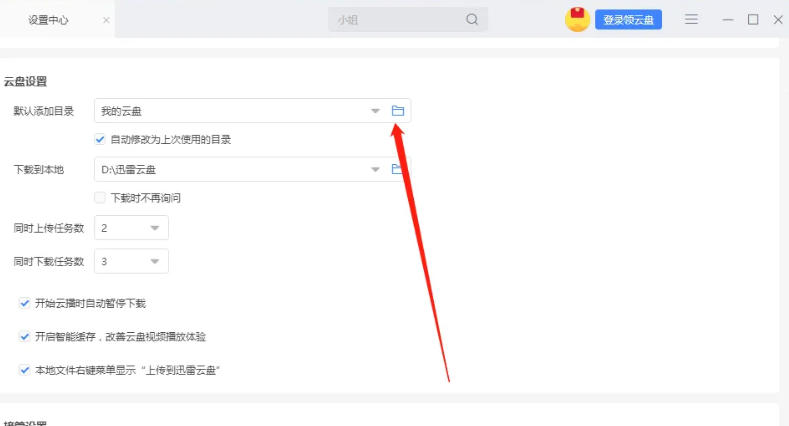
In the "Cloud Disk Settings" interface, find the "Add Directory by Default" option.
Step 6
Click the folder icon after "Add Directory by Default" and follow the prompts to select or create a new folder as the default directory. After confirming the settings, click the "Save" or "OK" button.
The above is how the editor of Huajun compiled for you how to set up and add directories on Thunder Cloud Disk and how to set up and add directories on Thunder Cloud Disk. I hope it can help you!