Xunlei Cloud Disk is Xunlei's intelligent cloud storage service based on advanced transmission technology. It deeply integrates the download acceleration capabilities of Xunlei core to provide users with ultra-high-speed upload and download experience, especially in the processing of large files. You can safely back up all kinds of files to the cloud, synchronize them in real time on mobile phones, computers, and other devices for easy access and management. By generating sharing links with one click, you can efficiently deliver large materials. Its "Lightning Mutual Transmission" and other functions further enhance transmission efficiency and achieve full-link acceleration from storage, synchronization to sharing. It is a cloud storage tool designed for efficient users. Next, let the editor of Huajun explain to you how to modify local folders on Thunder Cloud Disk and how to modify local folders on Thunder Cloud Disk!
first step
Double-click the Thunder icon on the desktop or launch the program from the Start menu and make sure to log in to your account.

Step 2
In the lower left corner of the Thunder main interface, click the "three horizontal lines" menu icon (or the gear icon in the upper right corner). In the drop-down menu, select Settings Center (some versions may read "Settings").

Step 3
In the navigation bar on the left side of the settings window, click "Cloud Disk Settings" (if there is no category on the left, you can directly search for "Cloud Disk" on the right).

Step 4
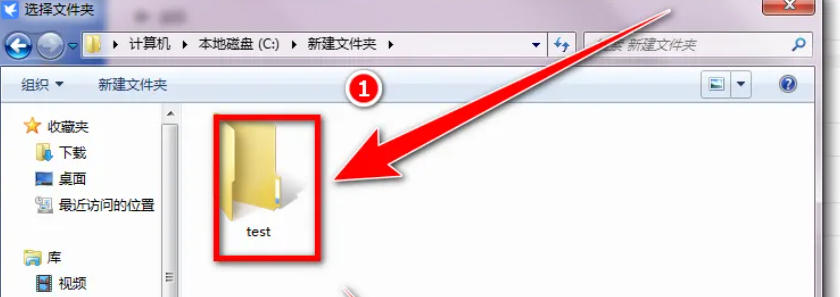
In the settings on the right, find "Retrieve local directory" (or "Download directory" or "Default save path"). Click the "Folder Icon" on the right to pop up the "Select Folder" window.

Step 5
Browse and select the new folder path where you want to save the files (such as a custom folder under the D drive). Click "Select Folder" to confirm the changes.
Step 6
Download a file from Thunder Cloud Disk and check whether it is automatically saved to the newly set path. If it does not take effect, you can restart the Thunder software or log in to your account again.

The above is how the editor of Huajun compiled for you how to modify local folders on Thunder Cloud Disk and how to modify local folders on Thunder Cloud Disk. I hope it can help you!