Flash Wizard is an intelligent one-click flash tool designed specifically for Android devices. It aims to allow ordinary users to safely and conveniently complete system upgrades, replacements or repairs through a highly automated process. The software has built-in a large number of verified official and third-party ROM resource libraries, and can intelligently identify mobile phone models and automatically match adapted firmware and solutions. Its core "one-click flash" function can automatically complete the entire process from unlocking and rooting to flashing recovery and installing a new system, which greatly lowers the technical threshold. In addition, it also integrates practical tools such as system backup, data recovery, and mobile phone brick rescue, providing Android users with an integrated solution from system optimization to fault repair. Important note: Flashing your phone has potential risks. Please be sure to back up your personal data and make sure the battery is sufficient before operating. Next, let the editor of Huajun explain to you how to uninstall the software that comes with the flash wizard and how to uninstall the software that comes with the flash wizard!
first step
Install the latest version of the flash wizard on your computer and turn on USB debugging mode on your phone (path: Settings → About Phone → Click the version number 7 times → Return to Developer Options → Turn on USB debugging). Connect the phone to the computer using a data cable and wait for the flash wizard to recognize the model.

Step 2
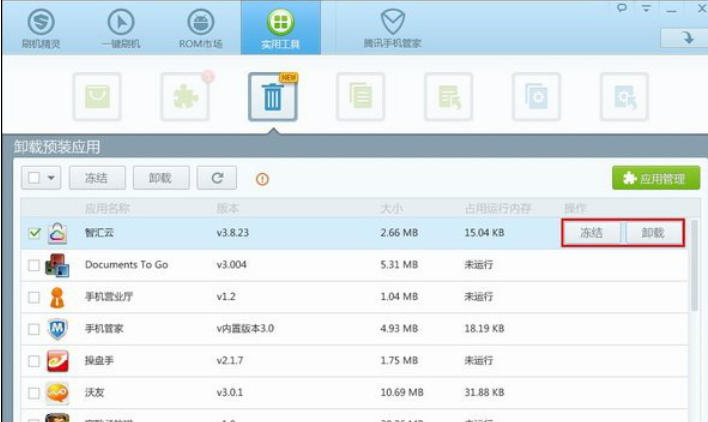
Click [Utilities] on the main interface of the Flash Wizard → select [Uninstall pre-installed applications].

Step 3
Completely delete the app to free up storage space (but it may affect system functions. For example, uninstalling the system camera may cause third-party cameras to be unable to call hardware).

Step 4
Disable application running to reduce background power consumption and memory usage (the application remains in the phone and can be unfrozen at any time).
Step 5
After selecting the target application, click [Continue] and wait for the operation to complete.

Step 6
After uninstalling, check the app list to confirm that the app has disappeared. If you try to open the app after freezing, you should be prompted with "The app has been frozen" or it will not start.

The above is how Huajun editor compiled for you how to uninstall the software that comes with the flash wizard and how to uninstall the software that comes with the flash wizard. I hope it can help you!