
Hot search terms: 360 Security Guard Office365 360 browser WPS Office iQiyi Huawei Cloud Market Tencent Cloud Store
Hot search terms: 360 Security Guard Office365 360 browser WPS Office iQiyi Huawei Cloud Market Tencent Cloud Store

audio editing Storage size: 1.91MB Time: 2021-02-23
Software introduction: Adobe Audition Chinese version is a professional audio editing and mixing environment developed by Adobe. Whether it is used for recording music, advertising...
Friends, do you know how to use the built-in mixer of Adobe Audition CS6? Today I will explain Adobe Audition If you are interested in how to use the built-in mixer of CS6, please come and take a look with the editor. I hope it can help you.
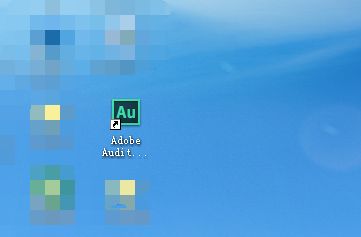
Step 1: First we open the Adobe Audition CS6 software (as shown in the picture).
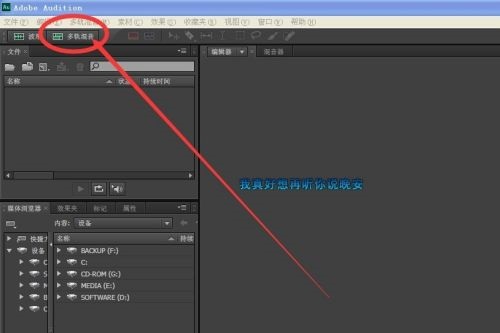
Step 2: Click Confirm on the pop-up interface, and click Create Multi-Track (as shown in the picture).
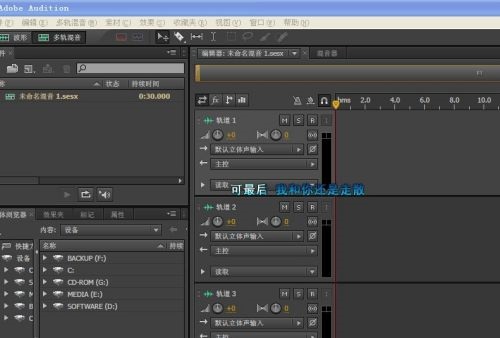
Step 3: Get the following interface (as shown in the picture).
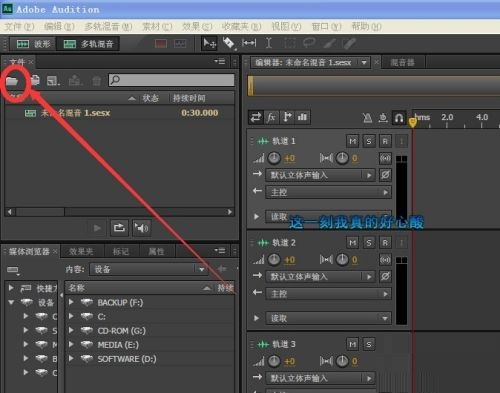
Step 4: Click the file button and find the music you want to mix on your computer (as shown in the picture).
Step 5: Drag the music to the multi-track you just created (as shown in the picture).
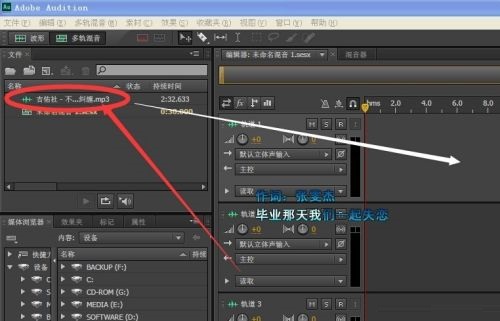
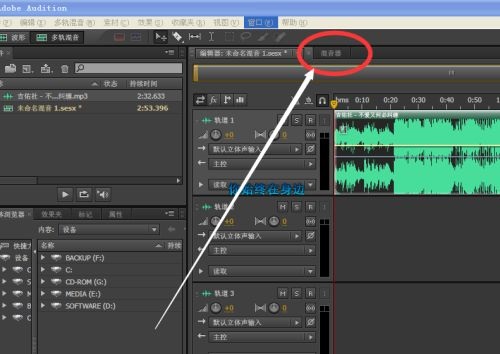
Step 6: Click the mixer on the multi-track interface (as shown in the picture).
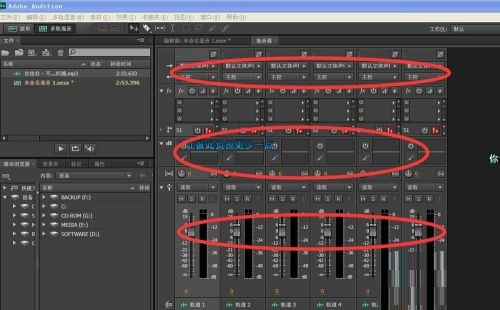
Step 7: In the pop-up interface, you can adjust the music mix, accompaniment and vocal volume (of course, it is best to have two tracks for more obvious effects), that is, one track for accompaniment and one track for your own recorded sound (as shown in the picture).
The above is all the content that the editor brings to you on how to use the built-in mixer of Adobe Audition CS6. I hope it can help you.

 How to draw a lottery in 360 Software Butler - How to draw a lottery in 360 Software Butler
 Microsoft Edge browser
 Steam
Steam
 Tencent Video
 WPS Office
 iQiyi
iQiyi
 Sohu video player
 Lightning simulator
 MuMu emulator
 Eggman Party
 What to do if there is no sound after reinstalling the computer system - Driver Wizard Tutorial
 How to switch accounts in WPS Office 2019-How to switch accounts in WPS Office 2019
 How to clear the cache of Google Chrome - How to clear the cache of Google Chrome
 How to fire bullets in scratch-How to fire bullets in scratch


