-
Blizzard Battle.net
- Size: 4.69M
- Language: Simplified Chinese
- Category: online games
- System: Win All






Battle.net clientIt was set up by BlizzardGame battle platform, easy to use, you can use it after downloading and installing.blizzardThe Battle.net client provides you with news, strategies, activities and other information on a variety of games. The important thing is that it can provide you with a variety ofblizzard platformgames, bringing you an efficient and convenient gaming experience. Friends who like Blizzard Battle.net client come to Huajun Software Park to download and experience it!

Blizzard game discount information
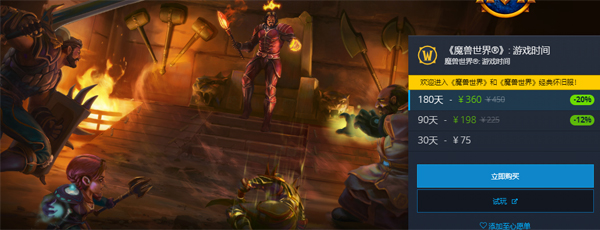
The price of World of Warcraft has been reduced. You can choose any of three charging methods to purchase game time (30 days, 90 days and 180 days), and you can immediately play "World of Warcraft" and "World of Warcraft" classic server. Join millions of players and enter a world of myth, magic and endless adventure!
Blizzard Battle.net client function introduction
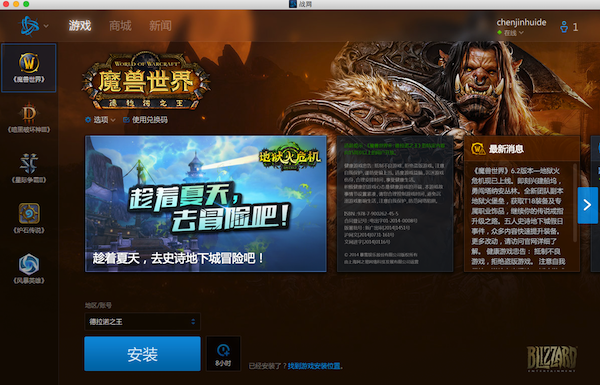
1. The Blizzard Battle.net client allows you to log in to the game without frequently entering your account and password. You can just click to open the game.
2. View news, updates, events and other information on games such as "World of Warcraft", "StarCraft 2", "Diablo 3", "Hearthstone", "Heroes of the Storm" and other games.
3. Visit the game mall and preview and purchase the products in the mall.
4. Visit the forums of Blizzard’s games.
5. Modify your battle.net information.
6. You don’t need to log in to the game anymore, just chat with your friends in the game!
Blizzard Battle.net client software features
1. Enjoy Blizzard games in one stop
As long as you log in to the new Battle.net client, you can play all Blizzard games. You can even ask your computer to remember your account and password so you don't need to log in manually again for 30 days.
2. Always play and always be new
Automatically queues to download patches and other small updates for all Blizzard games, and Battle.net will automatically synchronize and save your game progress while you play.
3. Blizzard player community
Battle.net offers many ways to help you stay connected with other Blizzard players. Allows you to more easily connect with other players on Battle.net
4. I have the final say in my discussion
Battle.net can help you more easily integrate into the Blizzard gaming community both inside and outside the game. The new Battle.net client is like an information distribution center, where you can get all kinds of game information.
5. Build a community of tens of millions of players
Today, hundreds of millions of players are playing online games, and new players join this big family every day.
The origin of the development of Blizzard Battle.net client
In 1997, in order to cooperate with the release of the Battle.net system of "Diablo", Blizzard began to set up the Battle.net game platform (commonly known as Blizzard Battle.net). The initial Battle.net only provided services for "Diablo" players, allowing players on the wide area network to enter the local area network game. In addition, no player data or information is saved on the Blizzard server. Players are basically directly connected to each other, which also makes cheating common. In 1998, Blizzard released "StarCraft" and implemented new protection or restriction measures for Battle.net players. That is, you must use the 13-digit valid CDkey of "StarCraft" to log in to Battle.net, and added advanced systems such as chat and ranking.
"Diablo 2" released in 2000 made Battle.net a true server-client model. Player data will be stored on Blizzard servers. From this point of view, cheating such as modifying game data is more effectively eliminated.
In terms of competitive games such as StarCraft and World of Warcraft, Battle.net’s Ladder ranking system allows all players who are interested in honing their skills to immerse themselves in the game of victory and defeat. The Ladder system randomly matches your opponents, and the matched opponents are similar in level to you. Since players cannot specify their opponents, this effectively eliminates the possibility of both sides racking up points, and also prevents players with too large a level gap from meeting early. Blizzard Battle.net is mainly divided into four regions: Asia (mainly South Korea), Eastern United States, Western United States and Europe. In 2010, Battle.net joined the Chinese region.
Now the Blizzard Battle.net client has been officially renamed "Blizzard Game Platform". Battle.net allows gamers from all over the world to explore and travel with each other. Game platforms such as HF and VS can realize online battles with people online. Battle.net plays a role in connecting various game players and plays an indispensable role in the promotion of major competitive games.
Blizzard Battle.net client installation instructions
1. First download the Battle.net client software package from Huajun Software Park. After the download is completed, you will get the zip format compressed package. Right-click the compressed package and choose to extract it to the current folder to get the exe installation file. We can enter the software installation interface by double-clicking the exe file.
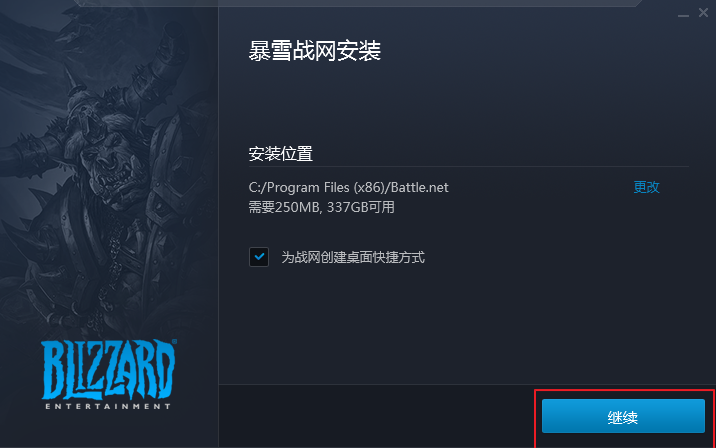
2. After entering the Blizzard Battle.net client installation interface, you can choose the default installation and directly click the Continue button at the bottom of the interface. The software will be installed to the system C drive by default. Or you can click Change, select Custom Installation, and after finding the suitable installation location, click the Continue option at the bottom of the interface. (The editor recommends that you choose custom installation and install the software to other disks. The C disk is the system disk. Too many software will cause the computer to run slowly.)
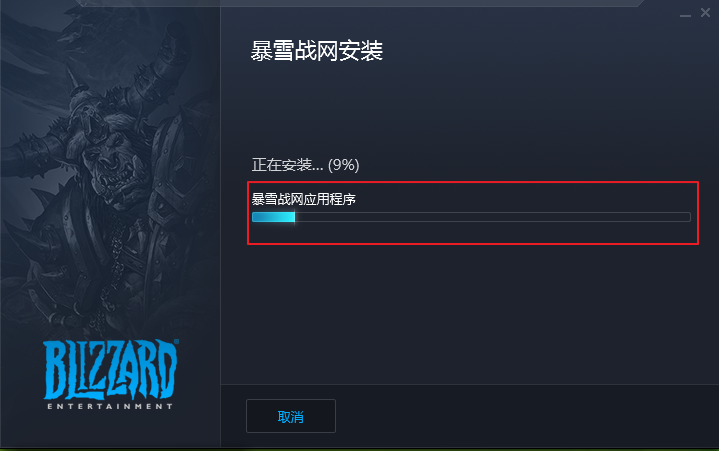
3. Enter the Blizzard Battle.net client installation interface. As shown in the picture below, the software is being installed. We just need to wait patiently for the installation progress bar to be completed.
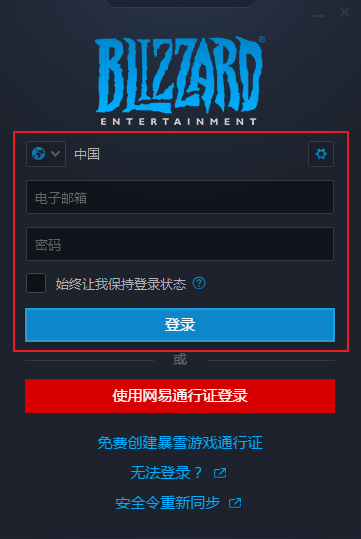
4. After the Blizzard Battle.net client software is installed, we can close the installation interface and open the software for use. As shown in the figure below, the software requires a login account and password before it can be used.
How to use Blizzard Battle.net client
1. First, after we download and install the Blizzard Battle.net client on this site, we open the login interface of the software, as shown in the figure below. We need to enter our account and password to log in or use a NetEase pass to log in. If not, we can click below to create a Blizzard Game Pass for free.
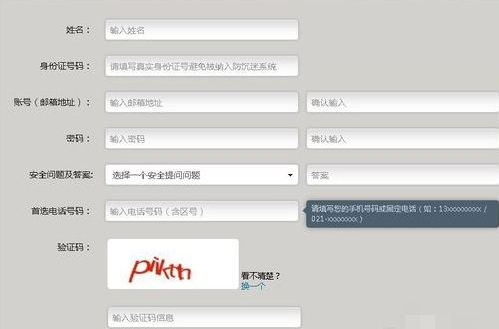
2. Enter the Blizzard Battle.net client account registration interface, as shown in the figure below. We enter our name, account number, email, password and other information. After the input is completed, we click Register.
3. Then we log in to the email address we filled in when registering the account, and then find the registration information in the email to confirm that the registration is successful.

4. Next, return to the Blizzard Battle.net client software login interface. We enter the successfully registered account and password to enter the main interface of the software. Then in the interface, you can find the game you want to play, download or update it, and then enter the game.
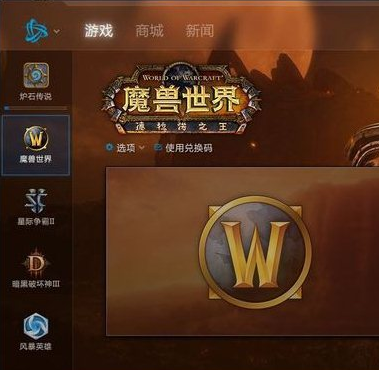
Blizzard Battle.net Client FAQ
What should I do if the Blizzard Battle.net client cannot be installed or opened?
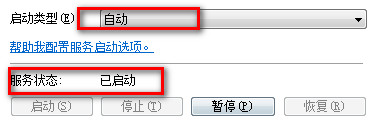
1. First we find the "My Computer" option on the desktop, then right-click the mouse and the menu bar will appear. We select the management option, and you can see the service and application options. We click this option and find [Secondary Logon Service] in the service options, then right-click and select [Properties], and then modify the startup type, as shown in the figure below.
2. Next we need to delete the Battle.net folder. If you are running Windows XP, the folder is located in C: Documents and SettingsAll UsersApplication DataBattle.net. If you are running Windows 7, the folder is located in C: ProgramDataBattle.net. We find it and delete it.
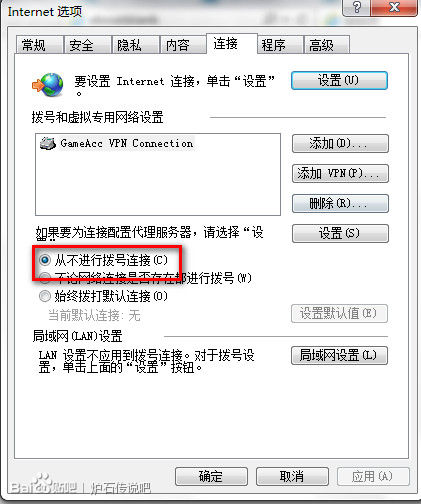
3. Then we set the browser. We open the IE browser on the computer, and then open the [Internet Properties] option. As shown in the figure below, we find the option "Never make a dial-up connection" in the connection options. We select this option and click OK.
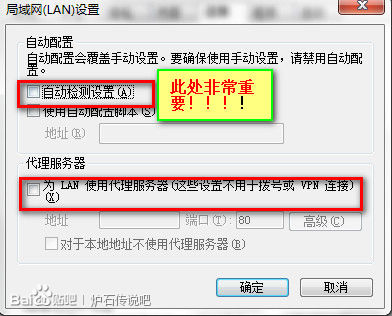
4. Finally, click the [LAN Settings] option in the picture above to enter the LAN settings interface in the picture below. First, we must make sure that the [Use Proxy Server for LAN] option in the interface is not checked, and then check whether the Automatically detect settings option is checked. If [Automatically detect settings] is checked, cancel it! If [Automatically detect settings] is not checked, check it. After the settings are completed, we can run the installation file with administrator privileges, and the Battle.net client can be successfully installed! The installation speed is very fast, and we can wait for a short time to complete the installation before it can be used.
The download progress bar of the Battle.net client is stuck, the download speed display remains unchanged, and the update is stuck?
First of all, if we encounter the above problems such as download lag and slow speed when using the Blizzard Battle.net client, we can wait patiently for a while. It may be that the software is running slowly at first. If it still doesn't work for a long time, you can start the task manager and completely close the running programs, and then try running the Battle.net client as an administrator. If there are still problems, you can download the latest version of Blizzard's Battle.net client from this site and install it and try again. These problems should be solved.
What should I do if I can't log in to the Blizzard Battle.net client?
1. First we need to check whether the entered account password is correct. If your password contains uppercase characters, please make sure to turn on the caps lock key, enter the correct account password and then see if you can log in.
2. If it is not an account problem, it may be that the firewall on the computer has blocked the software, causing the software to fail to log in. We can set it up in the firewall on the computer, and log in to the Blizzard Battle.net client after the setting is completed.
3. If you still cannot log in to the Battle.net client, it may be that your version is too low. You can download the new version of the software package from this site, install it and log in again. This should solve the problem of being unable to log in.
Blizzard Battle.net client update log
1. Optimized some functions
2. Solved many unbearable bugs
Huajun editor recommends:
Blizzard Battle.net client is a very practical Blizzard game platform. You can download various types of Blizzard games through the Battle.net client. The operation is simple and convenient, bringing you a good gaming experience. Friends in need can come to the Huajun Software Park to download the Blizzard Battle.net client. This site also providesTencent Game Platform (TGP), Youju Game Platform,SteamGame platforms and more are available for you to download.
Version: 1.18.12.3160 | Update time: 2025-12-04
Similar recommendations







Latest updates





How to add friends on Battle.net? -How to add friends on Battle.net
How to check points on Battle.net? -How to check points on Battle.net
How to chat with friends on Battle.net? -How to chat with friends on Battle.net
How to change login region in Battle.net? -How to change the login region on Battle.net
How to register an account on Battle.net? -How to register an account on Battle.net
How to change password on Battle.net? -Operation process for changing password on Battle.net
How to disable Battle.net notifications? -How to disable Battle.net notifications on Battle.net
Where can I view gifts on Battle.net? -The operation process of how to view gifts on Battle.net
Blizzard Battle.net Review
-
1st floor Huajun netizen 2022-03-08 23:07:25I love the Blizzard Battle.net client, it downloads very quickly! !
-
2nd floor Huajun netizen 2022-03-08 00:22:03The Blizzard Battle.net client is very unique. This is indeed a very innovative game. I highly recommend it! !
-
3rd floor Huajun netizen 2022-02-06 14:26:09Blizzard Battle.net client’s gameplay and plot are excellent
Recommended products









- Diablo game tool collection
- Group purchasing software collection area
- p2p seed search artifact download-P2P seed search artifact special topic
- adobe software encyclopedia - adobe full range of software downloads - adobe software downloads
- Safe Internet Encyclopedia
- Browser PC version download-browser download collection
- Diablo 3 game collection
- Anxin Quote Software
- Which Key Wizard software is better? Key Wizard software collection