
-
windows task manager
- Size: 7.28M
- Language: Simplified Chinese
- Category: System assistance
- System: winall






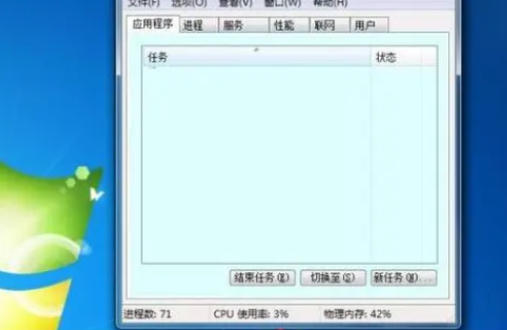
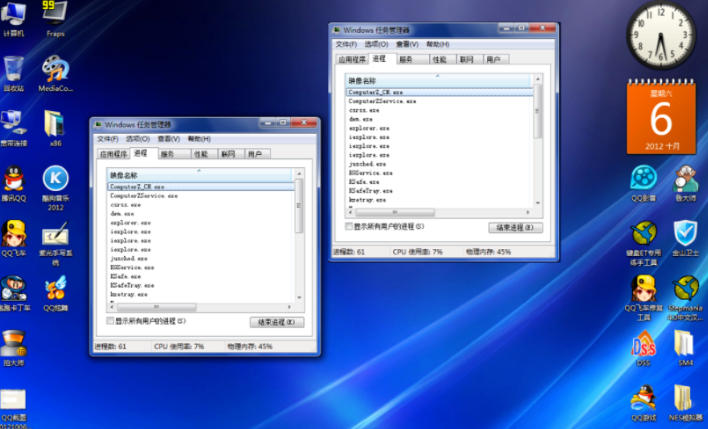
Windows Task Manager is a system monitoring and management tool built into the Microsoft operating system. It provides real-time resource usage (CPU, memory, disk, network, GPU), process management, startup item control and other functions to help users diagnose system performance problems, end unresponsive processes, and optimize startup speed.
Software features
Multiple view mode
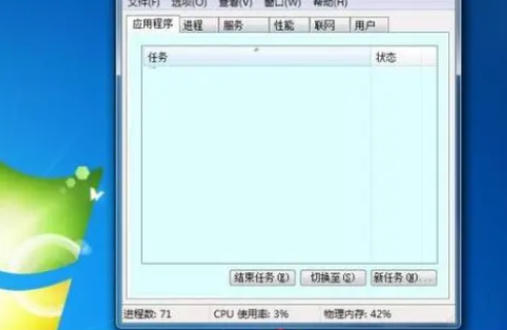
Summary mode: Displays a simplified interface when starting up for the first time, listing only visible applications, suitable for quick operations.
Detailed mode: Switch through the "Details" tab to display the complete process list and resource usage data.
Real-time monitoring and visualization
Performance tab: Displays the real-time usage of CPU, memory, disk, network, and GPU in chart form, and supports custom update frequency.
Resource Monitor: Provides more detailed hardware resource monitoring, such as disk I/O, network traffic distribution, etc.
High compatibility and security
Supports all mainstream Windows versions (XP to 11), and some functions are enhanced with system version upgrades (such as the new "Application History" tab in Win10).
Administrator rights are required to run key operations (such as ending system processes) to prevent misoperations from causing system instability.
Lightweight and integrated
As a built-in tool in the system, it requires no installation, takes up very little resources, and is suitable for use on low-configuration devices.
Software function
Process management
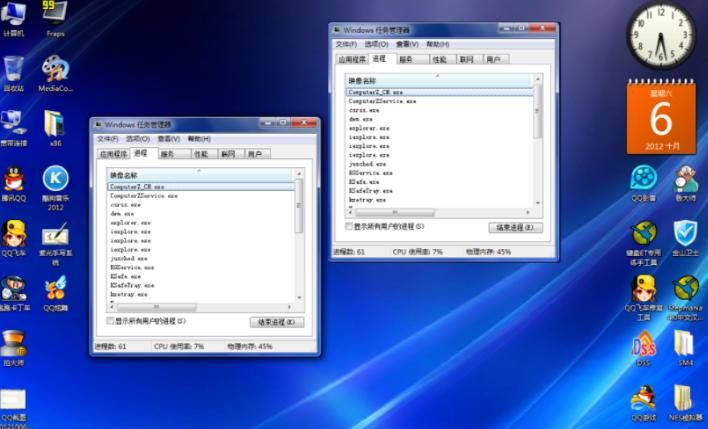
View processes: List all running processes, including applications, background services and system components, display PID, status, resource usage, etc.
End process: Forcefully terminate unresponsive or abnormal processes, and support ending the process tree (closing the main process and its sub-processes).
Priority adjustment: Modify the process priority (such as real-time, high, normal, etc.) and optimize resource allocation.
Performance monitoring
CPU Usage: Distinguish between kernel mode and user mode time and identify causes of high load.
Memory analysis: Displays the usage of physical memory and virtual memory (page file), and locates memory leaks.
Disk and network: Monitor disk read and write speeds, network bandwidth usage, and troubleshoot I/O bottlenecks or network abnormalities.
Startup item management
Startup tab: Lists the programs that start with the system and disables unnecessary startup items to improve boot speed.
Users and security
User management: View the currently logged in users and their resource usage. Administrators can disconnect or log out user sessions.
Service management: Control the start, stop, pause and restart of Windows services to ensure the normal operation of system services.
FAQ
Task manager cannot be opened
Cause: System file corruption, insufficient permissions, virus interference, or group policy restrictions.
Solution:
Use the shortcut keys Ctrl+Shift+Esc or right-click the taskbar to try opening it.
Run the system file check tool (sfc /scannow) to repair damaged files.
Check if Task Manager is disabled in Group Policy (gpedit.msc).
windows task manager update log:
Sweep the bug out and carry it out to the end
Optimize user feedback issues and improve detailed experience
Huajun editor recommends:
Windows Task Manager has always been a common system assistant for most netizens. Its dominant position in the minds of netizens is obvious. It is strongly recommended that users download Windows Task Manager and use it. Come to Huajun Software Park to download it. In addition, .NET, Batch Butler, and Cloud Machine Manager are available for download.
Version: 5.5022.1080.427 | Update time: 2025-12-04
Similar recommendations


Latest updates




windows task manager review
Recommended products









- Diablo game tool collection
- Group purchasing software collection area
- p2p seed search artifact download-P2P seed search artifact special topic
- adobe software encyclopedia - adobe full range of software downloads - adobe software downloads
- Safe Internet Encyclopedia
- Browser PC version download-browser download collection
- Diablo 3 game collection
- Anxin Quote Software
- Which Key Wizard software is better? Key Wizard software collection