
-
xshell
- Size: 35.88M
- Language: Simplified Chinese
- Category: Browse offline
- System: WinAll






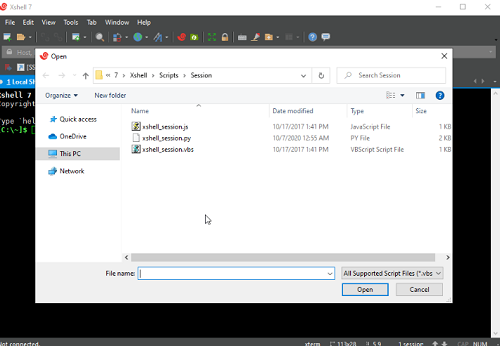
xshellThe latest version is a powerful and versatile terminal emulator. xshell's secure connection to the remote host through the Internet and its innovative design and features help users handle their work in complex network environments. andxshellIt also provides users with convenient management tools, including custom keyboard mapping, uploading or downloading files, dynamic port forwarding, VB script support, etc. Huajun Software Park provides xshell software download service. To download other versions of xshell software, please go to Huajun Software Park!

xshell software functions
Multi-protocol support
SSH1/SSH2: Provide a secure remote login and command execution environment, encrypt data transmission, and protect user privacy.
TELNET: Although less secure, it is still used in some specific environments.
SFTP: Secure file transfer protocol, supports drag-and-drop file transfer, making it convenient for users to upload and download files.
RLOGIN: An early remote login protocol, now gradually replaced by SSH.
SERIAL: Used to connect computers and devices through serial communication ports, suitable for industrial control, router management and other scenarios.
Session management
Multi-session management: Supports simultaneous connection to multiple servers, users can quickly switch between different sessions to improve work efficiency.
Session saving and restoration: Users can save session configuration to facilitate quick connection next time. At the same time, Xshell also supports session recovery function, which can quickly restore the previous working state even if the connection is accidentally disconnected.
Tab management: Through the tab function, users can manage multiple sessions in one window for easy viewing and operation.
security
Encrypted communication: Use multiple encryption algorithms to encrypt data to ensure the security of data transmission.
Authentication mechanism: Supports multiple authentication methods such as password authentication and public key authentication to enhance connection security.
Host key management: Provides a host key management dialog box to facilitate users to manage the host key of the server and prevent man-in-the-middle attacks.
file transfer
SFTP integration: Built-in SFTP client supports secure file transfer.
Drag-and-drop transmission: Users can quickly upload and download files through drag-and-drop, improving operational efficiency.
ZMODEM protocol: Supports ZMODEM protocol to transfer files directly through the terminal.
Script support
Multiple scripting languages: Supports multiple scripting languages such as VBScript, JavaScript, Python, etc. Users can choose the appropriate scripting language to write automated scripts according to their own needs.
Automated tasks: Implement automated tasks through scripts, such as automatic login, batch execution of commands, monitoring server status, etc.
Error detection and processing: Scripts can implement error detection and processing functions to ensure stable execution of tasks.
User interface and ease of use
Intuitive user interface: Provides an intuitive user interface and convenient configuration options to simplify the complexity of remote connections.
Custom layout: Supports custom layout, theme and color scheme, users can personalize settings according to their own preferences.
Shortcut key customization: Users can customize shortcut keys according to personal habits to improve operating efficiency.
xshell software features
Efficiency: Quickly connect and manage multiple servers, support asynchronous I/O operations, and improve response speed in high concurrency scenarios.
Stability: It adopts multi-threaded architecture design to ensure long-term operation without lag.
Extensibility: Supports plug-in extensions and can integrate Xftp (file transfer tool) to achieve richer functions.
Compatibility: Compatible with terminal emulation standards such as VT100, VT220, Linux, SCOANSI, ANSI, etc., and adapts to a variety of operating systems.
IT operation and maintenance: manage servers in batches, monitor system status, and execute remote commands.
xshell software highlights
Developers: Connect to the development and testing environment, debug code, and deploy applications.
Network engineer: configure network equipment, capture serial port logs, and debug industrial PLCs.
Security personnel: Carry out vulnerability scanning, penetration testing, and security reinforcement (need to be combined with other tools).
xshell installation steps
1. Download xshell from Huajun Software Park and extract it to the current folder. Click on the Xshell_v7.0.0063p.exe application to enter the installation wizard interface, and then click Next.
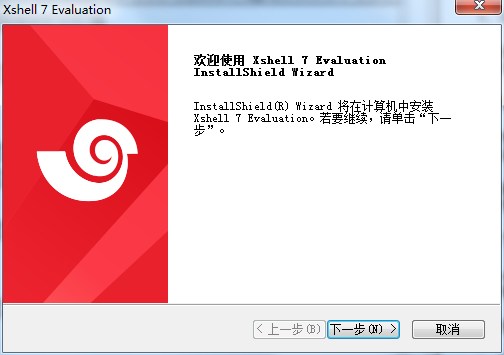
2. Select the software installation location interface. Huajun editor recommends that users install it on the D drive, select the installation location and click Next.

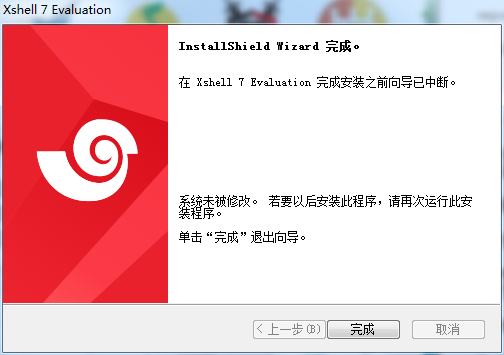
3. When the xshell installation is completed, click Finish.
How to use xshell
How to create a connection server in Xshell?
1. When using the software, we need to create a connection, and then connect to our server to perform operations. When you open the software for the first time, the connection page will automatically pop up. Here we can click the button in the upper left corner to create a server connection.
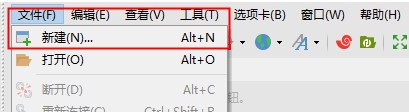
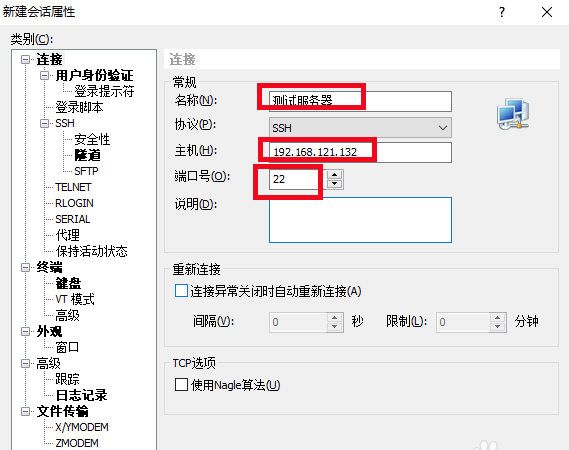
2. Then the server information page comes out. What needs to be filled in here is:
(1) Connection name
(2) Server IP
(3) Server port (default 22)
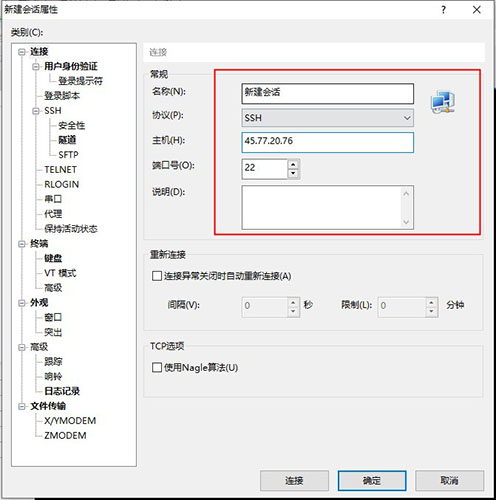
3. After filling in, click OK to save the configuration and return to the connection page. You can see that there is an additional connection to the test server.
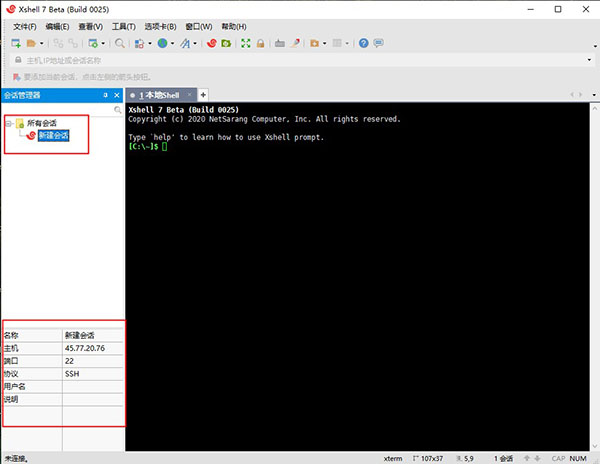
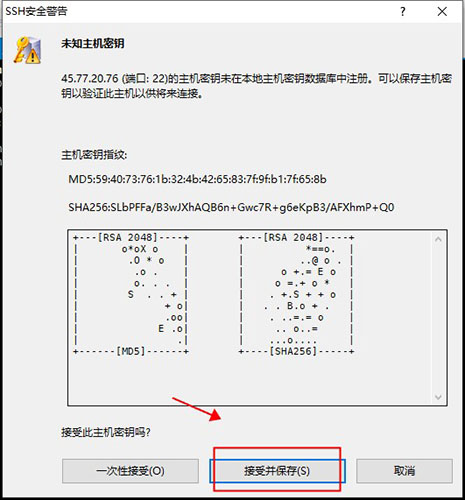
4. We click on the connection to the test server, and then click the connect button. Start connecting to the server. The first time you connect, you will be prompted whether to save the server information. Click Accept and Save.
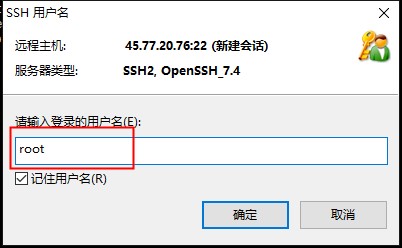
5. Then you are asked to enter a user name. You enter a legal user name that can connect to the server. Check the box to remember the user name, otherwise you will have to enter it every time you connect.
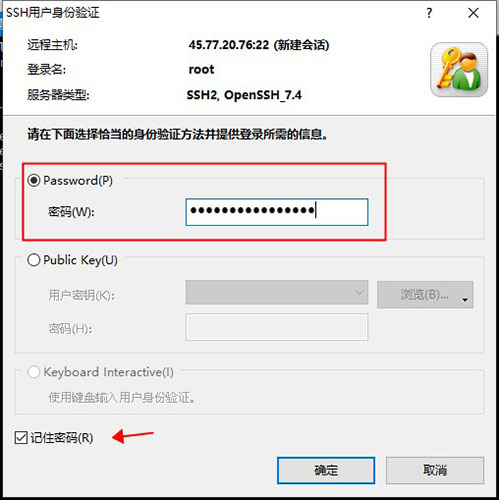
6. Then enter the password input window and enter the previous user password. Click Connect.
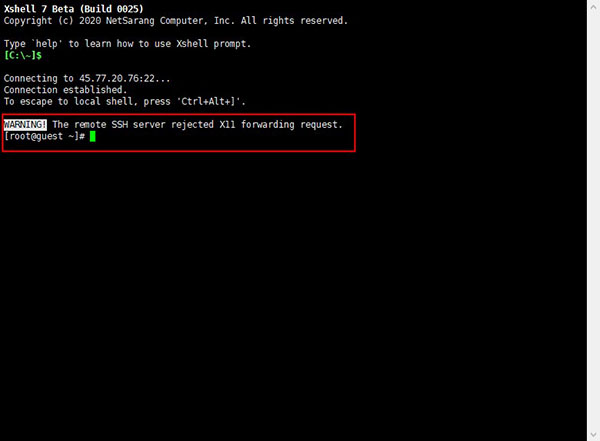
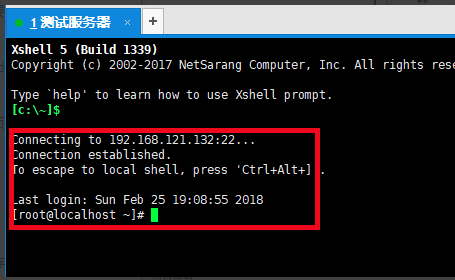
7. If the authentication is passed, the login information will be displayed. As shown in the figure below, the server's IP address, last login time and other information will be displayed.
xshell FAQ
Question: How to connect to XshellConnect to the server?
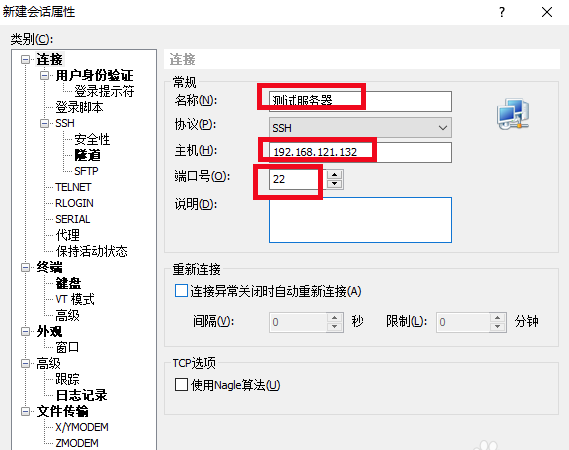
Answer: 1. Open the Xshell6 software downloaded from this site. After opening the software, click the [File] option at the top of the file, select the [New] option in the pop-up menu, open the new window, enter the name, host, and port, and click [OK] after the input is completed.
2. Return to the link window, you will see an additional test server window, you need to click [Link].
3. A pop-up window will prompt you whether to accept the secret key of the host, click [I accept and save].
4. Enter the username, you can check the option to remember the username, and click [OK] after entering it.
5. Enter the password and click [OK] after completing the input.
6. After passing the authentication, your host information will be displayed.
Q: How does Xshell transfer files?
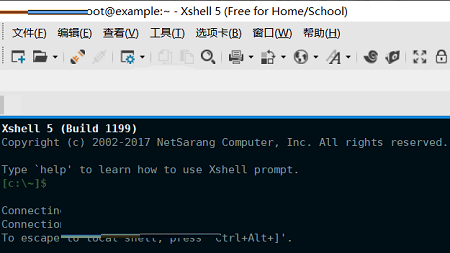
1. Open the xshell6 software. After opening the software, connect to the server.
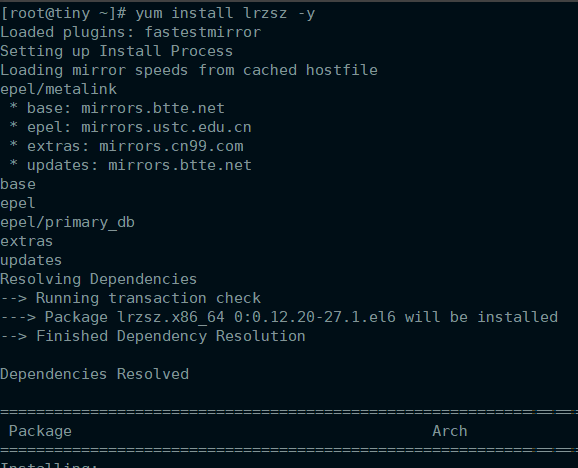
2. Install a tool using yum. #yum install lrzsz -y
3. Enter #rpm -qa |grep lrzsz to check whether the server can be connected. If a prompt as shown in the figure appears, the connection is successful.

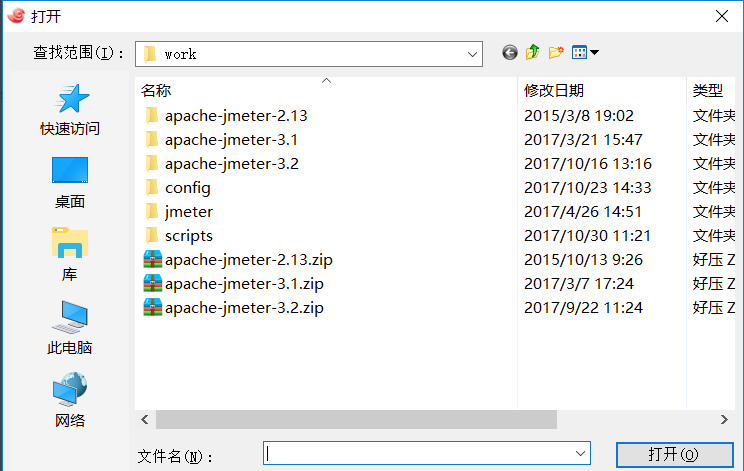
4. After the connection is completed, enter #rz, and then you can open the upload file window, select the file you want to upload, and click to open.
Comparison of similar software
hyperterminalIt is a powerful system serial interaction tool. HyperTerminal is easy to operate and very practical. Users can connect through serial port, modem or Ethernet. HyperTerminal can also be connected to other computers, telnet Sites, bulletin board systems (bbs), online services and hosts, embedded systems, etc.
Huibo Intelligent Strategy TerminalIt is China's first investment research big data analysis cloud terminal. It relies on the powerful research report resources and data of the Huibo Information website. According to the industry characteristics and work needs, it is guided by the correct investment methodology and logical system. Through the processing, arrangement and in-depth exploration of the research reports, it is a set of financial information service software designed and developed specifically for institutional and individual investors. It is an essential tool for simplifying stock investment operations.
Huajun editor recommends:
xshellSecure connections to remote hosts through the Internet and its innovative design and features help users handle their work in complex network environments. The installation of xshell is very simple, powerful, and has no installation garbage. It is specially recommended to everyone. Everyone is welcome to download it!
Version: 8.0.55.0 | Update time: 2025-12-08
Similar recommendations






Latest updates




How XShell creates a session-XShell method of creating a session
How to use the clear screen function in Xshell - How to use the clear screen function in Xshell
How to close a tab in Xshell - How to close a tab in Xshell
How to set up real-time updates in Xshell - How to set up real-time updates in Xshell
How does Xshell modify the log folder-Xshell method to modify the log folder
How to connect Xshell to linux system - How to connect Xshell to linux system
How to close the compose pane in Xshell - How to close the compose pane in Xshell
How to close the menu bar in Xshell-How to close the menu bar in Xshell
How does Xshell use URL hyperlinks - How does Xshell use URL hyperlinks
How to view zombie processes in Xshell - How to view zombie processes in Xshell
xshell comments
-
1st floor Huajun netizen 2021-10-19 19:15:11xshell is very useful, thank you! !
-
2nd floor Huajun netizen 2021-11-13 13:25:41The overall feeling of xshell is good, I am quite satisfied, the installation and operation are very smooth! Followed the installation step-by-step instructions and it went very smoothly!
-
3rd floor Huajun netizen 2021-10-16 13:38:23I hope xshell can do better and better, come on!
Recommended products





- Diablo game tool collection
- Group purchasing software collection area
- p2p seed search artifact download-P2P seed search artifact special topic
- adobe software encyclopedia - adobe full range of software downloads - adobe software downloads
- Safe Internet Encyclopedia
- Browser PC version download-browser download collection
- Diablo 3 game collection
- Anxin Quote Software
- Which Key Wizard software is better? Key Wizard software collection