-
Glodon CAD Quick View
- Size: 23.50M
- Language: Simplified Chinese
- Category: Picture viewing software
- System: winall






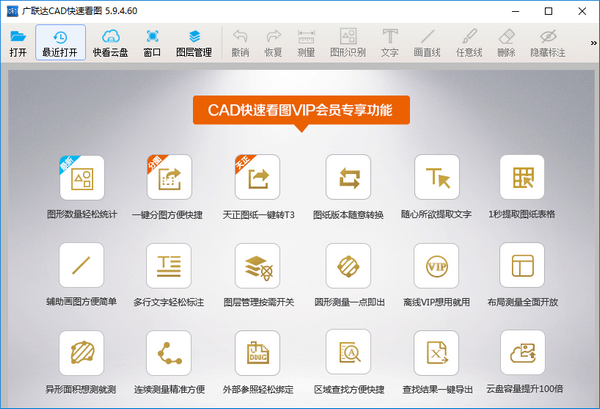
The official version of Glodon CAD Quick View is an efficient and practical tool specifically designed to quickly view CAD drawings. The official version of Glodon's CAD quick drawing viewing software supports the CAD drawing viewing tools of Tianzheng Construction, Tianzheng Water Supply and Drainage, Tianzheng HVAC, and Tianzheng Electric. The latest version of Glodon's CAD Quick View supports lightning startup, making it faster to open CAD drawings. The software fully displays the layout, pattern filling, and automatically matches all font garbled characters that are nowhere to be found.
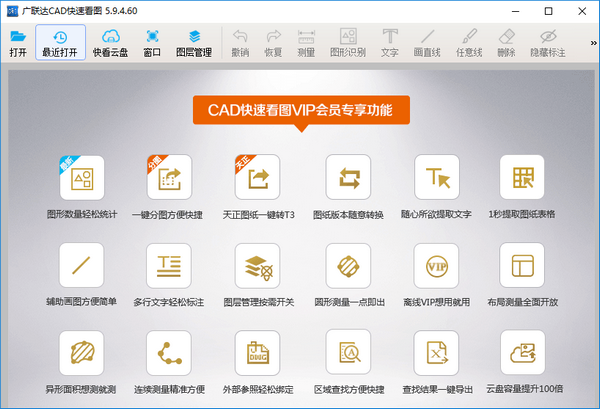
Introduction to Glodon CAD quick viewing software
Glodon CAD Quick View is a tool independently developed by Glodon Software Co., Ltd. to quickly view CAD drawings. The software can view, mark, distance, take photos, and record CAD drawings. Send the drawings to the device through copying, email and other transmission methods, and they can be used offline at the construction site. CAD Quick View is currently the smallest and fastest CAD viewing software. It fully supports the direct viewing of DWG drawings of all versions. It is the first product in the industry to directly open Tianzheng Architecture. Drawings are opened quickly and browsed smoothly. There is no need to install any fonts. It solves the problem of Chinese garbled characters and perfectly displays steel symbols and pattern fills. It is extremely simple to operate. It is the most ideal CAD drawing viewing tool under the Windows platform.
Introduction to Glodon CAD quick viewing function
1.Support - Supports CAD drawing tools for Tianzheng Construction, Tianzheng Water Supply and Drainage, Tianzheng HVAC, and Tianzheng Electric.
2. Extreme speed - lightning startup speed, opening CAD drawings one step faster.
3. Comprehensive - Full display layout, pattern filling, automatic matching of all font garbled characters, nowhere to be found.
4. High-end - The industry supports CAD drawing viewing products of Tianzheng Construction, Tianzheng Water Supply and Drainage, Tianzheng HVAC, and Tianzheng Electric.
5. Technology - built-in WiFi direct connection to computer, cloud disk function, easy image transfer.
6. Service - The professional team provides you with instant CAD drawing viewing services, so that you have no worries.
7. Function - Easy-to-use "What You See Is What You Get" printing method, freely set the printing range.
Features of Glodon CAD quick viewing software
1. Extract text:
Frame selection extracts text, numbers, letters, etc. on drawings. Use the left mouse button to select a complete sentence or paragraph. There is an upper limit on the number of words that can be extracted at one time. If the content is large, it can be extracted multiple times. If the content in the layout cannot be extracted, you can extract it from the model. Note: Some text looks like text, but is originally a polyline and cannot be extracted.
2. Extract form:
Frame selection extracts tables on drawings and automatically imports them into excel. Use the left mouse button to select the complete outer edge of the table to extract the table. If the table in the layout cannot be extracted, you can extract it from the model, and the measurement results can also be exported to excel. Note: The text attributes in some tables are polyline and cannot be extracted.
3.Arc length:
Click the arc with the left mouse button to measure its length. If it is an arc, the cursor will display a small white square. If it is a polyline, the cursor will not display a small white square.
4. The distance from the point to the straight line:
By left-clicking the mouse to select a point and then selecting a line, you can measure the vertical distance from the point to the straight line.
5. Continuous measurement (L):
Left mouse button to select a straight line or arc to continuously measure its length, right mouse button to end the measurement, and then click the left mouse button to place the measurement result. Note: When you encounter a straight line, click the endpoint of the straight line, and when you encounter an arc, click the arc itself.
6. Modify a single label attribute:
After clicking, select the annotation that has been made, and you can set its color, text size, etc.
7. Check the segment length:
After clicking, left-click the mouse to select the labeling result of a continuous measurement, and you can see the segment length of this continuous measurement.
8.External reference management:
View the external reference of the drawing, and you can bind the reference drawing and save it as another, or change the path of the reference.
9. Area (including arc):
Use the left mouse button to select a straight line or arc, complete a closed figure to measure its area, and click the left mouse button again to place the measurement result.
10.Measure the circle:
It can measure the area, circumference and radius of a circle. Select the circle with the left button of the mouse, and click the left button again to place the measurement result.
11.The CAD drawing is gray:
After clicking, the current drawing will be displayed in gray and the annotations will be highlighted, making it easier to find and view the annotation locations.
12. Tianzheng drawing conversion (convert to t3):
After clicking, the current drawing will be converted into t3 format and saved (the drawing will have the word "convert" as the suffix), so that it can be easily imported into other measurement software for use. Note: If the imported calculation software does not display fully after transferring to t3, it means that it is not caused by Tianzheng drawings. Please contact the staff of the relevant calculation software for help. If the drawing has an external reference, please bind the reference first and save it, then open the new drawing and then transfer to t3.
13.CAD drawing version conversion:
You can convert the current drawing to another version. The current versions that can be converted are: 2004/200712010/2013.
14. CAD drawing segmentation and export:
You can divide the current drawing into drawings. Left-click the frame to select the part that needs to be divided into images, and then save it as a separate file. Note: For drawings with external references, please bind the reference first and save it, then open a new drawing to subdivide the drawing.
15. Layout to model:
You can transfer the graphics in the layout to the model to facilitate text extraction, table extraction, text search, and import into measurement software. The graphics transferred from the layout have proportion problems. Please adjust the proportion before measuring.
Glodon CAD Quick View Installation Steps
1. Download the official version of Glodon CAD quick viewing software package in Huajun Software Park
2. Unzip the Glodon CAD quick viewing software and run the "EXE. file"
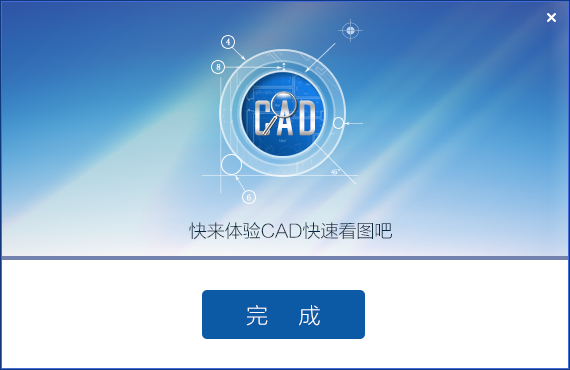
3. Double-click to open, enter the Glodon CAD quick viewing software interface, select the installation location, and click to start the installation

4. Click Finish, Glodon CAD quick viewing software is successfully installed.
Glodon CAD Quick View Frequently Asked Questions
What should I do if the drawings cannot be displayed?
The first situation: Drawing version problem
Generally, the incomplete display of drawings is mainly due to the drawing version problem. If the drawing is drawn by a higher version of CAD or Tianzheng, it is recommended that the user use Tianzheng to directly import the drawing into T3 format. The specific operations are as follows:
The second situation: the drawing contains the same content drawn by other plug-ins
For example, when excel tables, pictures and other content are inserted into drawings, they cannot be directly recognized by Kuaikan.
The third situation: the drawing content is in the layout
Through user feedback, we found that many users reported that there is no content in the drawings. In fact, it is because the content of the drawings is in the layout. Therefore, it is recommended that everyone remember to pay attention to the location of their content and master the model and layout switching functions skillfully.
Glodon CAD quick view update log
1. Sweep the bug out and carry it out to the end
2. The most stable version ever
Huajun editor recommends:
Glodon CAD is a professional, easy-to-operate, and powerful tool for quickly viewing pictures. It is one of the leaders in the software industry. You are welcome to download it. This site also provides Photo BlowUp, .NET, Cloud Machine Manager, etc. for you to download.
Version: Official version v5.13.0.70 | Update time: 2025-10-23
Similar recommendations






Latest updates





Glodon CAD Quick View Review
-
1st floor Huajun netizen 2021-09-18 00:31:38Glodon CAD's quick drawing interface design is easy to use and has rich functions. I highly recommend it!
-
2nd floor Huajun netizen 2021-10-16 20:15:54Glodon CAD is great for quick drawing viewing! 100 million likes! ! !
-
3rd floor Huajun netizen 2021-05-01 12:10:17I hope Glodon CAD can quickly view pictures and get better and better, come on!
Recommended products










- Diablo game tool collection
- Group purchasing software collection area
- p2p seed search artifact download-P2P seed search artifact special topic
- adobe software encyclopedia - adobe full range of software downloads - adobe software downloads
- Safe Internet Encyclopedia
- Browser PC version download-browser download collection
- Diablo 3 game collection
- Anxin Quote Software
- Which Key Wizard software is better? Key Wizard software collection