-
PDF editor
- Size: 3.26M
- Language: Simplified Chinese
- Category: Text editing
- System: WinAll






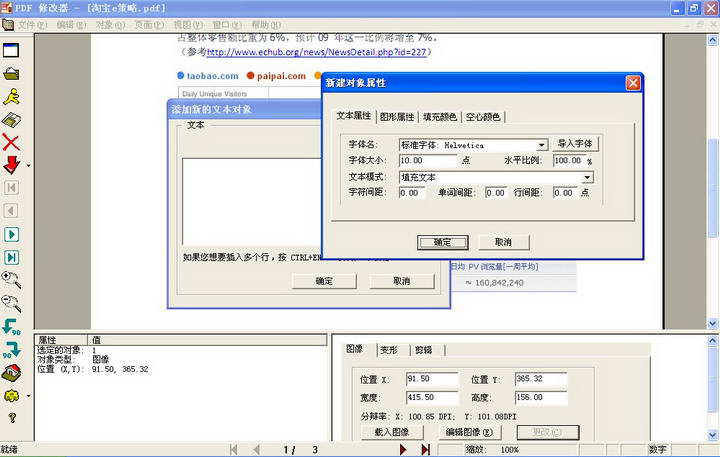
PDF editorIt is a very powerful free PDF file editing software. Many people hope to find a powerful PDF file editor. In the PDF file format, each PDF file contains many pages, and each page contains various visual objects, such as text objects, graphic objects, and image objects. Each object has its properties that define how it is displayed. The PDF modifier modifies PDF files in the form of objects, with high visualization and flexibility. You can customize every element of the PDF document as you like.
PDF editor software features
Add text
You can add text to any position on any page of the PDF, and you can freely set the font, font size, and color.
Erase eraser
Erase anything, anywhere, easily.
Insert picture
Supports mainstream formats such as JPG/PNG/GIF/BMP/TIF, making it easy to add signatures or pictures.
Painting annotation
It’s so easy to draw lines, straight lines, rectangles/ellipses, and add annotations and graphics.
Rotate page
Supports 90-degree clockwise/counterclockwise and 180-degree rotation of PDF pages, and can also rotate all pages at once.
PDF editor software features
—Edit existing PDF files or create entirely new PDF files.
-Display PDF files with almost the same effect as AdobePDFReader.
—Zoom PDF pages.
- WYSIWYG editing function, whatever you edit will be displayed.
—Insert or delete pages at will.
- Add text objects using embedded or non-embedded fonts.
—Insert rows or other simple graphical objects.
-Insert images in various formats such as bitmap.
-Delete any object from the page, or change the properties of the object.
-You can undo any operation.
-Copy and paste any object between different PDF files.
- Copy and paste text between PDF and any Windows application.
- Copy and paste images between PDFs and any Windows application.
- Perfectly supports Chinese fonts. The method is as follows: Select "Add Text Object" from the main menu or right-click menu, click "Object Properties" - "Import Fonts", and then select the Chinese font you want. After confirmation, you can support Chinese input.
How to use PDF editor
The steps to create a new document using PDF PDF Modifier are as follows:
1. Open the PDFPDF editor, and a blank PDF document has been opened in the default interface.
2. Select "File-New", and the user can quickly create a new blank PDF document for re-editing.
3. Click the text icon in the lower left corner. The text icon is "T". Hold down the left mouse button in the blank part of the document and drag out the area where the content needs to be filled. You will see a blue box. The user can edit the text in the blue box, or paste the content that needs to be entered into the PDF file into the blue box.
4. If you need to adjust the document format, you can adjust it through "Format" on the top toolbar. The default display ratio is relatively small. Users can adjust the display ratio through the percentage in the lower right corner of the software interface.
5. After completing editing of the entire PDF file, you can select "Direct output to PDF" to complete the entire editing process.
The above process is just an example of editing text. If the user needs to insert other multimedia files, they can use the last "from file" option in the lower left corner of the software.
PDF editor FAQ
1. Why can’t PDF Editor (PDFEditor) display certain text normally?
This may be caused by the following reasons:
1) The font you used is not embedded in this document. PDF Editor (PDFEditor) cannot find a suitable alternative font for display.
2) Your document contains East Asian character sets, please see question 2.
2. Why does pdfPDF Editor (PDFEditor) prompt to download the CJK.bin file?
This is because your PDF document contains East Asian language fonts. You can download the Chinese, Japanese and Korean language pack (i.e. CJK.bin file) from the official website and save it to the same directory of your Editor.
New modifications to PDF editor
1. Fix a serious bug that may crash when starting under win7.
2. Correct the text margin calculation error.
3. Loading pictures is compatible with more formats.
4. Improve the efficiency of processing large-resolution images.
5. Fixed a series of minor bugs.
6. Added background online upgrade function, new version will be automatically updated without special downloading.
7. No registration required, no ads, no functional restrictions, truly completely free.
Huajun editor recommends:
The PDF editor is so easy to use. It is one of the best software among them. I believe friends who have used it will say it is easy to use. If you don’t like it, we also have Batch Butler, .NET, and Batch Butler.
Version: 2.5.2.0 official version | Update time: 2024-12-23
Similar recommendations







Latest updates




How to use PDF modifier-Introduction to how to use PDF modifier
NBA2K18CE modifier usage tutorial 2K18 hit rate modification method
Tutorial on CE modification of all items in "Ni No Kuni 2" How to use Ni No Kuni 2 CE modifier
How to upgrade software in 360 Software Manager? -How to upgrade software in 360 Software Manager
How to draw a lottery in 360 Software Butler - How to draw a lottery in 360 Software Butler
PDF editor review
-
1st floor Huajun netizen 2022-01-21 13:08:34PDF editor is very useful, thank you! !
-
2nd floor Huajun netizen 2021-11-04 16:52:10PDF editor is awesome! 100 million likes! ! !
-
3rd floor Huajun netizen 2021-11-20 09:06:37The PDF editor is not bad and downloads very quickly. I would like to give you a good review!
Recommended products







- Diablo game tool collection
- Group purchasing software collection area
- p2p seed search artifact download-P2P seed search artifact special topic
- adobe software encyclopedia - adobe full range of software downloads - adobe software downloads
- Safe Internet Encyclopedia
- Browser PC version download-browser download collection
- Diablo 3 game collection
- Anxin Quote Software
- Which Key Wizard software is better? Key Wizard software collection