-
Canon Canon G1010 printer driver
- Size: 8.91M
- Language: Simplified Chinese
- Category: Peripheral driver
- System: win7 and above




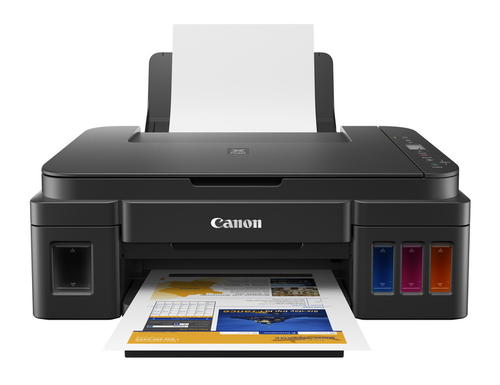
Canon Canon The official version of the G1010 printer driver is a driver software launched by Canon for printing on the G1010 model. After installing the Canon G1010 printer driver, users can connect the printer to the computer to realize printing and scanning functions. Canon Canon The G1010 printer driver can solve the problem of printer failure to print and abnormal connection, giving you a better printing experience.
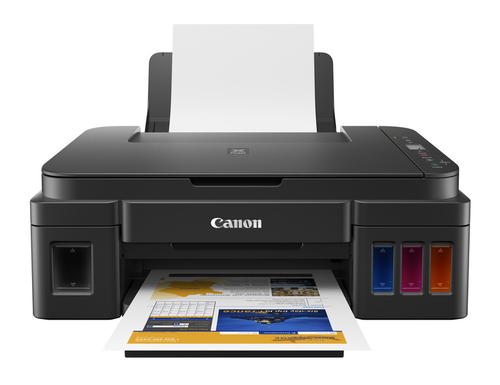
Canon Canon G1010 printer driver parameter introduction
Print resolution: 4800x1200dpi
Print page: A4
Print speed: black and white 8.8ipm; color 5.0ipm
Ink cartridge: black GI-890BK, color GI-890C/M/Y
Interface: USB2.0
Hardware ID: USBPRINTCanonG1010_series9BAC
How to use Canon G1010 printer driver
1. Connect to the computer and turn on the power;
2. Directly run the downloaded driver;
3. Just follow the pop-up prompts, it’s very simple;
4. After completing the installation, restart the computer system to use it.
Canon Canon G1010 printer driver precautions
1. It is best that the system has not installed a printer driver. If it has been installed before, please delete it first to ensure that the Print Spooler service is started.
2. Before installing the print driver, it is best to restart the current system and then exit all anti-virus software.
3. The printer remains powered on and the no-fault light is on. Do not connect the USB cable yet, wait until the installation program prompts you to plug in the cable.
4. If it is a network printer: Before installing the driver, plug in the network cable, then execute the installation program, select the network connection (LAN connection), after the installation is complete, if you cannot print, restart the computer and test again.
5. The wireless printer should be connected to the wireless network first and then install the driver.
Canon Canon G1010 printer driver FAQ
During the installation process, the connected printer is not found, what should I do?
Re-plug the printer’s USB cable, turn the printer’s power off and on again. If the problem still persists, read on.
1. Check that the USB cable is securely plugged into the USB port on the computer and printer
2. Confirm that the printer is plugged in and powered on
3. Right-click on My Computer or Computer and select Manage->Device Manager. After opening it, re-plug the USB cable. The window will refresh to see if new hardware is detected.
(If it can be detected, rerun the installation program, if it cannot be detected, change the USB cable or try another port)
4. Unplug other USB devices: If multiple USB devices (such as other printers) are connected to your computer, the computer may not be able to supply enough power to the USB port to detect all USB device. Unplug other USB devices that are not in use.
5. Confirm that the installed driver supports your printer model
6. Try connecting the printer to another computer. If it doesn’t work, contact customer service.
What should I do if I can’t print after installing the printer driver?
We can check whether the driver can be installed but cannot be printed through the following aspects.
1. Connection problem:
Starting from the most basic, first check whether there is any problem with the printer and connection (it is best to connect the printing cable to the printer to the back of the host). Secondly, check whether the power of the printer is turned on and whether the power indicator light on it is on. Not much to say here.
2. Port issues:
If there is no problem with the printer's connection, then we can check whether the printer's port settings are correct.
Taking the Win 7 system as an example, I will introduce to you how to view and modify the printer port.
Win7 system click Start - Devices and Printers (you can also find Devices and Printers by opening the Control Panel), right-click on the printer, select "Printer Properties", select an empty port starting with USB00x, and then click OK.
Canon G1010 printer driver update log
Optimize user feedback issues and improve detailed experience
Huajun editor recommends:
Dear children, the Canon G1010 printer driver can definitely meet your needs. From the software interface to the software functions, it is absolutely eye-catching. Welcome everyone to download and use it! This site also has similar software for Canon imageCLASS MF4752 driver, Epson LQ-630KII printer driver, and Samsung Xpress M2029 printer driver!
Version: v.2.30 | Update time: 2025-10-23
Similar recommendations

Latest updates




Canon G1010 Printer Driver Review
-
1st floor Huajun netizen 2021-11-02 16:05:14The Canon G1010 printer driver interface design is easy to use and has rich functions. I highly recommend it!
-
2nd floor Huajun netizen 2021-12-19 16:50:11Canon G1010 printer driver is awesome! 100 million likes! ! !
-
3rd floor Huajun netizen 2022-01-03 07:35:37The Canon G1010 printer driver is pretty good and downloads very quickly. I give you a good review!
Recommended products
-

Canon LBP2900 laser printer driver
-
Canon LBP2900 laser printer driver
-
Canon LBP2900 laser printer driver
-
Canon LBP2900 laser printer driver
-
Universal Bluetooth headset driver
-
HP LaserJet 1020 Plus Printer
-
HP LaserJet 1020 Plus Printer
-
HP LaserJet 1020 Plus Printer
-
HP LaserJet 1020 Plus Printer
-
HP LaserJet 1020 Plus Printer
- Diablo game tool collection
- Group purchasing software collection area
- p2p seed search artifact download-P2P seed search artifact special topic
- adobe software encyclopedia - adobe full range of software downloads - adobe software downloads
- Safe Internet Encyclopedia
- Browser PC version download-browser download collection
- Diablo 3 game collection
- Anxin Quote Software
- Which Key Wizard software is better? Key Wizard software collection