Have you ever wanted to convert jpg images to pdf format documents? Or when processing documents or making reports, don't know how to integrate multiple pictures into a pdf file faster? If you are looking for a simple and fast method, what tools can help you convert images to PDF? Don't worry, this article will introduce you to 6 simple methods in detail to help you convert jpg to pdf efficiently, making your files easier to store, share and print.
Method 1: Use "Jinzhou PDF to Image Converter" to convert jpg to pdf
Jinzhou PDF to Picture is a PDF conversion tool designed for Windows users. Its user-friendly interface and powerful functions allow any user to easily master and quickly convert photos into PDF format. During the conversion process, it can ensure high-speed conversion without affecting the quality of the original pictures and documents, and is very efficient. Using this software, it usually only takes three steps to convert images into pdf format:
Operating environment:
Demonstration model: HUAWEI MateBook 13
System version: Windows 11
Software version: Jinzhou PDF to Image Converter v2.0.5
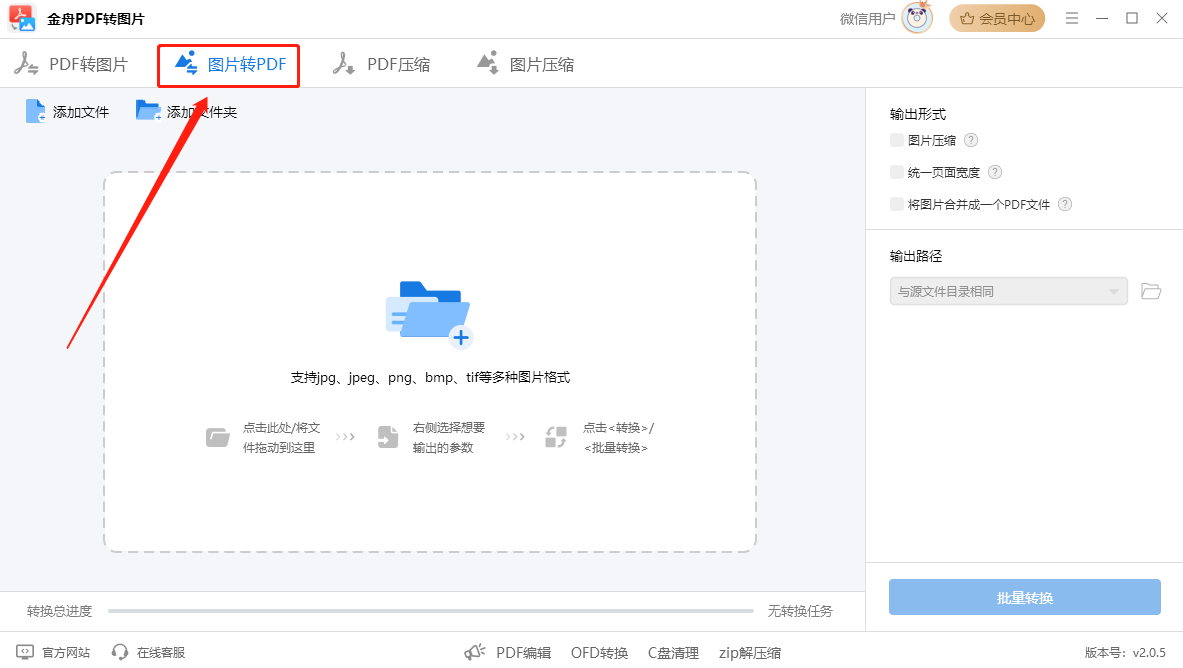
Step 1. Open the [Jinzhou PDF to Image Converter] software on your win11/win10/win8/win7 computer, and click the [Image to PDF] function at the top of the software. This function supports converting jpg, jpeg, png, bmp, tif and other image formats into pdf.
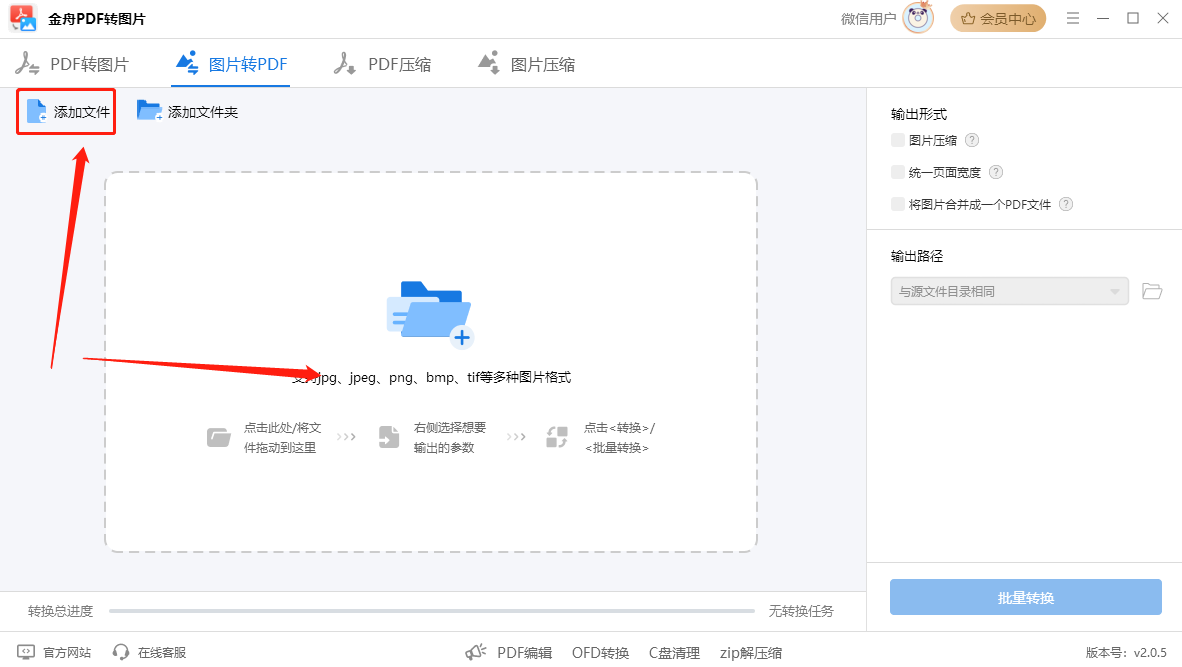
Step 2: Click [Add File] to upload the photo file that needs to be converted, or directly drag the jpg format file that needs to be converted into the main interface of the software.
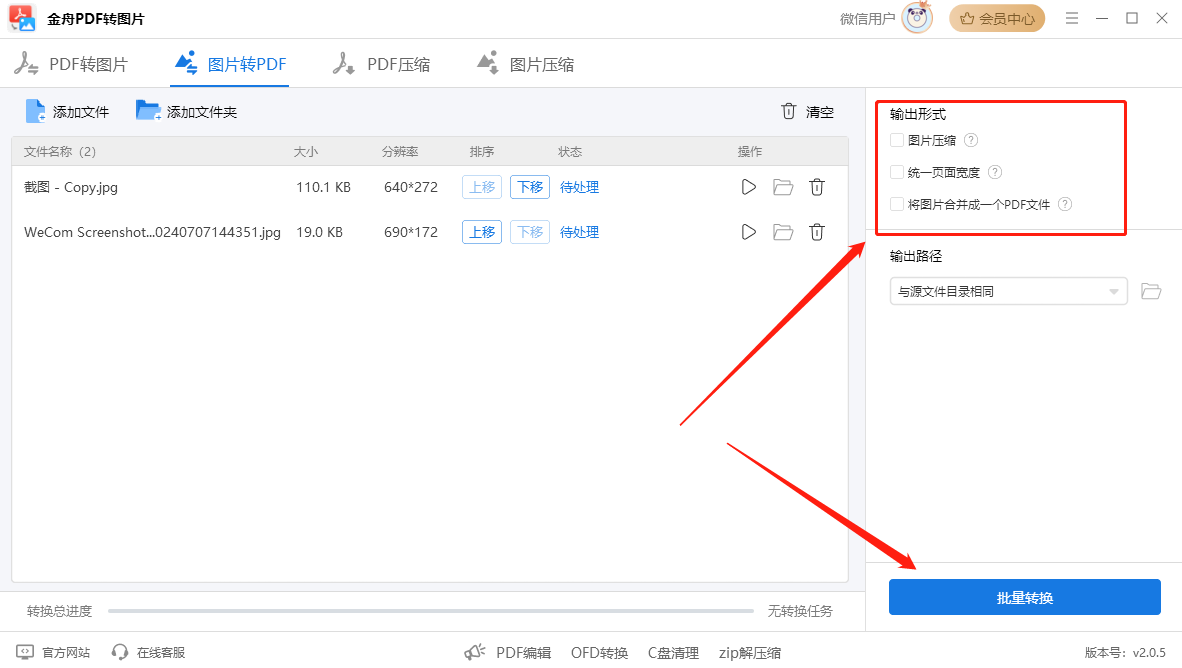
Step 3. After importing, you can set the output format of the PDF document on the right side of the software, including image compression, unified page width, and merging images into one PDF file. After the settings are completed, click the [Batch Conversion] button on the lower right to convert all jpg to pdf at once.
Method 2: Use "PDFCreator Online" to convert jpg to pdf
PDFCreator Online is a convenient online tool that provides an intuitive operation interface. You can use this tool to easily convert online images into PDF.
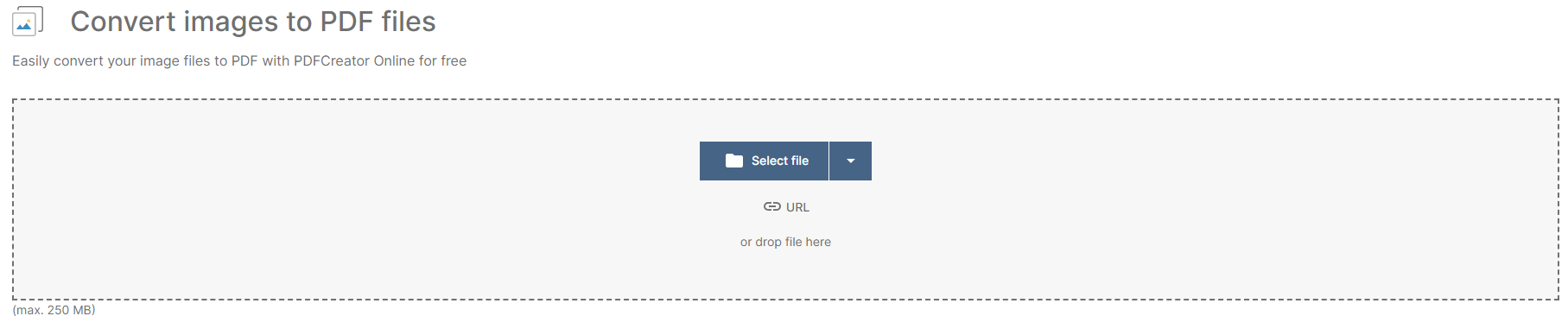
Step 1. Search the online tool in your computer browser and open it to enter the website. Click [Select file] to select the jpg photo content to be converted from your computer and add it to the main interface of the software.
Step 2. Next, you can customize the image output parameters on the left side of the software interface, including adjusting the PDF page size and rotation direction.
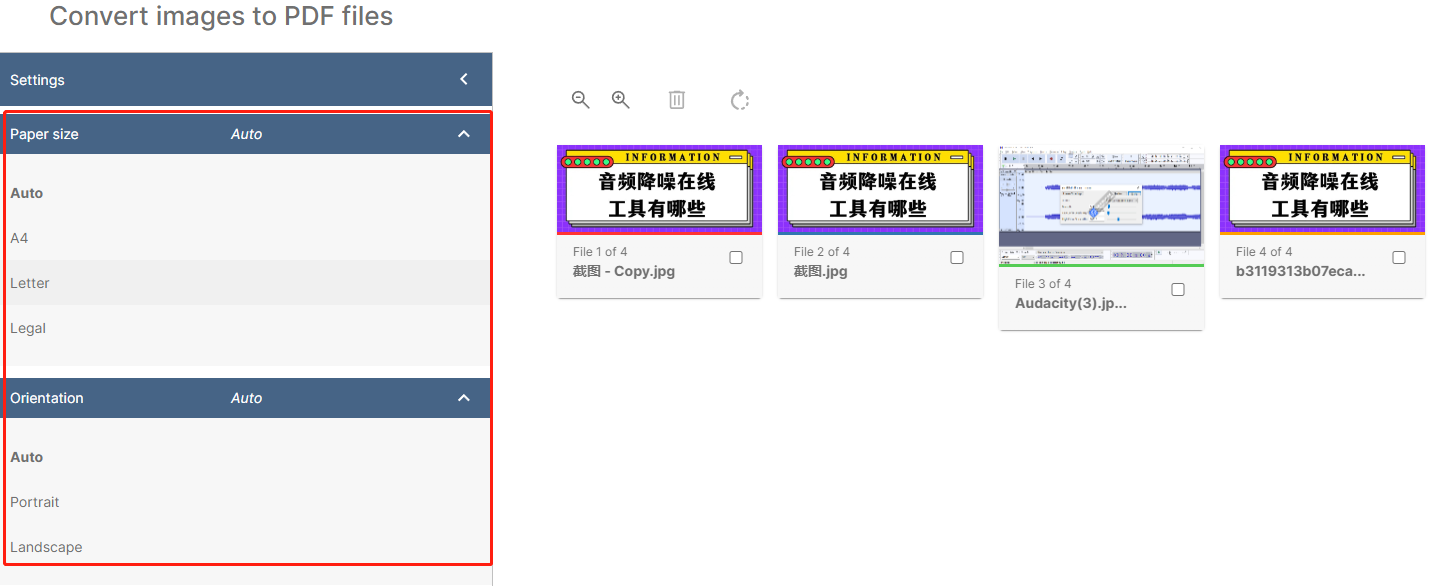
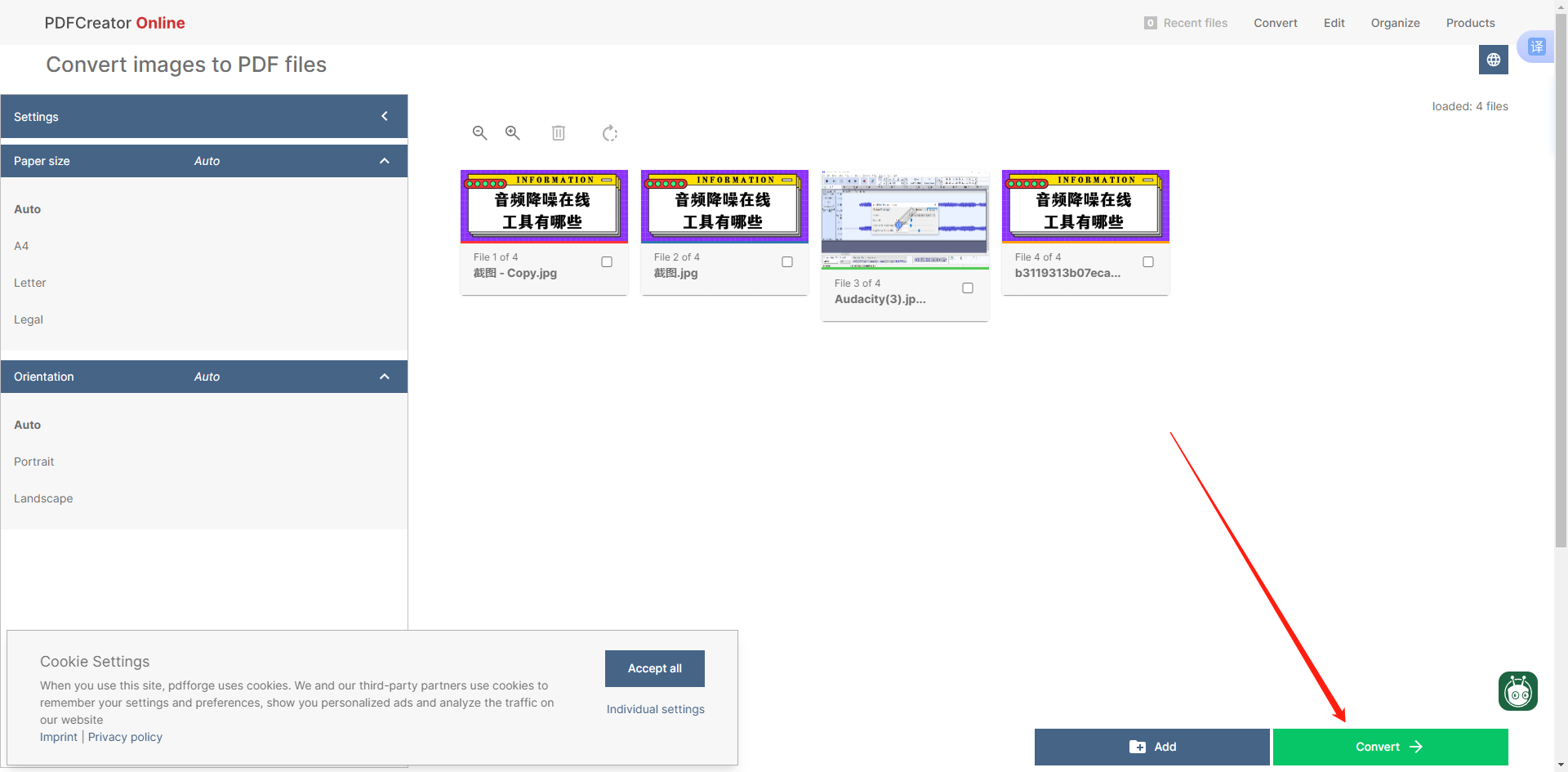
Step 3. After the settings are completed, click the green [Convert] button in the lower right corner to batch convert all uploaded jpg photos into pdf documents.
Method 3: Use "PDF PRO" to convert jpg to pdf
PDF PRO is an online PDF conversion tool that allows users to easily create, convert and edit PDF files. It supports multiple file format conversions and provides useful functions such as merging, splitting, and annotation.
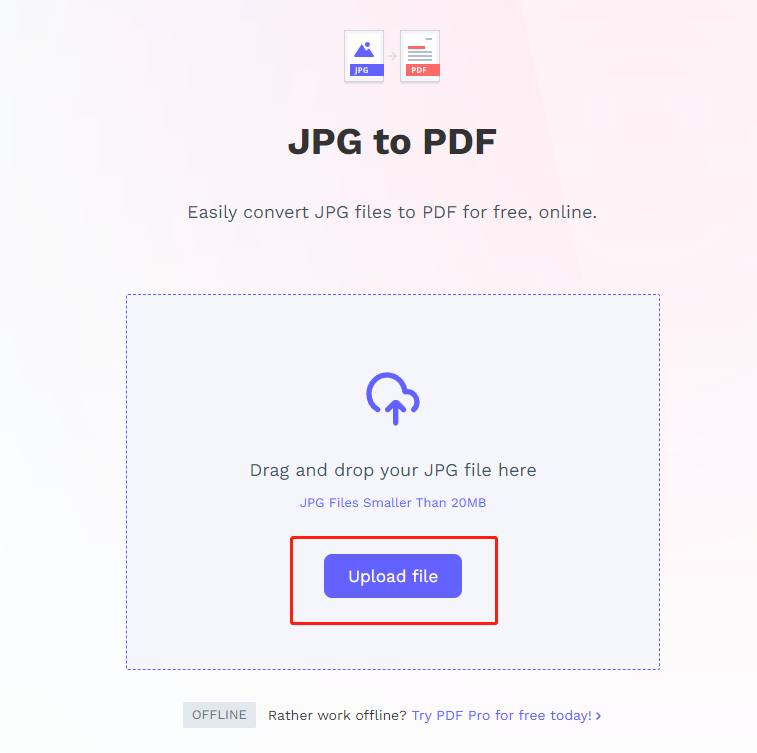
Step 1. Open the website and enter the PDF PRO online tool page, click [Upload file] to select the photo file that needs to be converted.
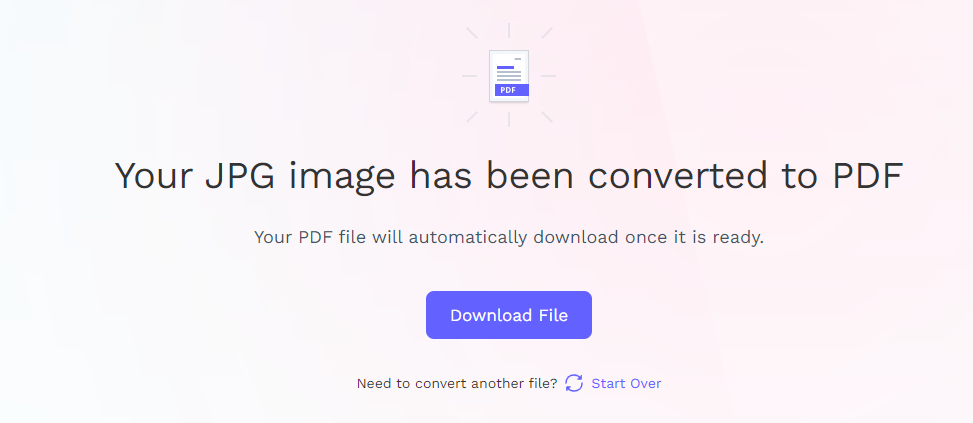
Step 2: Wait patiently for the file conversion process. After the conversion is successful, the website will automatically download the converted PDF document for you and save it on your computer.
Method 4: Use "Pixeled JPG to PDF Converter" to convert jpg to pdf
Pixelied JPG to PDF Converter is an easy-to-use online tool that quickly converts jpg photos to pdf files. Users only need to upload images and the conversion can be completed with one click, and batch processing is supported to improve efficiency.
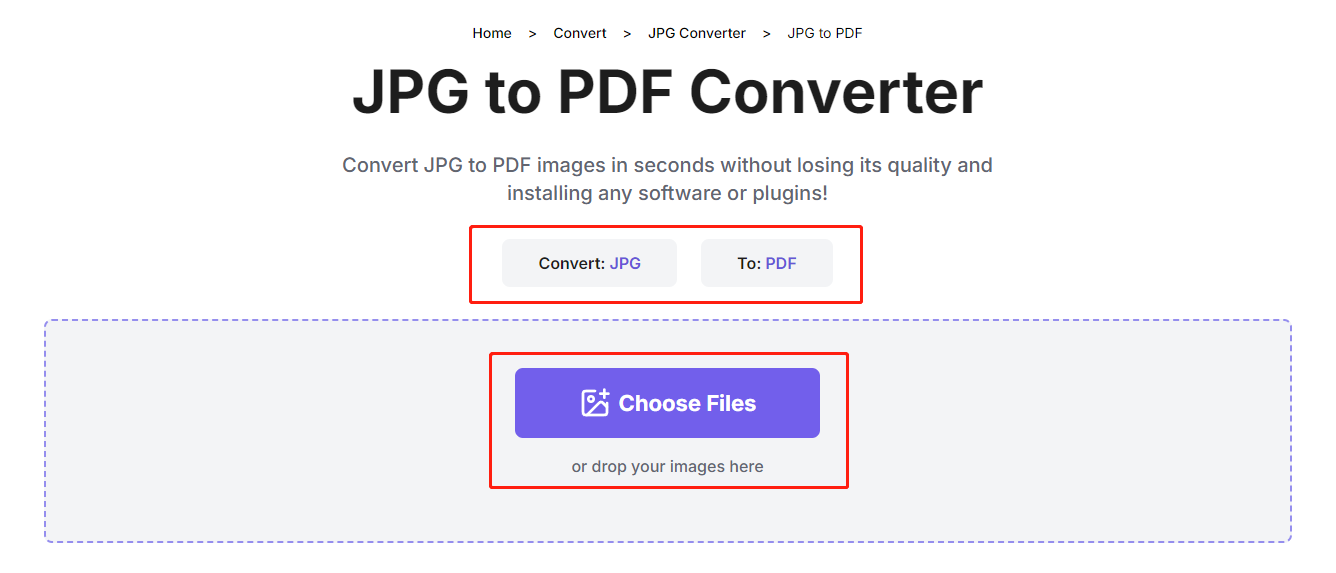
Step 1. Open the browser on your computer, enter Pixeled JPG to PDF Converte in the search box and click to enter the website. Confirm that the [JPG] format is selected in Convert and the [PDF] format is selected in To. Then click [Choose Files] to upload the jpg photos you want to convert.
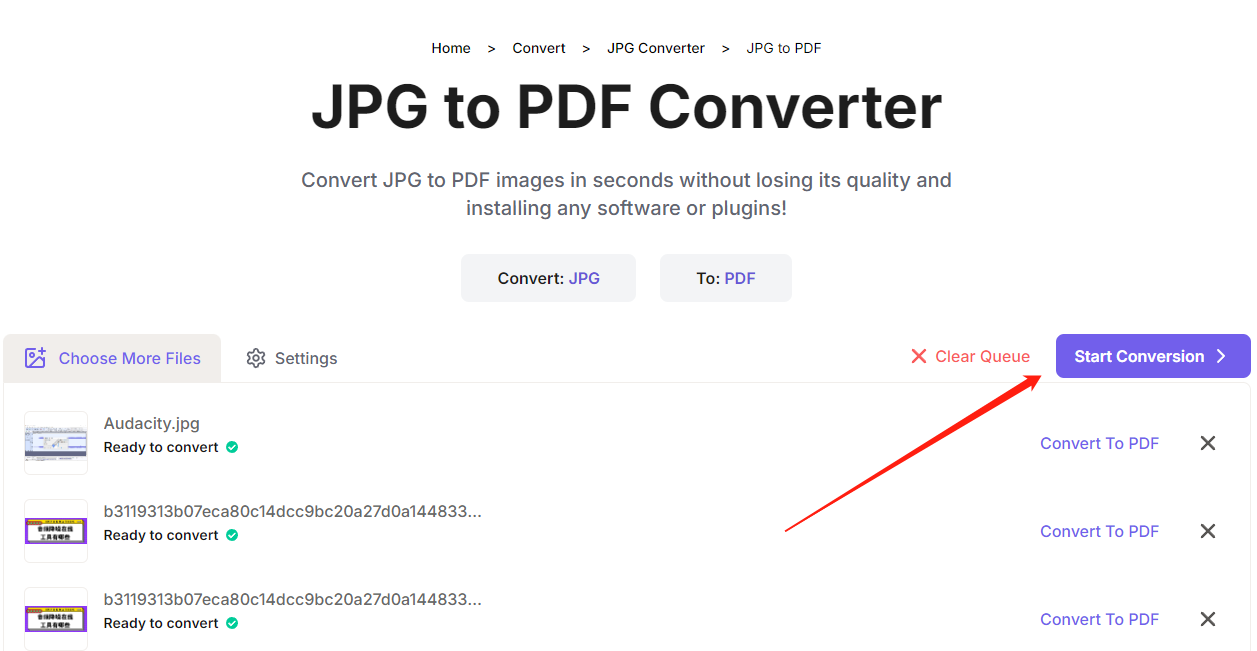
Step 2. Click [Start Conversion] to start the conversion process.
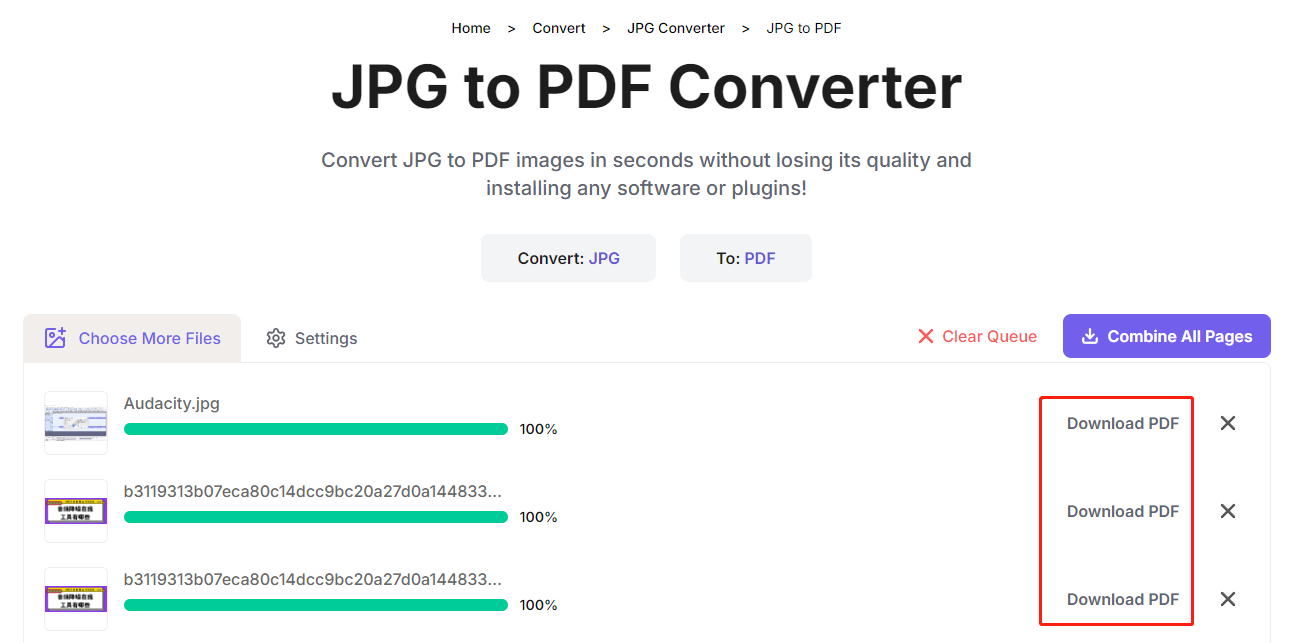
Step 3: After the photo conversion to PDF is completed, click [Download PDF] to download these successfully converted PDF documents to your computer.
Method 5: Use "Printfriendly JPG to PDF Converter" to convert jpg to pdf
Printfriendly JPG to PDF Converter is a user-friendly online tool that easily converts jpg photos to pdf format. It provides simple uploading and conversion functions while allowing users to adjust page settings to optimize output quality.
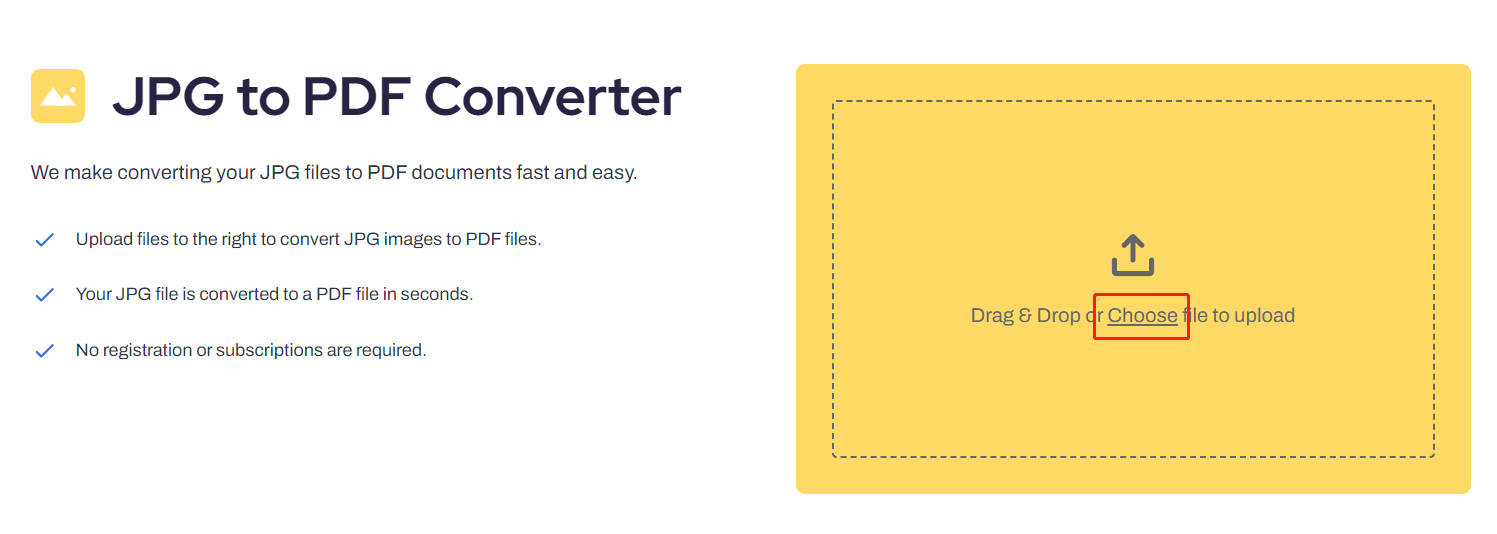
Step 1. Open the JPG to PDF Converter online software on your browser. After entering the main interface of the software, click the [Choose] button in the yellow box to import the jpg photo files that need to be converted into PDF into the tool interface.
Step 2: Wait patiently for the photo to be uploaded, then click the [Export As PDF] button on the right side of the page and select the PDF format.
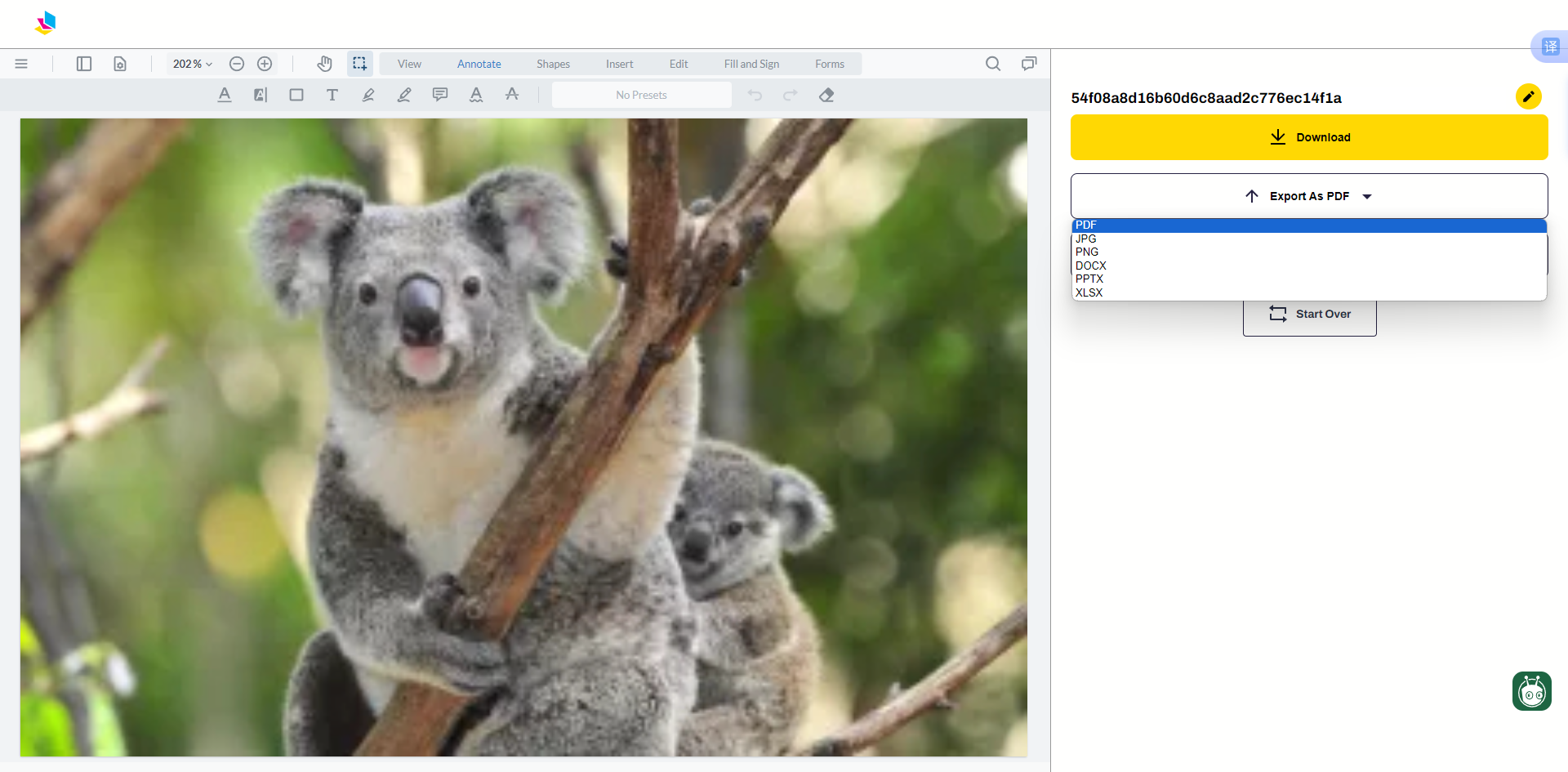
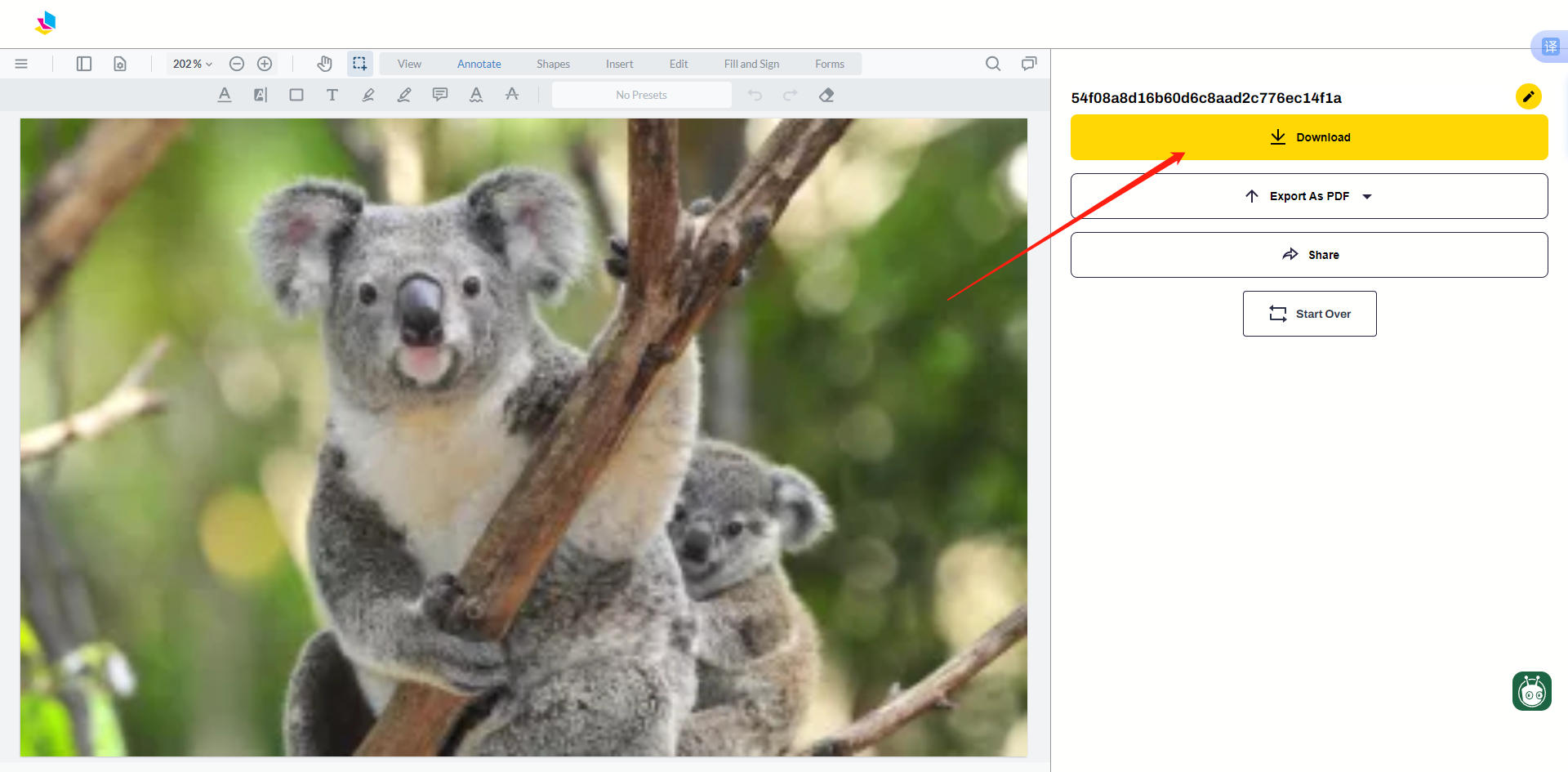
Step 3. Finally, click the [Download] button to save the successfully converted PDF document on your computer.
Method 6: Use "PDF Shelter" to convert jpg to pdf
PDF Shelter allows users to convert photos into pdf documents. Users simply upload images and the tool automatically merges them into a neat PDF file for easy archiving and sharing. This function supports a variety of photo formats, is simple to operate, and is suitable for users who need to process a large number of pictures.
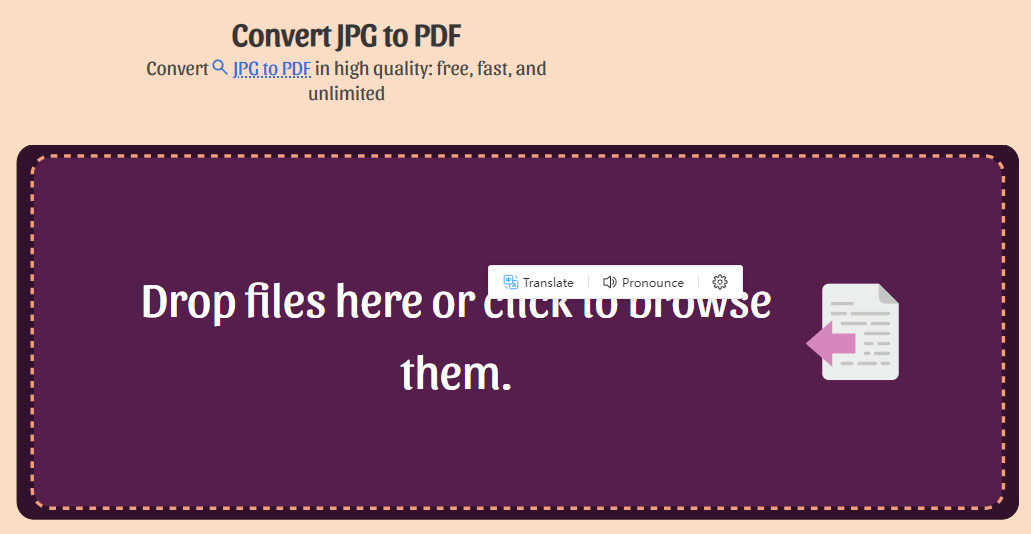
Step 1. Search and open the PDF Shelter online tool on the browser, click anywhere in the purple box of the software, and add the jpg photo file that needs to be converted.
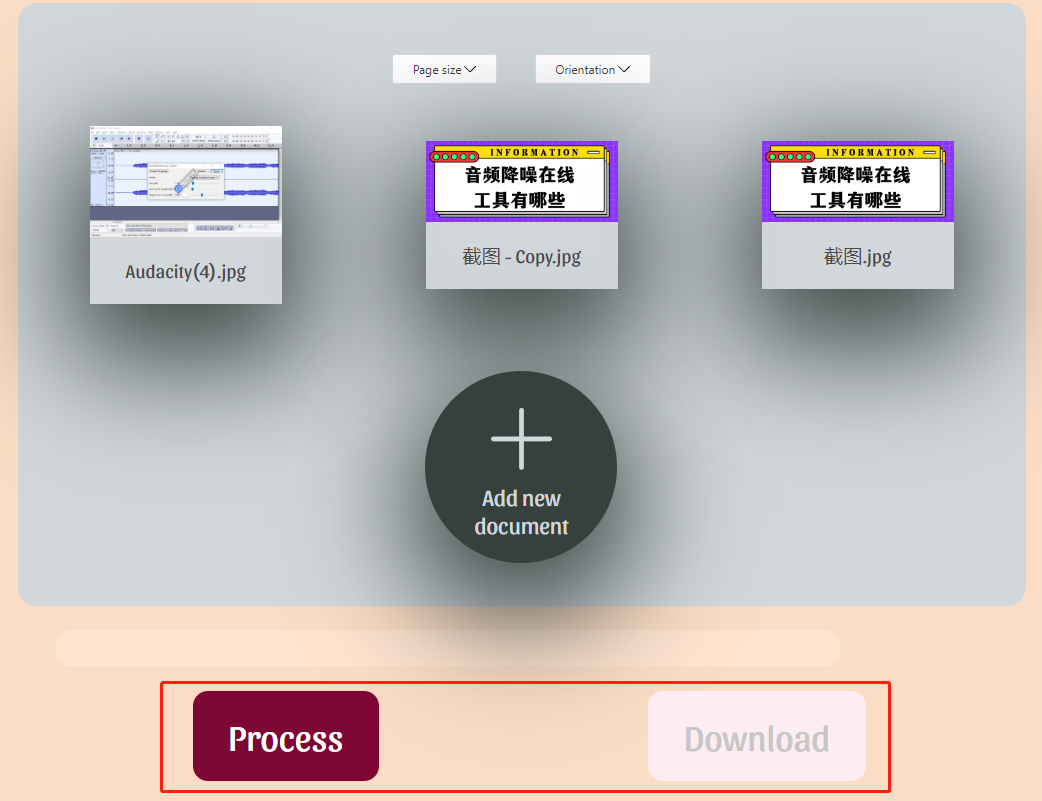
Step 2. Click [Page size] and [Orientation] on the top of the software to adjust the page size and rotation direction of the PDF page output.
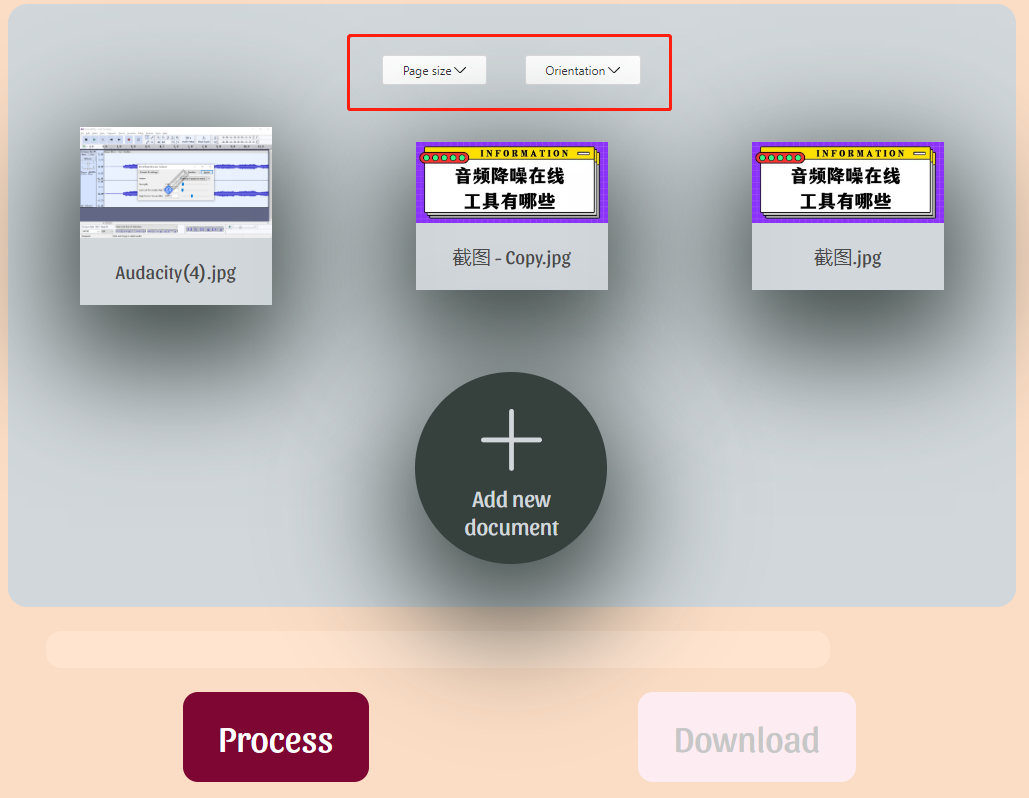
Step 3. After the settings are completed, click the red button [Process] below to start converting jpg to pdf document.
After the conversion is completed, click the [Download] button to save the PDF document on your local computer.
In summary, through the above 6 methods, you can now easily convert jpg to pdf format documents. The above methods can make your photo conversion process fast and efficient. Each method has its own characteristics, adapts to different needs and scenarios, and can help you organize multiple pictures and generate high-quality PDF files. If you are worried about how to convert photos to pdf, then you might as well try the 6 methods mentioned in this article!