Many people don’t know how to set the background color of the workspace in Photoshop? Today’s article brings you how to set the background color of the workspace in Photoshop. If you still don’t know, let’s learn it with the editor.
Step 1: First, we open the Photoshop software and enter the Photoshop initial page. The color of the initial page is the style color of Photoshop itself. We need to enter the working page first (as shown in the picture).

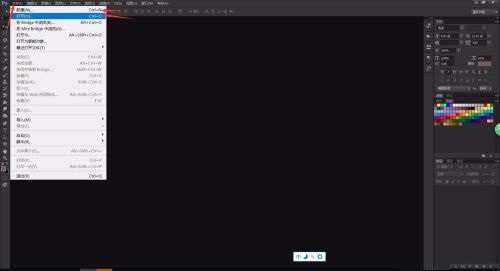
Step 2: Click "File" in the menu bar above Photoshop, select New or Open, open a canvas at will, and enter the Photoshop work page (as shown in the figure).
Step 3: Entering the Photoshop work page, we can see that the color next to the canvas is gray. We right-click on a blank position in the workspace, and the system will pop up a series of color settings (as shown in the picture).

Step 4: The default colors of Photoshop are mainly gray. If we need to set other colors, click "Select Custom Color" to set the color (as shown in the picture).

Step 5: The system will pop up the color setting window. We drag the mouse to select the background color of the workspace we want to customize the background color (as shown in the picture).

Step 6: After setting the custom color, we select "Customize" in the menu to change the background color of the workspace to the color we set (as shown in the picture).

Step 7: It is best to use gray-based colors for the background of Photoshop’s workspace, so that you can modify the image more objectively and avoid the impact of the background color on the viewing of the image (as shown in the figure).

The above is the entire content of how to set the background color of the workspace in Photoshop brought to you by the editor. I hope it can help you.