Friends, do you know how to set the storage directory for Thunder Lite Edition? So today I will explain how to set the storage directory for Thunder Lite Edition. If you are interested, come and take a look with me. I hope it can help you.
Step 1: First, we open the Thunder Lite software and enter the main interface (as shown in the picture).
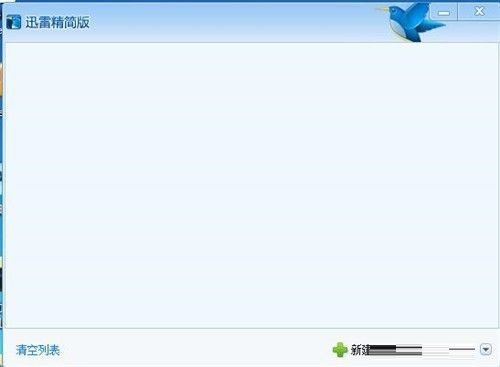
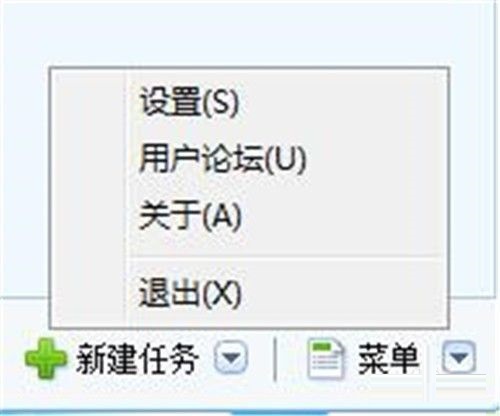
Step 2: Then click "Menu" in the lower right corner (as shown in the picture).

Step 3: Click "Settings" in the menu (as shown in the picture).
Step 4: Then make settings in the pop-up settings dialog box (as shown in the picture).
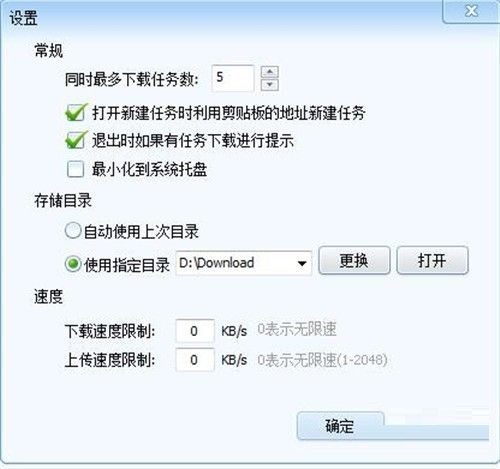
Step 5: Select "General" in the settings (as shown in the picture).

Step 6: We select "Automatically use the last directory" in the storage directory. When downloading, you can use the previous location to download (as shown in the picture).

Step 7: If you select the specified directory, select it first (as shown in the picture).

Step 8: Then the location selection interface pops up, and we select a folder (as shown in the picture).
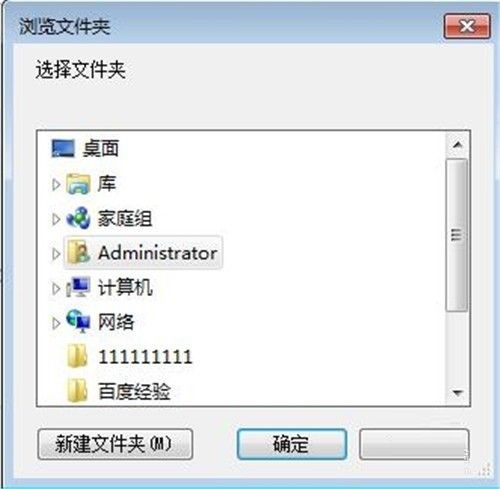
Step 9: Finally, click "OK" to complete the setting (as shown in the picture).

The above is the entire content of how to set the storage directory for Thunder Lite version brought to you by the editor. I hope it can help you.