How to insert multi-line text in CAD drawings quickly - How to insert multi-line text in CAD drawings quickly
Time: 2021-11-04Source: Huajun Software TutorialAuthor: Huluwa
Today, the editor will take you to learn how to quickly view pictures and insert multiple lines of text in CAD. I hope it can help friends in need. Below are the detailed and complete steps. Come and learn with the editor!
Step 1: First, we open the CAD Quick View software on the computer desktop and open the drawing in the CAD Quick View (as shown in the picture).

Step 2: Then we click the mouse on the text and the multi-line text (as shown in the picture).
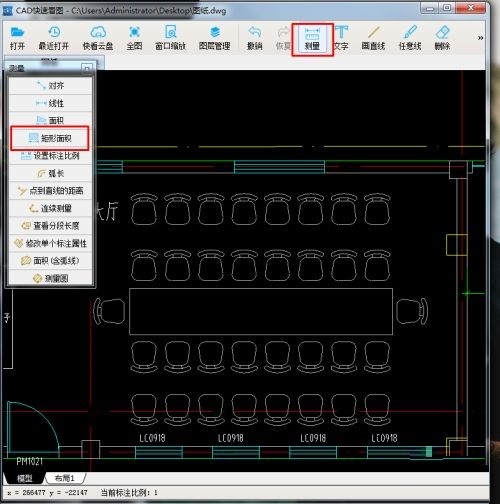
第三步最后我们在弹出窗口内输入文本内容,敲击键盘【enter】键,跳到下一行输入文字鼠标点击确认,指定文本的位置,点击鼠标左键确定,多行文字就插入完成了(如图所示)。


The above is the entire content of how to quickly insert multiple lines of text in CAD drawings brought to you by the editor. I hope it can help you.
Popular recommendations
-
bean bag
Version: 1.82.5Size: 216 MB
Doubao PC version is an AI smart assistant launched by ByteDance. It supports Windows and Mac systems and integrates AI search, writing assistance, translation,...
-
EV screen sharing
Version: 2.4.0 official versionSize: 43.2MB
EV Screen Sharing is a screen sharing software with real-time screen sharing, secure file transfer, ultra-low latency and other functions. Using LAN...
-
518 lottery software (random rolling)
Version: 8.2.9.9 official versionSize: 30MB
518 lottery software, 518=I want to send it, top annual meeting lottery software, simple design style, random rolling lottery.
Contains text numbers...
-
New Media Plus
Version: 1.0.15Size: 79.4MB
New Media Plus - self-media cross-platform multi-account management tool supports simultaneous management of multiple accounts on 30+ mainstream self-media platforms, one-click distribution of videos/graphics...
-
XGraphing
Version: 1.5Size: 33MB
A graphic generation tool, including mind maps, flow charts, Gantt charts, organizational charts, schedules, task lists, etc.
...