How to export WeChat chat history to computer? I believe that many friends will have insufficient WeChat memory, but in many cases the content in WeChat is more important, so we will not clean up the WeChat chat history easily, and the safest way is to export the WeChat chat history content from the Apple phone to the computer!

If you are using a Mac computer, how can you export WeChat chat history? Since there is nothing on the Internet about backing up WeChat chat records on Mac computers, the editor here will give you a popular method of exporting WeChat chat records suitable for Mac computers. It is actually very simple. With the help of a professional WeChat data export software "Happy Phone Recovery Master", you can complete it with one click. Here is a brief demonstration for you:
How to export WeChat chat history from iPhone? Tools needed:
1. Commonly used computers, Mac system or Windows
2.Happy Phone Recovery Master
3. iPhone, iPad, iPod touch that need to back up WeChat chat history
Kaixin Mobile Phone Recovery Master is a professional mobile phone data processing software that can be operated without jailbreaking. It provides three different export methods according to the different usage of each person's mobile phone, namely [Restore through device scan], [Restore through iTunes backup] and [Restore through iCloud backup], and supports the export of 17 kinds of commonly used data such as text messages, photos, and WeChat records.
The tools you need to export WeChat chat history from your Apple iPhone are as follows:
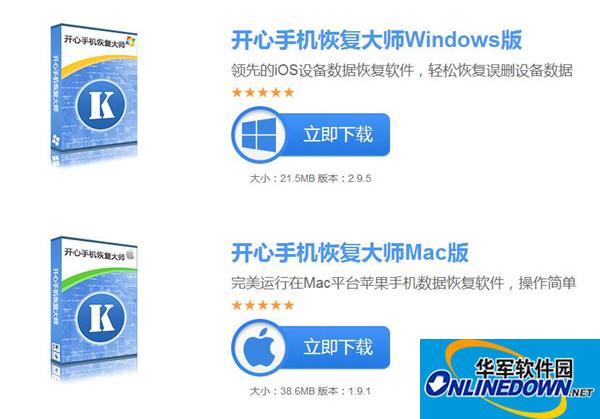
The first step is to connect the iPhone that needs to export WeChat chat history to the computer, and then download Kaixin Mobile Recovery Master to the local computer. It is recommended to choose the official website to download and install the software, so that you can easily choose the software suitable for your computer system to download;
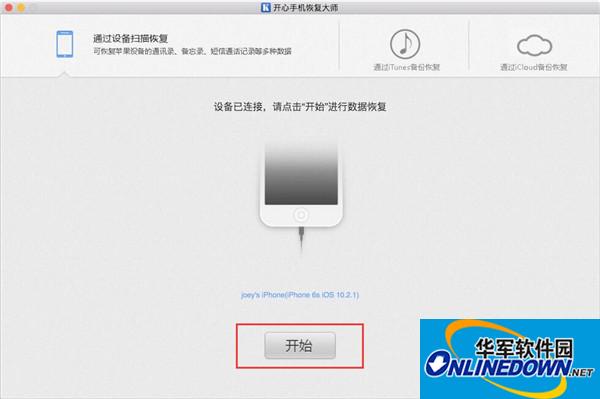
The second step is to run Kaixin Mobile Recovery Master. Then we can see three different export methods on the main interface of the software. The first mode is selected by default. When you see "Device Connected", you can click [Start] to jump directly into the WeChat chat record export backup mode;
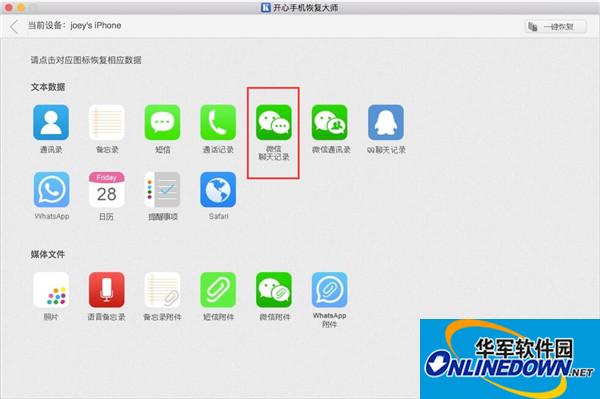
Step 3: After jumping to the data item icon interface, you can see that there are 17 types of data items that support exporting; since what we need to export is WeChat chat records, just click [WeChat Chat Records]. If you want to export the voice, video, and pictures in the WeChat chat history, click [WeChat Attachment];
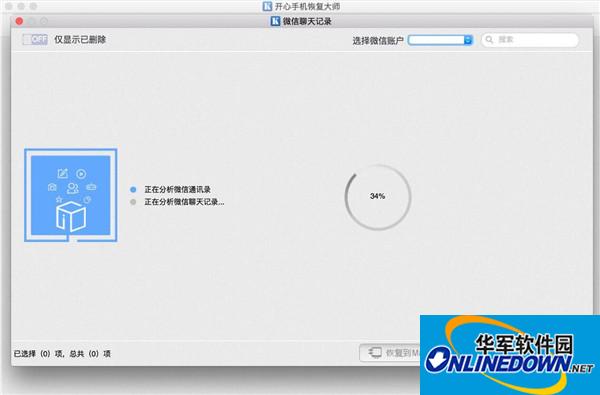
Step 4: After clicking on the picture, the system will enter the state of automatically analyzing and identifying the WeChat data in the mobile phone memory. Since the memory size of each person's mobile phone is different, the time required is also different, usually 5 minutes;
Step 5: After the scan is completed, you can see the results. Check the box on the left side of the account to select the WeChat chat records that need to be exported, and then click [Restore to Computer] to export the WeChat chat record content to the local computer in a table or web page format. You can view the specific WeChat chat record content by opening it.
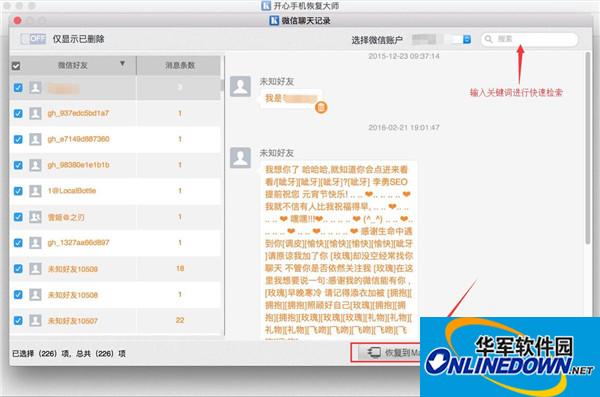
The above is how to use Kaixin Mobile Recovery Master to export WeChat chat records from iPhone. Then we can find that some of the text in the recognized WeChat chat records are marked in orange fonts. This part of the data represents deleted WeChat chat records. It can be seen that Kaixin Mobile Recovery Master not only supports exporting WeChat chat records, but also supports retrieving deleted WeChat chat records.