
-
scavenger
- Size: 0.93M
- Language: Simplified Chinese
- Category: Uninstall software
- System: winall





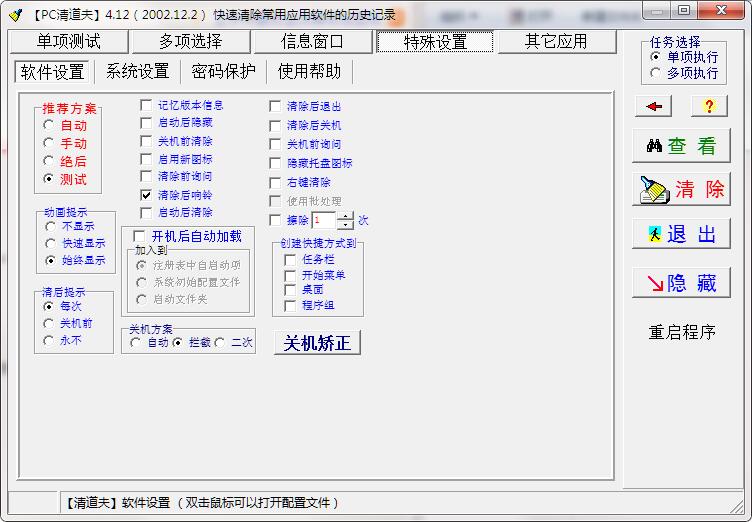
The latest version of Scavenger is a simple and practical system junk cleaning tool. The official version of PC Cleaner can help users comprehensively and quickly clear software history, registry, uninstallation residue and other data to improve the running speed of the computer. Scavenger is built with an excellent technical core. The data cleared by it cannot be recovered and can effectively protect user privacy.
Highlights of scavenger software
System performance optimization
When the computer is running slowly and the disk space is insufficient, deep cleaning can be used to release resources and improve system fluency.
Privacy protection needs
After using a public computer, personal data (such as account password, browsing history) must be completely cleared to prevent information leakage.
Maintenance after software uninstallation
After uninstalling the program, the remaining files occupying space can be completely cleaned by the scavenger to keep the system clean.
Automation system maintenance
Set to automatically clean up after shutdown, reducing manual operations. It is suitable for office or home users who use computers for a long time.
Scavenger software features
Deep cleaning capabilities
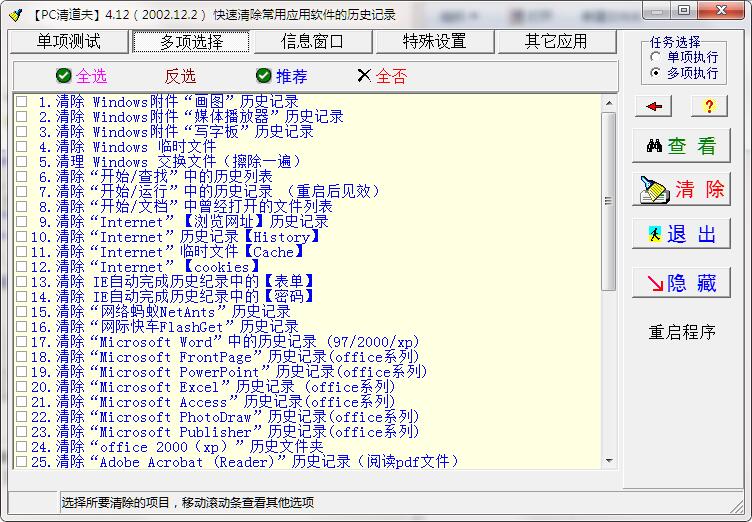
System junk removal: Accurately scan and clean up redundant data such as software residues, temporary files, thumbnail caches, etc. to free up disk space.
Registry optimization: Repair invalid registry entries, improve system response speed, and avoid lags caused by bloated registry.
Privacy trace erasure: Completely delete browser history, cookies, download records, etc. to prevent personal information leakage.
Uninstall residual cleaning: Intelligently identify residual files and registry entries of uninstalled programs to ensure a "traceless" state of the system.
Automated cleaning mode
Supports setting up automatic cleanup at shutdown. Users can complete system maintenance every time they shut down without manual operations, which is suitable for busy or non-technical users.
Cleaning plans can be customized (such as daily, weekly) to achieve scheduled maintenance.
Shortcut keys and efficient operations
Provides global shortcut keys (such as Ctrl+Alt+C to quickly bring up the cleaning interface), supports one-click cleaning, hiding windows and other operations to improve usage efficiency.
The interface is simple and the operation logic is clear, so novice users can get started quickly.
Security and Privacy Guarantee
Using irreversible deletion technology, the cleaned data cannot be recovered by conventional means, effectively protecting user privacy.
Completely free, no ads, no plug-ins, no bundles, ensuring a pure and uninterrupted use process.
How to use scavenger
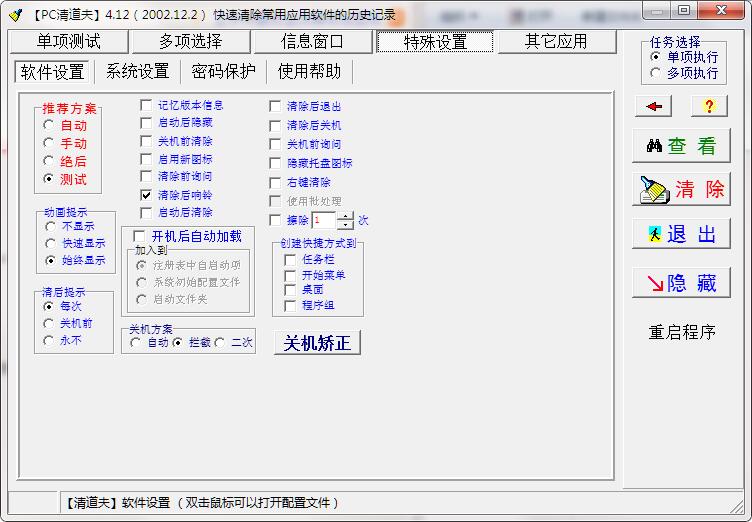
1. You don’t need to do too much research on this software. You only need to select the first item of “Recommended Solution” “Automatic” in “Special Settings/Software Settings”, and then click the “Hide” or “Restart Program” button on the right. This is designed by the author for the vast majority of users (including me). Of course, don't click the "Hide" and "Restart Program" buttons before reading this description.
2. If you use the "automatic" scheme setting, the program will automatically load the software when you turn it on, and automatically "clear" it before shutting down! You don't have to do it manually. (Of course, you can also select "Automatically clear after startup" to achieve the purpose of clearing at startup.)
3. You can also click the "Scavenger" icon in the system tray area with the left mouse button at any time, and click "Clear Now" in the pop-up menu to clear all records. Moreover, you can also right-click the tray icon to clear it immediately (you need to select the "right-click clear" function in "Software Settings").
4. After the program starts, you can also quickly use the hotkey "Alt+Delete" to clear it. This is very useful in "extraordinary moments"!
5. If you feel that the "Scavenger" icon in the tray area is too conspicuous, you can hide it, and the program will also work for you silently. If necessary, you can use the hotkey "Alt+Insert" to bring up the settings window. When finished, you can press the Esc key or the "Hide" button to hide the main window.
6. "Shutdown Correction": If "Scavenger" misjudges "Shutdown" and "Restart", you can click this button to correct it. After clicking, be sure to correctly select the options in the "Shutdown Dialog" according to the corresponding requirements of "Scavenger" (and click "Yes". Just like a real shutdown.) In this way, "Scavenger" will save the obtained setting information and make corrections based on the test results. Note that "Scavenger" will intercept during correction and will not actually shut down; some error messages may appear, which can be ignored (closed).
Scavenger FAQ
Is the data really irrecoverable?
Scavenger uses overwrite writing technology, and deleted files will be overwritten multiple times with random data, ensuring that they cannot be restored through conventional recovery software (such as Recuva, EaseUS).
Note: If you need to completely destroy sensitive files, it is recommended to use a professional file shredding tool first, and then use a scavenger to clean up the residue.
Why does the scan result show "System critical files"? Can it be cleaned?
Scavenger will intelligently identify system files and will not check key items (such as system disk Windows folders and drivers) by default.
Warning: Manually checking and cleaning system files may cause the system to crash, so be sure to proceed with caution!
Scavenger update log
1. Added the ability to clear automatic records of each version of "FinePrint 2000";
2. Added password confirmation when using "File Encryption", that is, you need to enter the password twice to remember.
Huajun editor recommends:
A very good uninstall software. I also use this software. It is powerful, green and safe. This site also provides uninstall software (GeekUninstaller), .NET, Cloud Machine Manager, etc. for you to download.
Version: 4.12 | Update time: 2025-11-06
Similar recommendations





Latest updates





How to delete history in Video Pioneer? -How to delete history records by Video Pioneer
How to set the skin for Video Pioneer? -How to set skin for Video Pioneer
How to upgrade software in 360 Software Manager? -How to upgrade software in 360 Software Manager
How to draw a lottery in 360 Software Butler - How to draw a lottery in 360 Software Butler
scavenger review
-
1st floor Huajun netizen 2015-12-22 02:01:03Scavenger is awesome! 100 million likes! ! !
-
2nd floor Huajun netizen 2014-11-17 22:30:05Scavenger hopes to do better and better, come on!
-
3rd floor Huajun netizen 2012-12-24 17:39:19Scavenger is convenient, practical and powerful. The software is very easy to use!
Recommended products










- Diablo game tool collection
- Group purchasing software collection area
- p2p seed search artifact download-P2P seed search artifact special topic
- adobe software encyclopedia - adobe full range of software downloads - adobe software downloads
- Safe Internet Encyclopedia
- Browser PC version download-browser download collection
- Diablo 3 game collection
- Anxin Quote Software
- Which Key Wizard software is better? Key Wizard software collection