Edge is a very comprehensive set of built-in online learning and accessibility tools, such as Immersive Reader, to improve reading comprehension. Edge supports synchronizing users' passwords, favorites, and settings across all devices (Windows, macOS, iOS, Android, etc.), making it easy for users to seamlessly switch between different devices. Next, let the editor of Huajun explain to you how to close the process in edge and how to close the process in edge!
first step
Make sure the Edge browser is open and you are on the browser's homepage or any tab.
Step 2
In the upper right corner of the Edge browser, find and click the three-dot icon, often called the "Settings" or "More Actions" icon.

Step 3
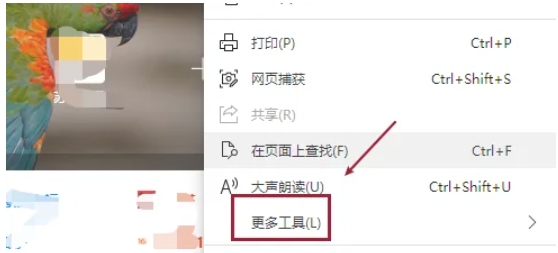
In the pop-up drop-down menu, find and click the "More Tools" option. This will open a new submenu.
Step 4
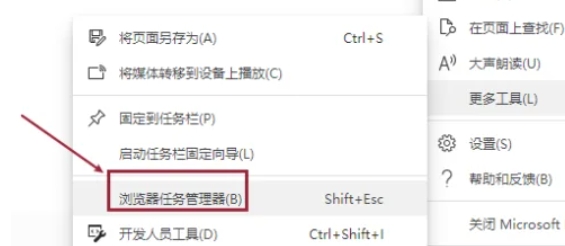
In the "More Tools" submenu, find and click the "Browser Task Manager" option. This will open the Edge browser’s Task Manager window.
Step 5
In the Task Manager window, you can see all the processes currently running in the Edge browser. These processes include web pages, extensions, plug-ins, etc. Look carefully at the processes and find the one you want to end.

Step 6
After selecting the process you want to end, click the "End Process" button next to the process. The process will be shut down immediately.

The above is how the editor of Huajun compiled for you how to close the process in edge and the method of closing the process in edge. I hope it can help you!