When using 101 Education PPT software, some netizens will encounter some problems, such as not being able to create a new Rubik's Cube game problem. The following editor will explain the steps with pictures and texts on creating a new Rubik's Cube game problem in 101 Education PPT. I hope it can help you.
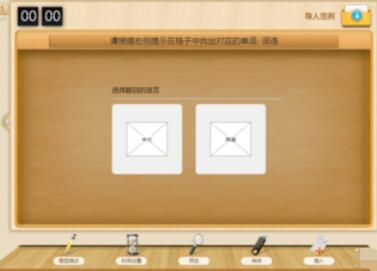
Click the "New Exercise" button in the top menu bar, click the "Rubik's Cube Game" module to enter the exercise editing interface

Enter the title content and select the question language. For example, if you want to examine English words, click English
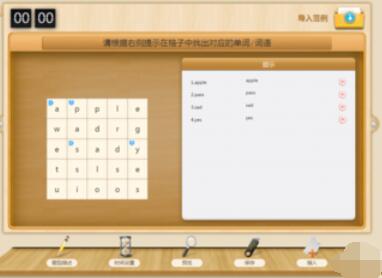
Enter the editing interface, click on the square on the left, enter a word in the square, enter one letter in each square, and support a cell matrix of up to 10*10. After the word input is completed, drag the mouse to select the answer, and enter the corresponding prompt content in the prompt box on the right.
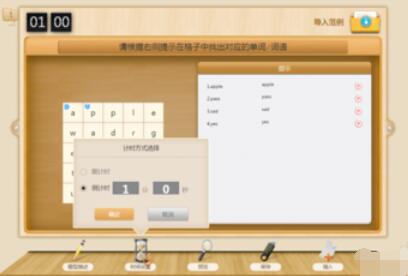
Click the time setting button below, you can choose sequential time or countdown, set the duration, click OK, you can set the completion time of this exercise
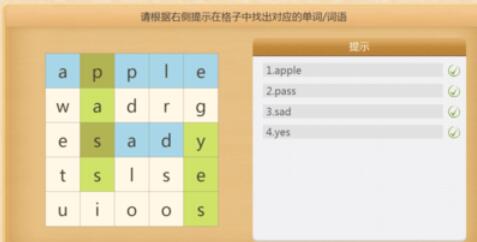
After editing the above content, you can click to preview to view the effect of the exercises, and click to insert to insert into the courseware. When logged in, it will be saved to "My Network Disk" at the same time.
The above is the graphic and textual steps for creating a new Rubik's Cube game problem in 101 Education PPT that the editor has brought to you. Let's learn together. I believe it can help some new users.