MathType is a powerful mathematical formula editor, so how to install MathType into Word? Next, the editor will tell you how to install MathType into Word, hoping to help friends in need.
Normally, when our computer has installed office software, it will be automatically added to the WORD toolbar after installation according to the above MathType installation tutorial. If it is not available, it can be added manually.
1. Start the WORD software, then click the File menu and click Options.

2. Open the WORD option and find the add-in on the left. Click the "Template" option in the management at the bottom of the interface.
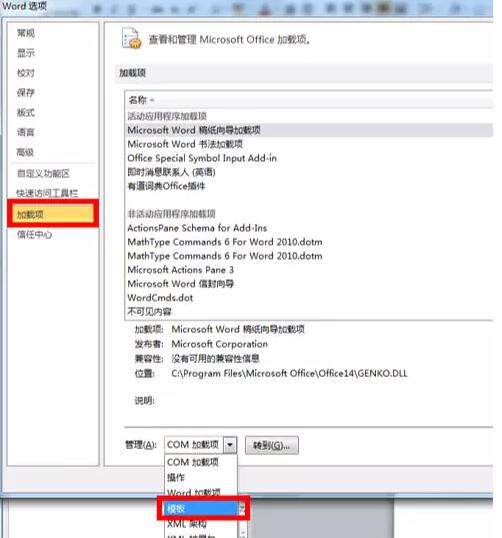
3. Then click the Go button on the lower right. Then the following interface will pop up:
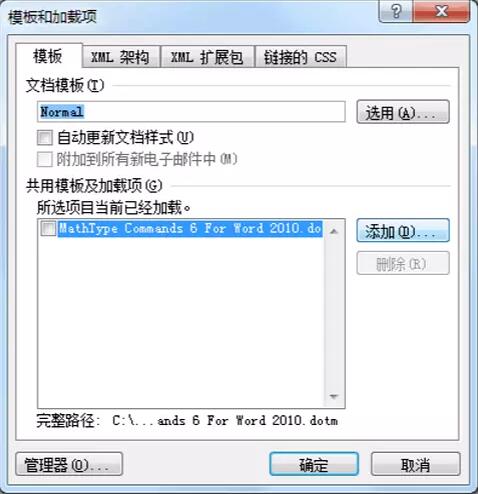
4. Click Add, find the file as shown below in the MathType installation folder, select it and click to open.

5. At this time, you will see the file we just added appearing in the "Templates and Add-ons" interface.
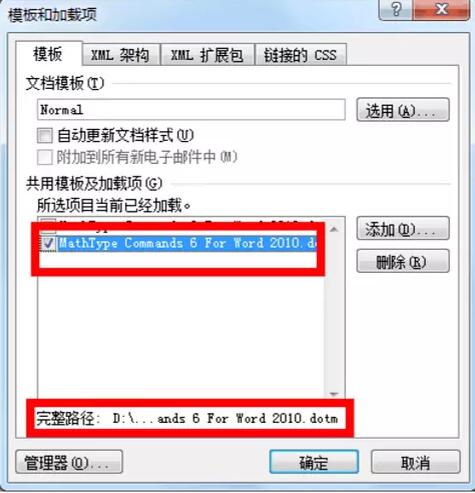
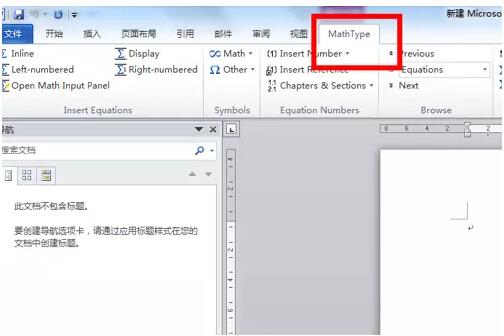
6. After finally clicking OK, the MathType function button will appear on the WORD toolbar, and you can use it to edit formulas.
以上这里为各位分享了MathType装到Word中的方法。 Friends in need, please come and read this article!