Logitech G HUB is a powerful driver software specially designed for Logitech gaming peripherals. It breaks the limitation of traditional drivers being used only for basic device settings, and provides players with a comprehensive, personalized and highly integrated control platform. Whether it is an e-sports mouse, mechanical keyboard, gaming headset, or other Logitech gaming equipment, GHUB allows players to deeply tap the potential of their equipment, maximize hardware performance, and bring unprecedented experience improvements to gaming competitions. Next, let the editor of Huajun explain to you how Logitech ghub solves the problem of restoring mouse settings to default when exiting and how Logitech ghub solves the problem of restoring mouse settings to default when exiting!
first step
Make sure the mouse is connected via receiver or Bluetooth and recognized by G HUB.
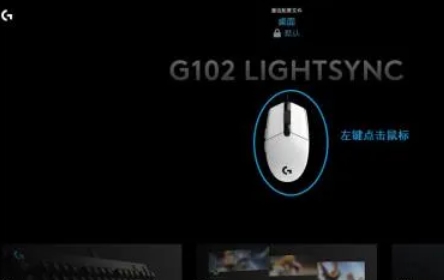
Step 2
Click the gear icon in the upper right corner (Settings) → "Profiles".
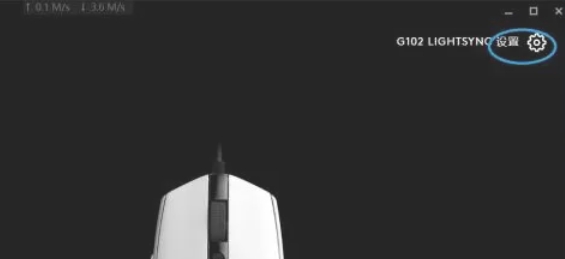
Step 3
In the profile list, select the currently used profile.
Step 4
Make sure the lower right corner says "Desktop Default" (indicating that this profile is the default app).
Step 5
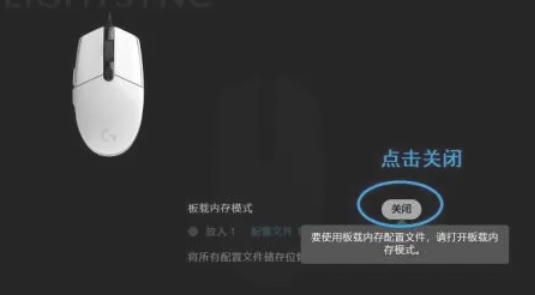
If "Off" is displayed, click to switch to "On".
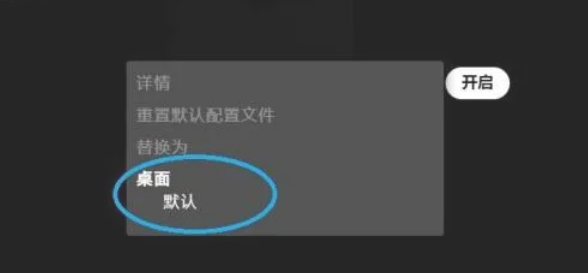
Step 6
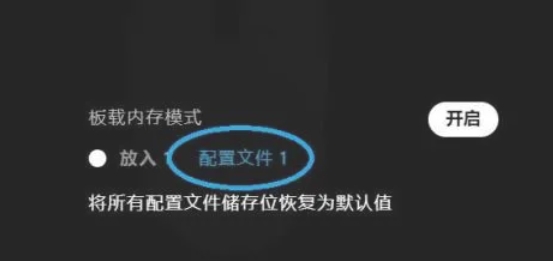
In the profile settings, check "Enable onboard memory mode" (if the mouse supports onboard memory). This feature saves settings directly into mouse memory, retaining configurations even when G HUB is closed.
The above is how the editor of Huajun compiled for you how to solve the problem of restoring the mouse settings to default when exiting with Logitech ghub and the method of restoring the mouse settings to default when exiting with Logitech ghub. I hope it can help you!