GHUB Logitech is a software that allows users to connect to multiple devices at the same time for management. Users can adjust the DPI level of the mouse, the RGB lighting effect of the keyboard, and the surround sound mode of the headphones on the same interface, avoiding the cumbersome operation of switching multiple software. In addition, the software will automatically identify new access devices, simplifying the configuration process. Next, let the editor of Huajun explain to you how to connect Logitech ghub to the computer and how to connect Logitech ghub to the computer!
first step
Windows 10/11:
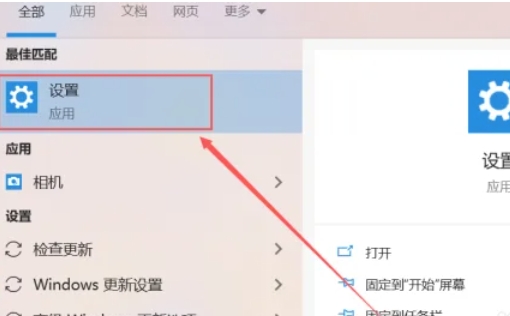
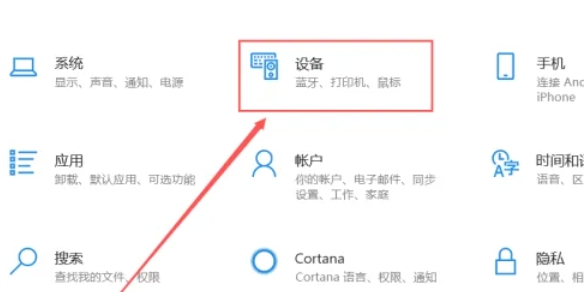
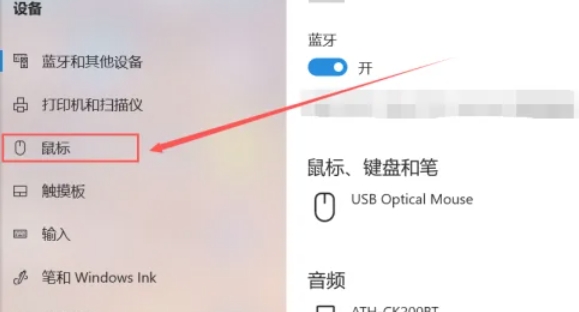
Click Start Menu → Settings → Devices → Bluetooth & other devices.
Turn on the Bluetooth switch.
Step 2
Press and hold the connect button (round button) at the bottom of the GPW for about 3 seconds until the LED light starts flashing (indicating entering pairing mode).
Step 3
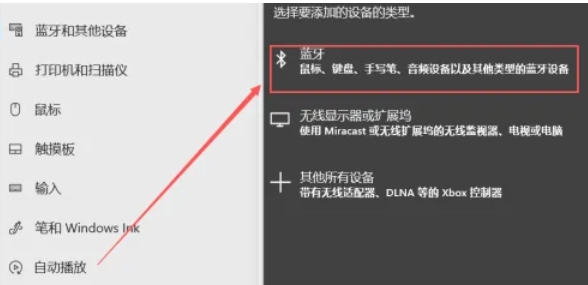
In your computer's Bluetooth settings, click Add Bluetooth or other device → Bluetooth.
Step 4
Wait for the computer to search for "Logitech G Pro Wireless" or a similarly named device.

Step 5
Click the device name to pair. After successful pairing, the LED light stops flashing.
Step 6
Move the mouse and check if the cursor responds.
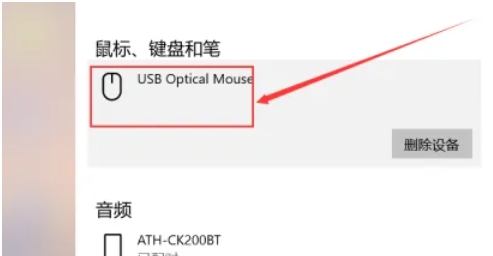
The above is how the Logitech ghub is connected to the computer and the method of connecting the Logitech ghub to the computer compiled by Huajun editor for you. I hope it can help you!