iTunes is a powerful digital media playback application developed by Apple. It is not only a music and video player, but also a comprehensive digital media management center. In the application, users can easily play, manage and organize digital media content such as music, videos, podcasts and more. Users can create custom playlists, search and sort by artist, album, song title, etc., and even edit song tag information. Seamlessly syncs with Apple devices (such as iPhone, iPad, iPod, etc.), allowing users to easily share and manage media content between different devices. This includes music, videos, podcasts, apps, photos, and more. Next, let Huajun editor explain to you how to transfer photos from iTunes to computer and how to transfer photos from iTunes to computer!

first step
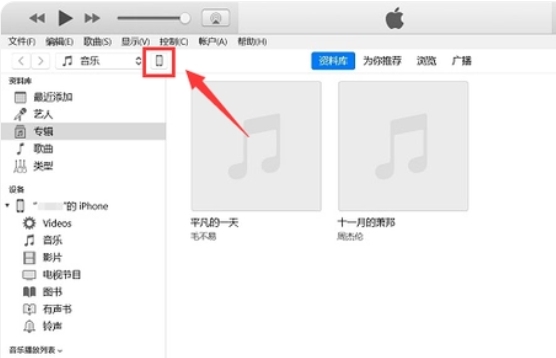
Use the data cable to connect the iPhone to the computer and open the iTunes software. If the phone is locked, iTunes will prompt the user to unlock the phone first. After unlocking, the user's iPhone device name will be displayed in the device location in iTunes.
Step 2
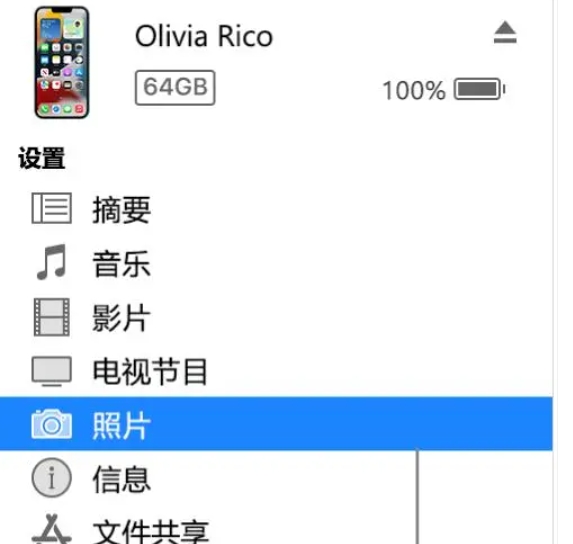
In iTunes, double-click your device icon, and the picture list of the mobile phone album will appear.

Step 3
Select the photos the user wants to export to their computer. In the upper right corner of iTunes, users can choose whether to delete the photos on their phone while importing them.

Step 4
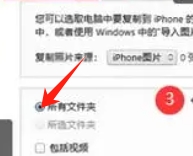
In the middle, users can choose where the imported photos will be stored on their computer.

Step 5
After the configuration is completed, click the blue import button in the upper right corner of iTunes to start exporting photos.
Step 6
After the export is completed, users can view the photo and video information at the import location just specified.

The above is how to transfer photos from itunes to computer and how to transfer photos from itunes to computer compiled by Huajun editor for you. I hope it can help you!