Many people don’t know how to convert FLV format to mp4 by Disc Burning Master? The article brought to you today is how Disc Burning Master converts FLV format to mp4. If you still don’t know, let’s learn it with the editor.
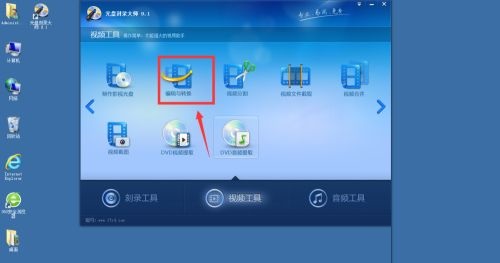
Step 1: First open the Disc Burning Master software, enter the tool area, and select the video tool option (as shown in the picture).

Step 2: Find the Editing and Conversion Tools option and click to open it (as shown in the picture).
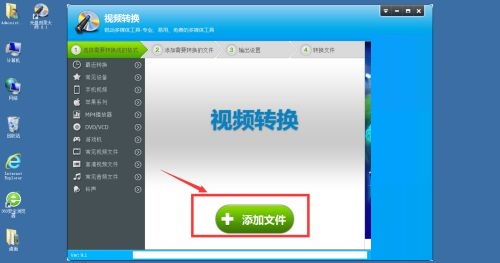
Step 3: After entering the video conversion, click the Add File button (as shown in the picture).
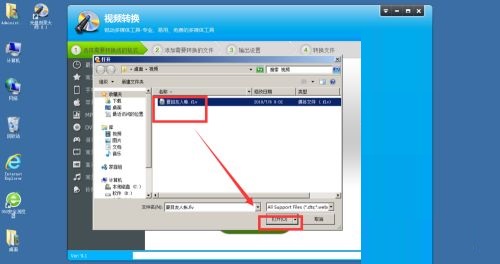
Step 4: Find the prepared video storage location, select the video to be edited and add it to the file (as shown in the picture).
Step 5: There are many formats that can be converted here, select the mp4 option and click OK (as shown in the picture).

Step 6: Here you can edit and crop the video file, and then click Next (as shown in the picture).
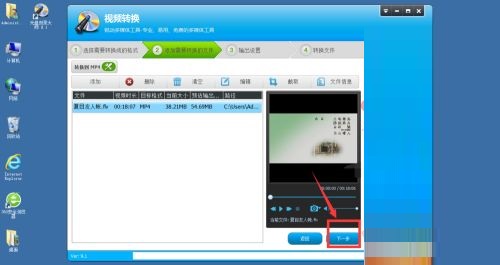
Step 7: Select the output directory location and click Next (as shown in the figure).
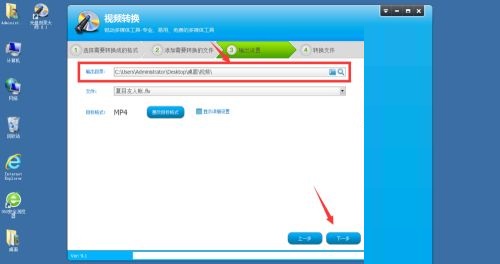
Step 8: Wait for the file conversion to complete. After the conversion is completed, find the output file location to view the output effect (as shown in the figure).


The above is the entire content of how the disc burning master brings you how to convert FLV format to mp4. I hope it can help you.