In the process of using Global Mapper, how to import point coordinates in batches? Recently, many friends have come to consult, so now I will explain to you the method of batch importing point coordinates in Global Mapper. Friends who are not familiar with it can learn it.
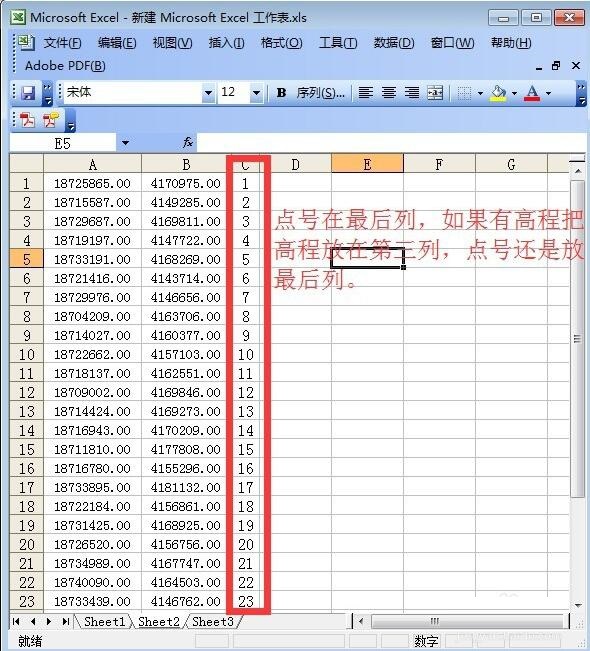
First, organize the data into the format specified in the figure and output the "csv" suffix file;
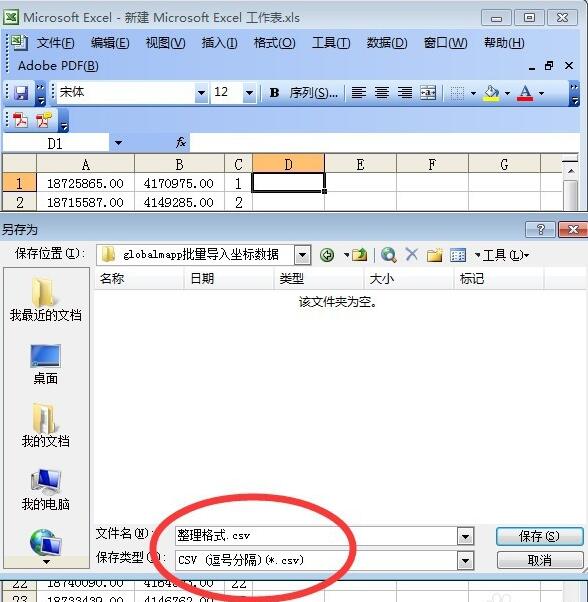
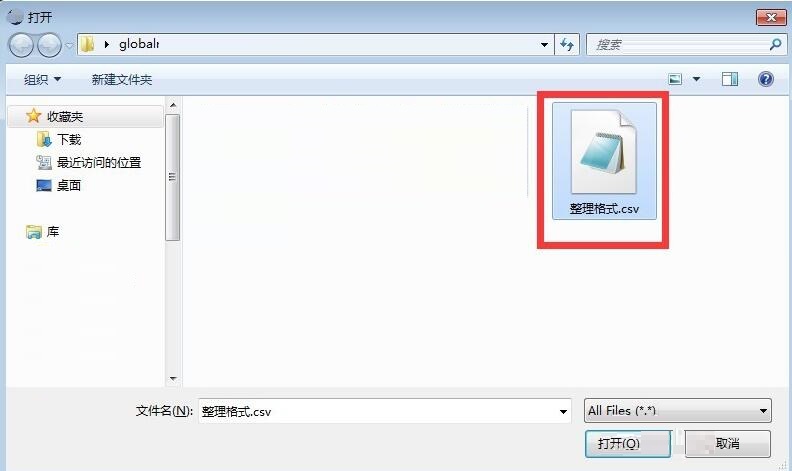
Open the Global Mapper software and open the CSV data you just saved;
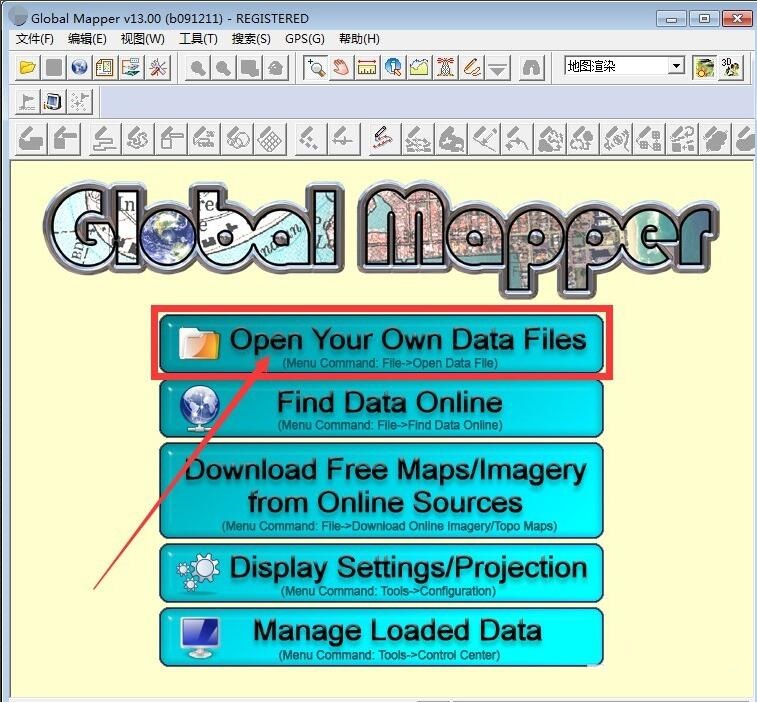
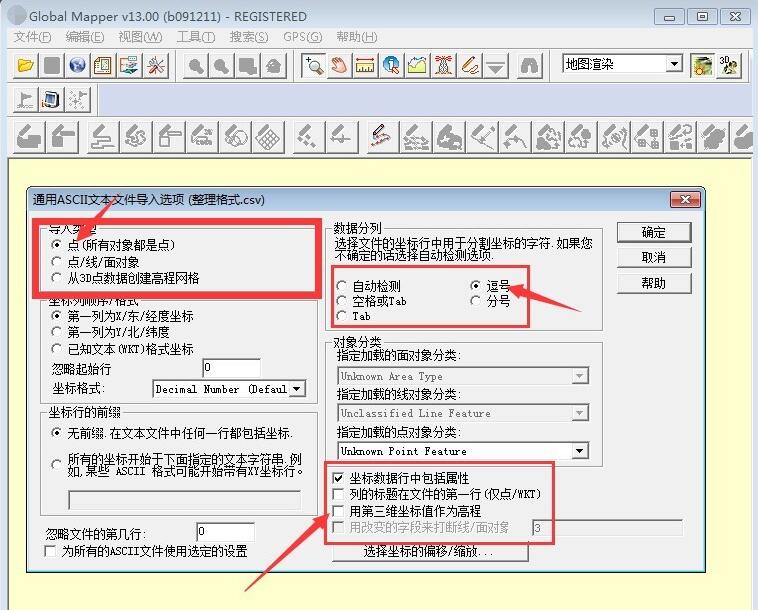
In the pop-up dialog box, select the parameters as shown below and click "OK";
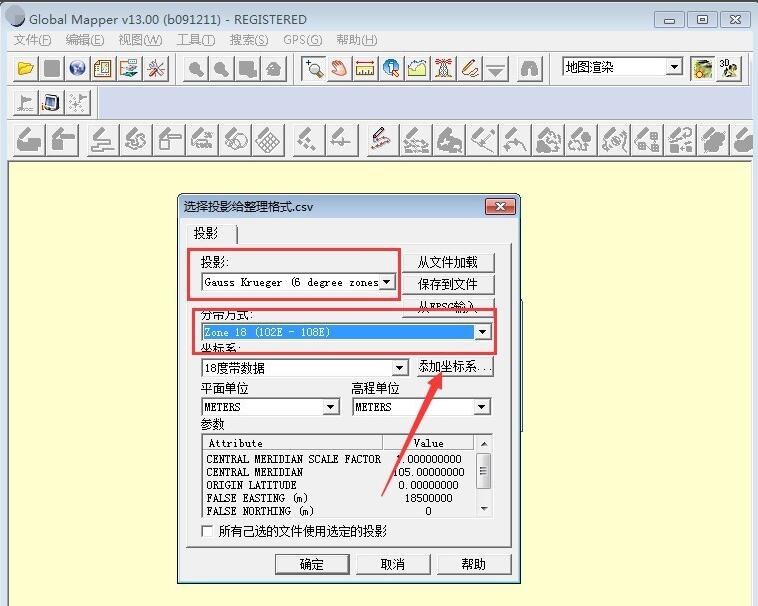
In the pop-up dialog box, select the parameters as shown below and click "Add Coordinate System";
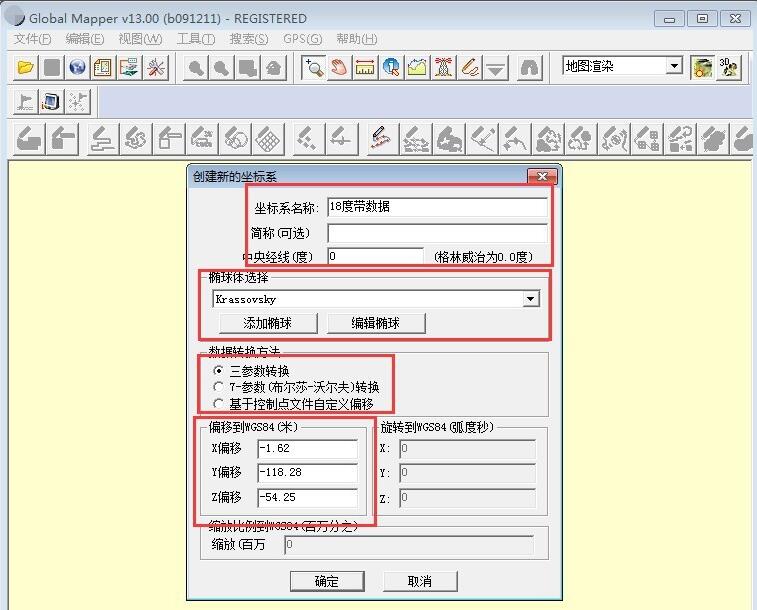
In the pop-up dialog box, select the parameters as shown in the figure below, enter the parameters of your own coordinates, and click OK. Note that the parameters must be accurate, otherwise the coordinate positions will be incorrect, such as the three parameters of wgs-beijing54, 1.62, 118.28, and 54.25 (the three parameters of WGS-beijing54 are generally given in the project). At this time, special attention must be paid. When entering, you must bring a "-" minus sign, because here are the three parameters of beijing54-WGS. If seven parameters are used, the settings are similar.
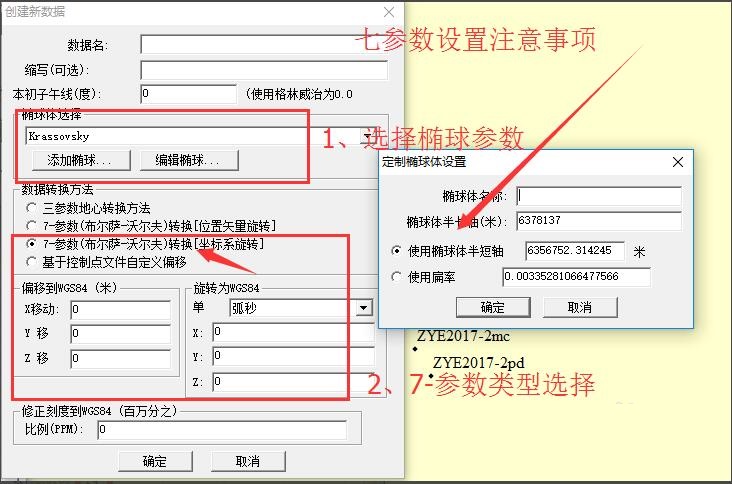
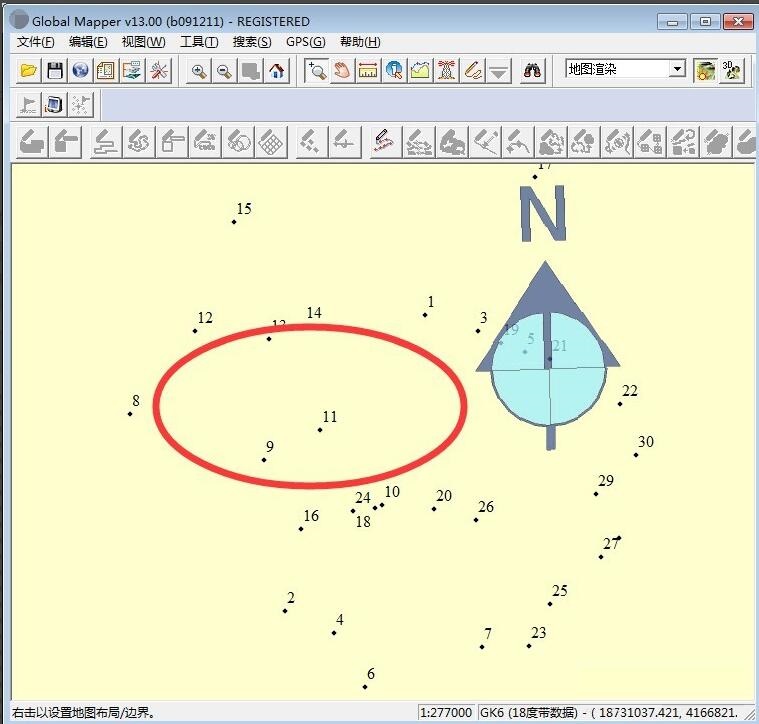
After clicking OK, you can see that the data has been imported into the global mapper window;
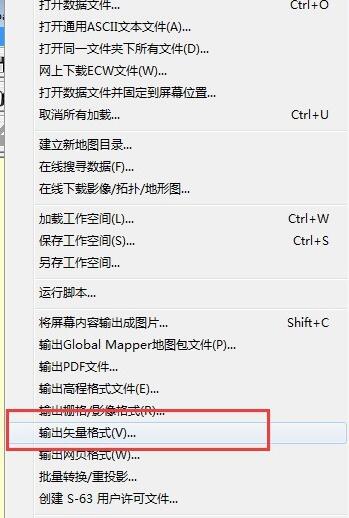
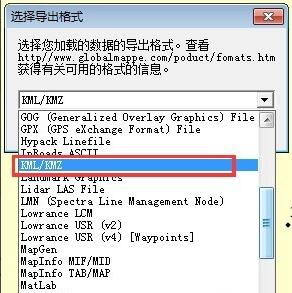
Click "File" "Output Vector Format" and select "KML/KMZ" to output the kmz file.
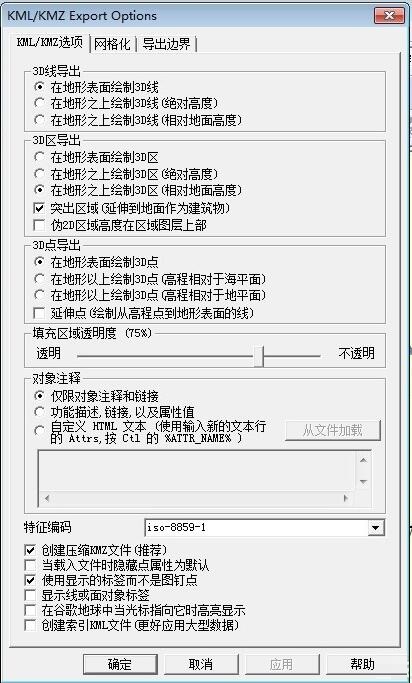
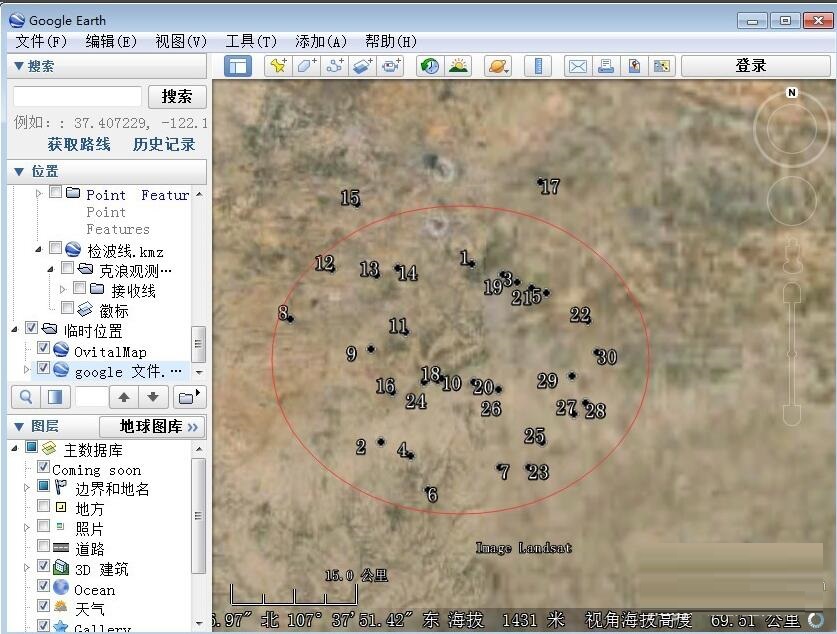
Open the corresponding kmz file in Global Mapper, and you can see the coordinate points you imported in batches.
The above is the editor's explanation of how Global Mapper imports point coordinates in batches. I hope it can help everyone.