



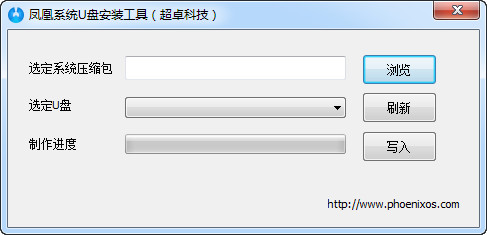
Operation guide
Insert the U disk into the computer, run the USBMaker software as an administrator (anti-virus software may mistakenly report it as a virus file), add the downloaded Phoenix system zip file, select the U disk you want to flash and execute writing, a confirmation prompt will pop up during the process, just confirm.
Software features
The classic "beginning"
The Phoenix system uses the start menu as the comprehensive entrance to the system. You can start installed applications and enter system settings and other functions. If you like, you can also make the Start menu full screen to browse more apps at once.
Multitasking, high efficiency
Compared with the traditional Android system, the Phoenix system supports multi-window and multi-task operations, and can easily switch between applications, greatly improving usage efficiency.
Manage files easily
The Phoenix system not only supports file classification management, LAN access, and global search, but also mouse operations, window dragging, and file decompression. Everything is a familiar operation and is simple and easy to use.
Familiar shortcut keys
As an efficient system, Phoenix system perfectly supports classic and commonly used shortcut keys such as Ctrl+C, Ctrl+V, Ctrl+A, etc.
Notification center
The notification center, which is called up by clicking the icon in the lower right corner of the taskbar, can not only manage notification messages in batches, but also aggregate commonly used shortcut settings.
Stardust Browser
Based on the internationally leading Chromium kernel, it perfectly supports the latest web standards and maximizes hardware capabilities. Its score in the professional browser performance test Html5Test is ahead of all major mobile browsers.
Manage apps for you
The Phoenix system deeply integrates the security center to the system level, and can intelligently allocate system resources and deeply clean up background processes, ensuring the stability of system operation, eliminating frequent interruptions by applications, and extending battery life.




Useful
Useful
Useful