




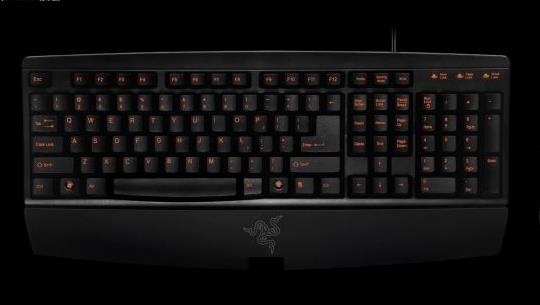
Razer keyboard driver introduction
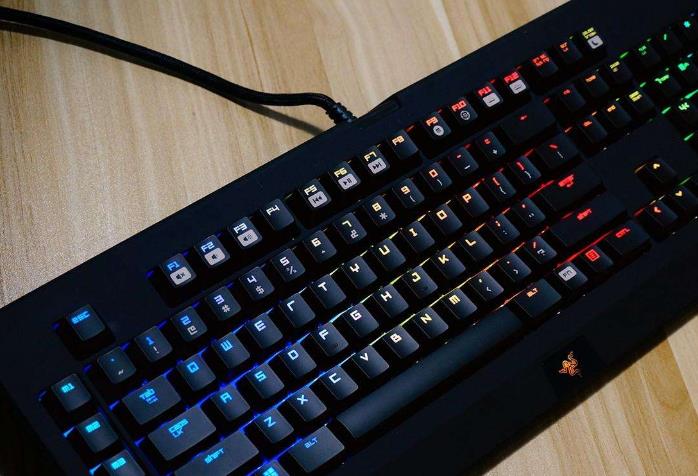
As a top game master, how to maximize your own potential is an eternal topic, and the author firmly believes that there is one item that top players must be very concerned about - that is, a handy keyboard and mouse. After all, comfortable operation can directly affect the performance of a player's ability. As a result, some hardcore gamers began to pursue keyboards with comfortable feel and rich custom functions. In order to meet the needs of these hardcore gamers and also to build momentum, manufacturers have launched powerful and expensive top-level gaming mice and keyboard products.
The aftermath of Microsoft and Razer's joint launch of Habu, a top-notch gaming mouse, has not subsided. In April 2007, a new product based on the technologies of the two companies - the "Microsoft Reclusa Gaming Keyboard" - has been launched. This new gaming keyboard is called "Reclusa", its full name is "Loxosceles Reclusa", and its Chinese name is "Brown Recluse Spider". This latest driver for the keyboard fixes the error that causes the Reclusa keyboard to crash when unplugging it under Win7.
Note: Please uninstall the previous version before installing this version of the Razer keyboard driver.
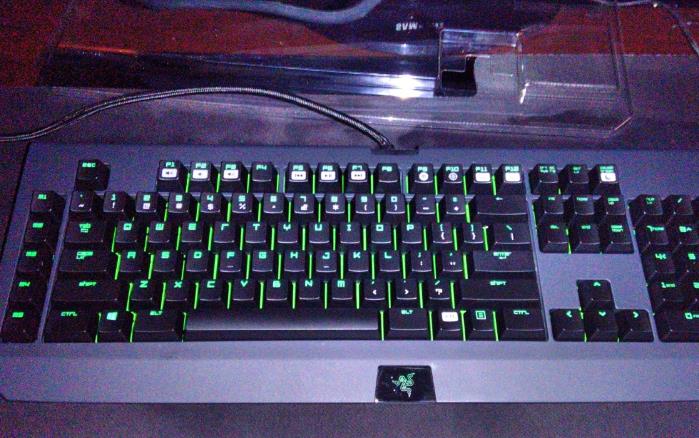
Razer keyboard driver installation instructions
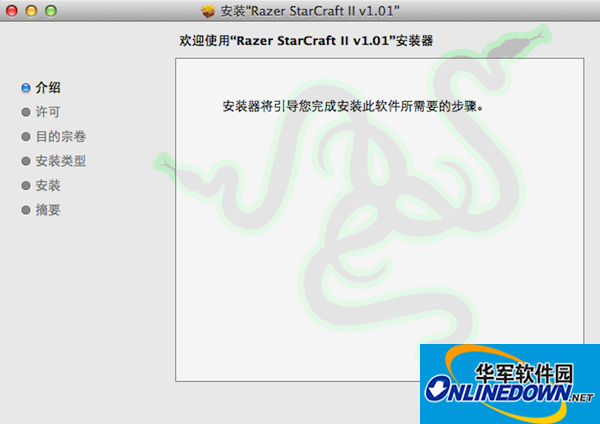
1. After downloading the Razer keyboard driver package from this site, you will enter the installation process as shown in the picture, just keep clicking Next;
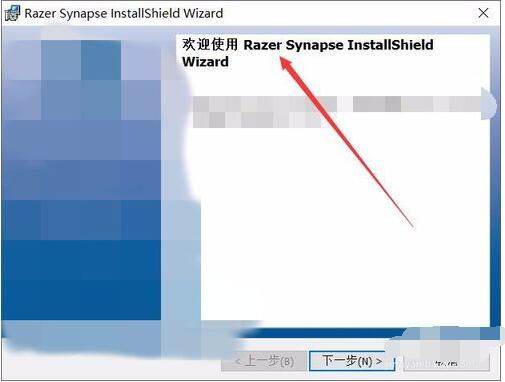
2. Wait for the installation to complete. After the installation is completed, you will be prompted to restart the computer;
3. After the installation is completed, you will be prompted to log in. Players who do not have an account can directly register with their existing email address, as shown in the picture.
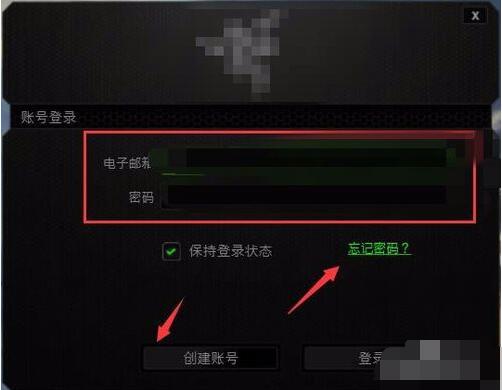
4. After completing the above steps, our Razer keyboard driver is installed.
Razer Keyboard Driver Setup Tutorial
1. Plug the keyboard into the computer first. Note that some Razer keyboards have multiple plugs. For example, the Black Widow has 4 plugs, which are keyboard input, UCB input and multimedia plugs. Do not insert them incorrectly.
2. After downloading and installing Thundercloud, start the program and register a Razer account. The account is registered with your own email. Log in after registration. Sometimes it may be updated and you need to wait patiently.
After the problem is solved, you can also try usingTencent Computer Manager, comprehensive real-time protection of your computer
Razer keyboard driverFAQ
1. How to delete the Razer keyboard driver?
① Find the [Computer] icon, right-click the mouse, and select [Manage (G)].
② After entering the device management, find [System Tools], [Device Manager], [Keyboard], then expand the keyboard options, find the keyboard driver, right-click the mouse, and select [Uninstall] from the pop-up menu.
2. How to set up Razer peripheral driver?
1. Plug the keyboard into the computer first. Note that some Razer keyboards have multiple plugs. For example, the Black Widow has 4 plugs, which are keyboard input, UCB input and multimedia plugs. Do not insert them incorrectly.
2. Open the Razer China official website and find the driver download in the technical support, then find the corresponding product and model and click to download. If you find it troublesome to find it, you can also directly download the cloud driver. Here we still recommend that you download the Tiger Balm cloud driver. There are different systems when downloading. Be careful not to make the wrong download.
3. After downloading and installing Thundercloud, start the program to register a Razer account. The account is registered with your own email address. After registration, log in. Sometimes it may display updates and you need to wait patiently.









Useful
Useful
Useful