





Basic introduction to EveryLang
EveryLang is a tool that can support translation between any language. It is actually a translation tool that integrates Google, Microsoft, and Yandex Translate. The software itself has no technology. It uses the mature translation technology of these large companies. It supports translation of more than 30 languages, supports spell check, and keyboard layout switching. Various operations. The program will allow you to translate any text, check spelling, switch and display the current keyboard layout, monitor the clipboard and text input on the keyboard, and more. The text converter consists of functions such as calculating expressions, converting numbers and dates to strings, Latin transliteration, quoted text frames, CamelCase style text conversion, changing the case of selected text, case of the first character of a word, and more. All functions work when the hotkey is pressed, as does SmartClick.
EveryLang function introduction
1. Translator
Translate into over 30 languages using Google, Microsoft and Yandex services. Select the desired text, press the hotkey and the translation will appear immediately next to your mouse cursor, you do not need to configure anything, the program will automatically determine the language to translate to.
2. Layout indicator
The indicator displays the current layout next to the mouse cursor, with the text cursor acting as a separate indicator window that works in almost all programs, including console applications. You always know what the current language is.
3. Automatically switch layouts
Automatic layout switching will allow you to not monitor the current input language. When entering text, the program will automatically understand that the entered words belong to different layouts. The program also automatically generates auto-switching rules, depending on how the user manually switches the language of the last typed word.
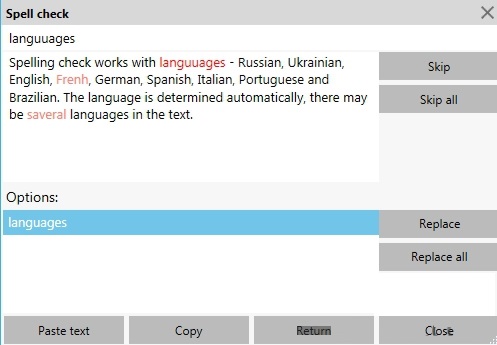
4. Spell check
It works like a translator, select text, press a hotkey and you can report errors which are immediately corrected and the original text is replaced. With languages - Russian, Ukrainian, English, French, German, Spanish, Italian, Portuguese and Brazilian. The language is determined automatically.
5. Layout switching
Switching the layout of the last typed word or selected text will allow you not to erase text written on the wrong layout, but switching the last typed word to another layout by double-clicking the Shift key, or double-clicking INSERT will switch the layout of the entire line. You can also select text and double-click Shift to switch it to another layout.
6. Clipboard manager
The manager tracks changes in the clipboard, tracks text formatting, HTML, RTF, and paths to copied files. Text from history can be inserted into any application using the convenient window, search records, split text by delimiters. You can also use your mouse to copy and paste text, and paste text in order of record numbers in the history.
7. Diary
View the history of type text across all applications. Typed text is stored in the application memory, and fragments of previously entered text are always visible.
8. SmartClick
The most basic functionality of working with text using the mouse. Select text and press the middle mouse button twice, and using the window that appears, you can copy the text, translate it, check spelling, change case, open the clipboard history and snippet list, and more.
9. Fragment
Text fragments can be inserted using special forms or by typing previously defined words, hotkeys or SmartClick menus can be used.
10. Text converter
The text converter consists of functions such as calculating expressions, converting numbers and dates to strings, Latin transliteration, quoted text frames, CamelCase style text conversion, changing the case of selected text, case of the first character of a word, and more. All functions work when the hotkey is pressed, as does SmartClick.
EveryLang installation method
1. Download the EveryLang official version software package from Huajun Software Park, unzip the obtained compressed package, and double-click "EveryLang.msi";
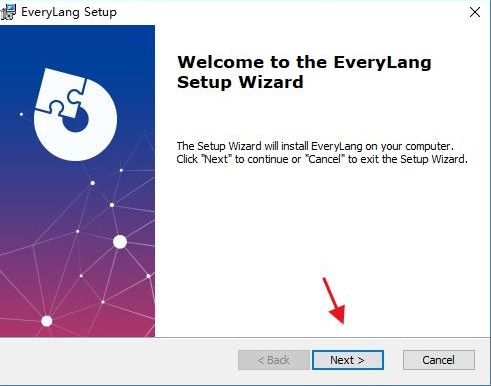
2. Enter the installation wizard interface of the software and click Next to continue the software installation;
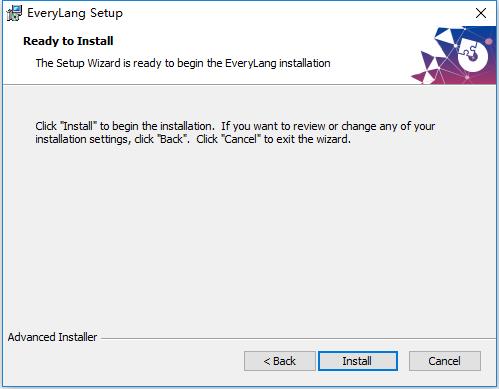
3. When you are ready to install the software, click Install;
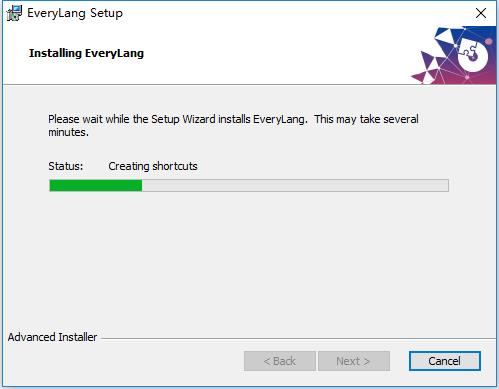
4. The software is being installed. Please wait patiently for the installation to be completed.......
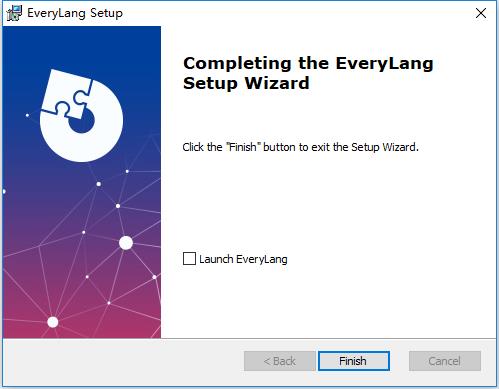
5. The software has been installed successfully, click Finish to continue the installation;
How to use EveryLang
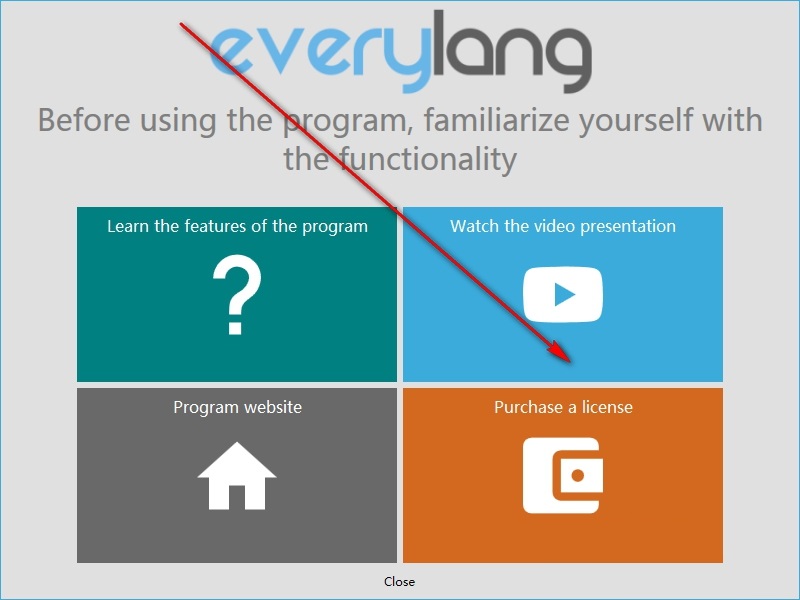
1. After the software is successfully installed, it supports the selection of relevant columns;
2. Check multiple words;
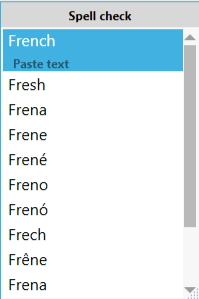
3. Check a word;
4. Select the hotkey for spell check;

5. The main list is in the main window; it is opened by the "Clipboard" button. Each copied text is added to the clipboard history. Additionally, when a file is copied, its path is added to the list.
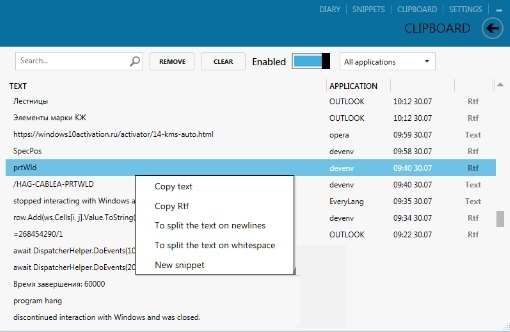
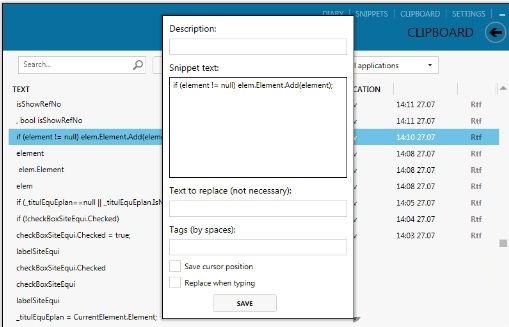
6. From the recording, you can instantly create new snippets
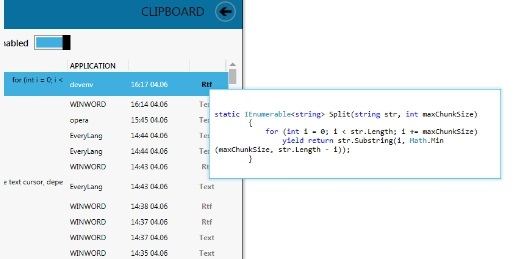
7. You can also view records in their original format
EveryLang update log
1. Fix bugs
2. Optimize some functions
Huajun editor recommends:
Don’t miss it when you pass by. If you miss EveryLang, you will never experience such good service again. This site also recommends to youYoudao Dictionary,DXF to G code tool,Sesame Quick Translation,Snowman Computer Assisted Translation (CAT),WORD to PDF converter




Useful
Useful
Useful