




- Green versionView
- Green versionView
- Green versionView
- Green versionView
- Green versionView
BetterZipSoftware Highlights
1. Edit in compressed package
No need to unzip and modify:
Add, delete or rename files in the archive directly in the BetterZip window.
Supports saving the modified compressed package as a new version (keeping history).
Test the integrity of the compressed package:
Quickly detect whether the compressed package is damaged and fix common errors (such as CRC check failure).
2. Cross-platform compatibility
Windows compatibility mode:
When creating a ZIP archive, you can choose to be compatible with Windows legacy systems (to avoid file name encoding issues).
Supported Linux formats:
Decompress common Linux formats such as TAR, GZ, BZ2, etc., or create compression packages that comply with Linux specifications.
3. Cloud service integration
Direct upload/download:
Use shortcut keys to upload the compressed package to cloud storage such as Dropbox, Google Drive, OneDrive, etc.
After downloading the file from the cloud service, it is automatically decompressed to a local directory.
4. Default configuration
Save frequently used settings:
Create custom presets (such as High Compression ZIP, Encryption 7Z) and apply them to repetitive tasks with one click.
Supports export/import of presets to facilitate synchronized configuration of multiple devices.
BetterZip Features1. Multi-format support
Unzip: Supports 70+ formats, including:
Common: ZIP, RAR, TAR, GZ, BZ2, ISO, DMG.
Encryption: ZIP (AES-256), 7Z (AES-256), RAR (password protected).
Special: EXE self-extracting package, XAR, CAB, LZH, etc.
Compression: Can create compressed packages in ZIP, 7Z, TAR, GZ, BZ2, XZ and other formats, and supports volume compression.
2. Intuitive operation interface
Finder integration:
Right-click to compress/decompress files directly in Finder without opening the software.
Supports dragging files to the Dock icon or window for quick operation.
Preview function:
Double-click the files in the compressed package to preview (such as images, text, PDF) without decompressing the entire content.
Supports Quick Look to quickly view file details.
3. Batch processing
Batch compression/decompression:
Select multiple files or folders and batch compress them into independent or combined compressed packages with one click.
Supports batch decompression to specified directories and automatically skips duplicate files.
Automated workflow:
Create custom scripts through AppleScript or Automator to automate compression tasks (such as scheduled backups).
4. Advanced compression options
Password protection:
Set AES-256 encryption for ZIP/7Z archives, support password generator.
Specific files within the compressed package can be individually encrypted.
Volume compression:
Split large files into multiple smaller volumes (e.g. 100MB per volume) for easy transfer or storage.
Compression level adjustment:
Choose storage speed (fast compression) or compression rate (highest compression) to balance efficiency with file size.
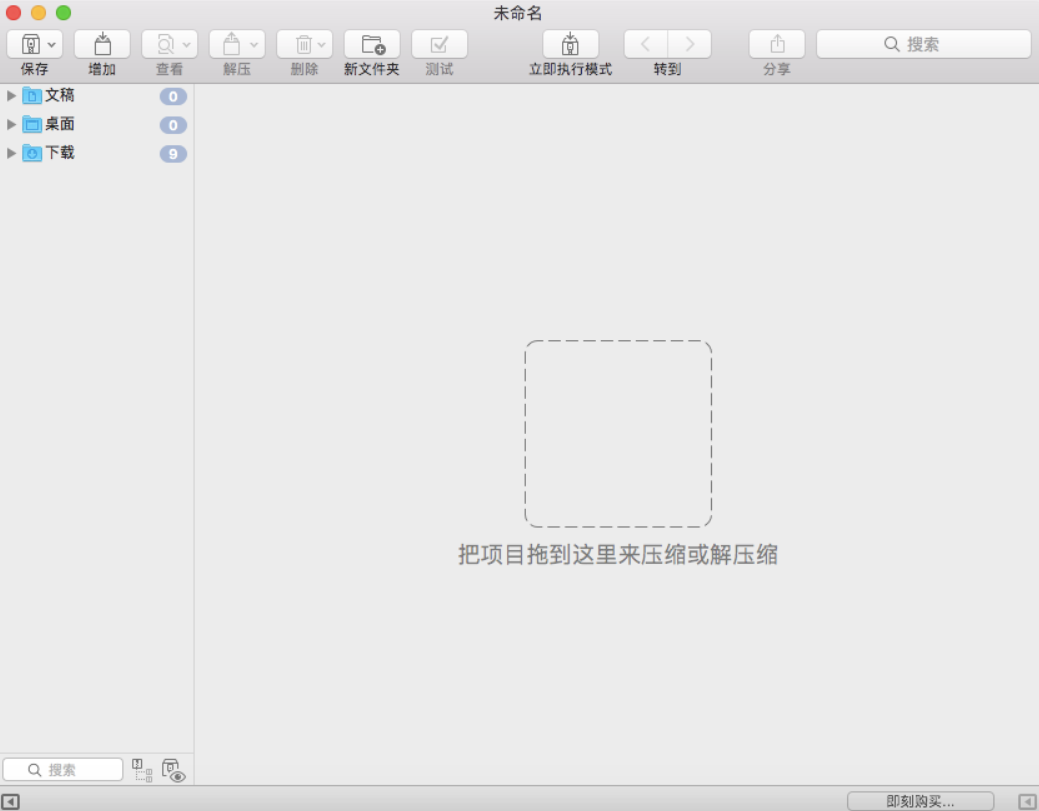
BetterZipSoftware features
(1) Create and update
BetterZip can create archives in the following formats: ZIP, TAR, TGZ, TBZ, TXZ, 7-ZIP, XAR, using external command line utilities. Let BetterZip remove Mac-specific files from archives so they look and behave well on Windows.
(2) Open and extract
BetterZip can currently open and extract over 30 archive formats, including: ZIP, TAR, TGZ, TBZ, TXZ, 7-ZIP, RAR, Apple Disk Image (DMG), TNEF (winmail.dat), ARJ, LHA, LZH, ISO, CHM, CAB, CPIO/CPGZ, DEB, RPM, StuffIt’s SIT and SITX, BinHex, MacBinary, ePub, JAR/ WAR/EAR/SAR/PAR/WSR Java archives, CBZ/CBR e-books, GZip, BZip2, WIM.
(3) Protect your data
Protect your data with strong AES-256 encryption.
BetterZip's Password Manager can collect a list of archived passwords in your keychain and automatically use them when opening an encrypted archive.
(4) Finder integration
BetterZip allows you to add configurable services to the macOS services menu, and the new Finder extension puts all of the preset Finder toolbars in it.
(5) Preset
BetterZip allows you to create presets for creating and extracting archives. Presets collect all settings that can be applied to archives, from target folders and archive formats to passwords and even execute scripts after the operation is completed.
(6)Filtering
BetterZip can filter out unwanted files during archive extraction. No more Thumbs.db and other stuff your system doesn't need! It also prevents files from being placed in your archive in the first place. You don't want hidden version control folders or backup file archives.
(7) Extensive AppleScript support
BetterZip can be scripted using AppleScript to integrate it into your workflow.
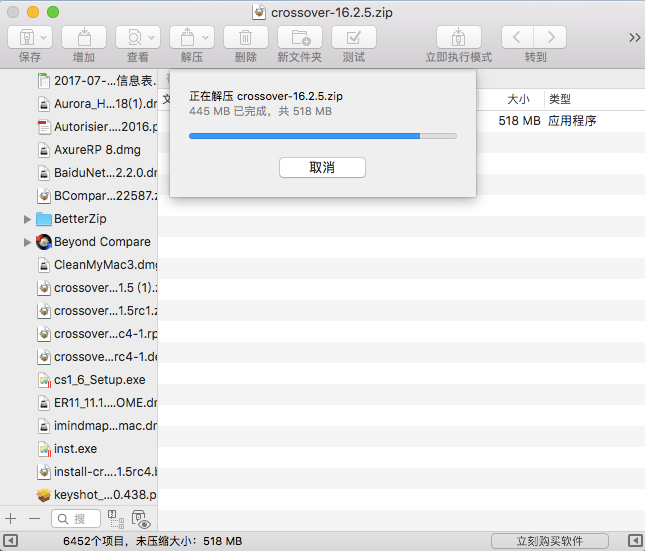
BetterZip FAQ
How to decompress encrypted RAR files?
Steps:
Double-click on the RAR file → BetterZip window will automatically open.
Enter the password (if the archive is encrypted).
Click Extract or drag the file to Finder to extract it.
Note:
If it prompts "Unable to decompress", it may be that the password is incorrect or the file is damaged. Try using WinRAR (Windows version) to repair it.
BetterZip update log
1: Brand new interface, refreshing, simple and efficient
2: Performance is getting better and better
Huajun editor recommends:
The editor of Huajun Software Park has compiled and collected software that you may like, such as:Baidu Input Method For Mac,Mac OS X,CrossOver Pro For Mac,Boot Camp,EaseUS Data Recovery SoftwareYou can download it from this site.












Useful
Useful
Useful