
Hot search terms: 360 Security Guard Office365 360 browser WPS Office iQiyi Huawei Cloud Market Tencent Cloud Store
Hot search terms: 360 Security Guard Office365 360 browser WPS Office iQiyi Huawei Cloud Market Tencent Cloud Store
system tools Storage size: 220.07 MB Time: 2022-12-23
Software introduction: app is a free mobile translation software. Baidu translation app is the mobile software of T1 lineup among the current mobile translation applications. Baidu...
Baidu Translate is a translation software that supports 27 popular languages including Chinese, English, Japanese, Korean, etc. and covers more than 700 translation directions to meet users' communication needs on a global scale. The software contains more than 5 million pieces of authoritative dictionary data to ensure the accuracy and authoritativeness of the translation results. This is especially important for learners to help them better understand word meaning and usage. Next, let the editor of Huajun explain to you how Baidu Translate translates from English to Chinese and how Baidu Translate translates from English to Chinese!
first step
On the main interface of Baidu Translation APP, you will see multiple translation options, such as "Text Translation", "Photo Translation", "Voice Translation", etc. Please look for and click on the "Photo Translate" option. If you can't find it, try swiping through the menu at the bottom or top to find it, or use the search function (if provided by the APP).

Step 2
After entering the photo translation interface, point your phone camera at the English page you want to translate. Make sure the text is clear and well-lit so that the APP can accurately recognize it.

Step 3
After aligning with the page, click the photo button at the bottom of the screen (usually a camera icon). The APP will immediately capture the photo and start analyzing the text in the image.

Step 4
In some versions of Baidu Translate APP, you may need to select the source language (English in this case) and target language (Chinese) after taking the photo. If the APP has automatically recognized the source language, you only need to confirm or select the target language as Chinese.

Step 5
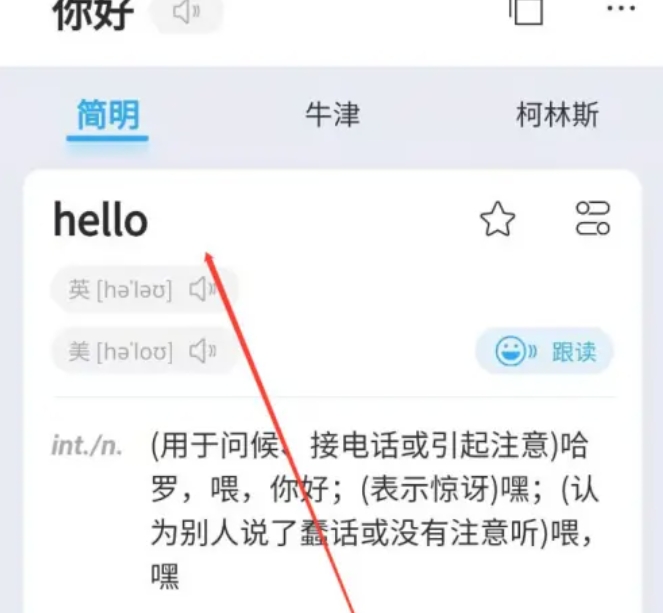
After selecting the language, the APP will immediately display the translation results on the screen. You can see the corresponding Chinese translation on the screen next to the original English text.
Step 6
If you need to save the translation results or share them with others, you can find the corresponding save or share buttons on the translation results interface. Typically, these buttons appear as icons at the bottom or top of the screen.
The above is how the editor of Huajun compiled for you how to translate from English to Chinese and how to translate from English to Chinese. I hope it can help you!

 How to check the list style in Kuai Technology? -Quick Technology’s method of viewing list styles
 How to cancel the account in Kuai Technology? -How to cancel your account in Kuai Technology
 movie paradise
 Quark Browser
 little red book
 Chinese University MOOC computer version
 Xiaoetong
 Traffic control 12123
 Minecraft Bedrock Edition
 KMPlayer
 watermelon video
 How to use Fliggy’s student discount? List of student certification methods on Fliggy
 How to find the help center for Panzhi Sales - How to find the help center for Panzhi Sales
 How to change ID card with taptap-How to change ID card with taptap
 How to add friends on steam mobile version - How to add friends on steam mobile version
 How to Chineseize ourplay with one click - How to Chineseize ourplay with one click


