-
UltraISO floppy disk pass
- Size: 2.19M
- Language: Simplified Chinese
- Category: burning software
- System: WinAll






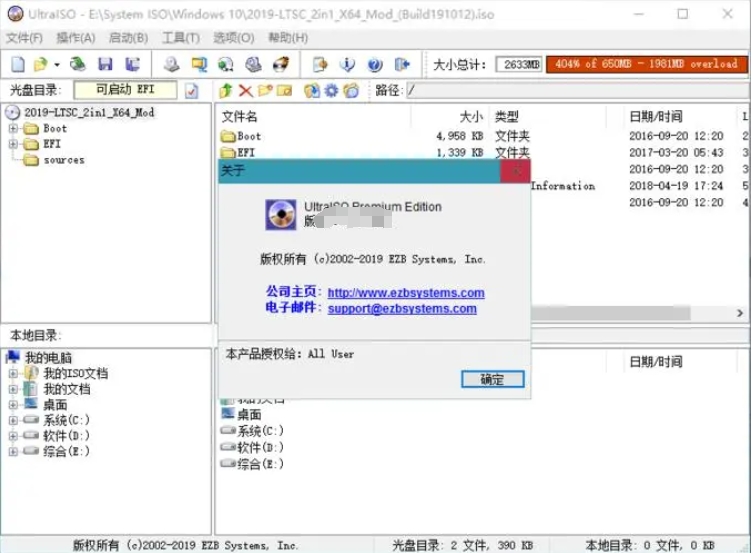
UltraISOThe Chinese name Softdisk is a powerful, convenient and practical disc image file creation/editing/format conversion tool. It can directly edit disc images and extract files directly from the image. It can also create disc images from CD-ROM or make files on the hard disk into iso files. At the same time, you can also process the boot information of the iso file to create a bootable disc. With UltraISO, you can create/edit discs as you like. Friends who like UltraISO floppy disk pass, come to Huajun Software Park to download and experience it!
Software features
1. You can directly edit ISO disc image files.
2. Some files and directories can be extracted directly from the image file
3. Supports adding/deleting/creating new directories/renaming ISO files.
4. You can make files on the hard disk into ISO files.
5. You can copy the disc sector by sector and create a complete image file including boot information.
6. It can process CD boot information. You can directly add/delete/get boot information in the ISO file.
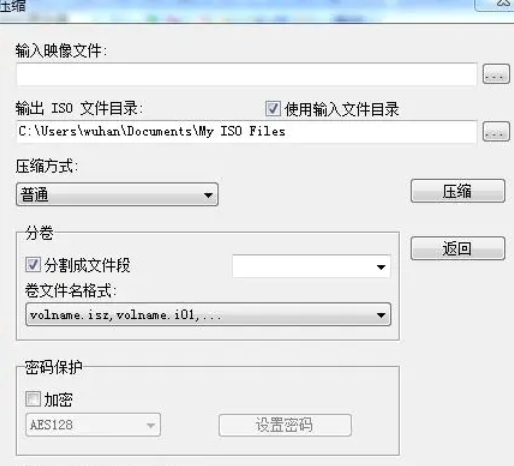
7. Supports almost all known disc image file formats (ISO, TAO, BIN, IMG, CIF, NRG, FVD, etc.) and saves them as standard ISO format files.
8. You can directly set the hidden attributes of CD files.
9. Support ISO 9660 Level1/2/3 and Joliet extension
10. Automatically optimize ISO file storage structure to save space.
11. Supports shell file type association, and image files can be opened in Windows Explorer through double-click or right-click menu.
12. Dual-window operation, very convenient to use.
13. With optional plug-ins, you can achieve N-in-1 bootable disc production, disc image file management, and even virtual optical drives, making the function more powerful.
Software function
Disc image file creation:
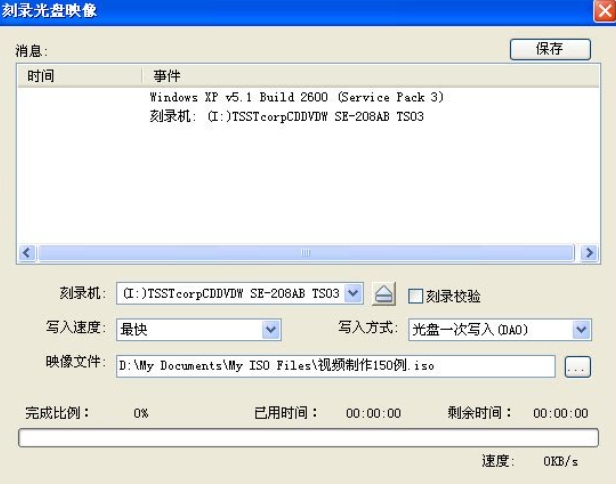
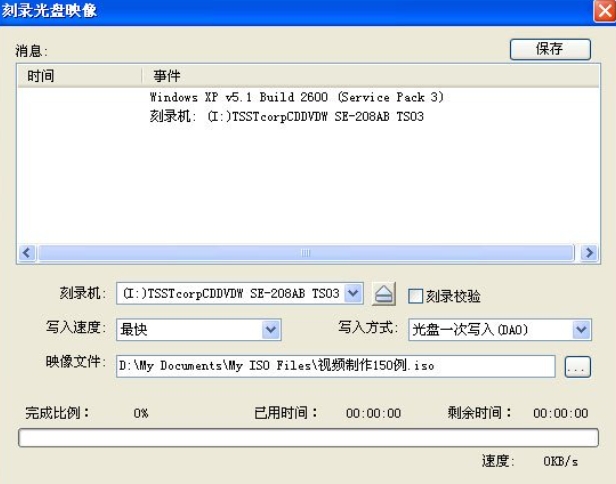
Use UltraISO to create ISO image files from files stored on CD/DVD-ROM or hard disk, and also write ISO image files to CD/DVD. You can copy discs sector by sector, extract CD/DVD boot files, and create complete image files containing boot information.
ISO image file editing:
Supports ISO image file editing, including adding/deleting/creating directories/renaming; can process CD boot information, and can directly add/delete/obtain boot information in the ISO file. You can directly set the hidden attributes of files in the disc image, and you can edit Windows 7/8x64 ISO image files containing EFI boot records.
How to use UltraISO floppy disk pass
1. Browse the disc image and extract the files directly from it
Purpose: Extract the contents of a disc image directly without burning it to a disc or virtual optical drive software
Method: Just open and extract the file or folder directly (UltraISO supports 27 common disc image formats)
Points: To extract files, you can use the "Extract to" function and then specify the destination directory; you can also select the path in the "Local" browser at the bottom of the interface and drag and drop it directly.
2. Make the CD into ISO and save it on the hard disk
Purpose: Back up disc contents for virtual or later burning
Method: Use the "Make Disc Image" function, select the optical drive and click "Create".
Key points: UltraISO uses a sector-by-sector copy method, so it can create an image of a bootable disc and still be able to boot after burning. However, UltraISO does not support the copying of music discs, VCD discs and encrypted game discs.
3. Make the files that have been extracted on the hard disk into ISO
Purpose: for burning or virtual use
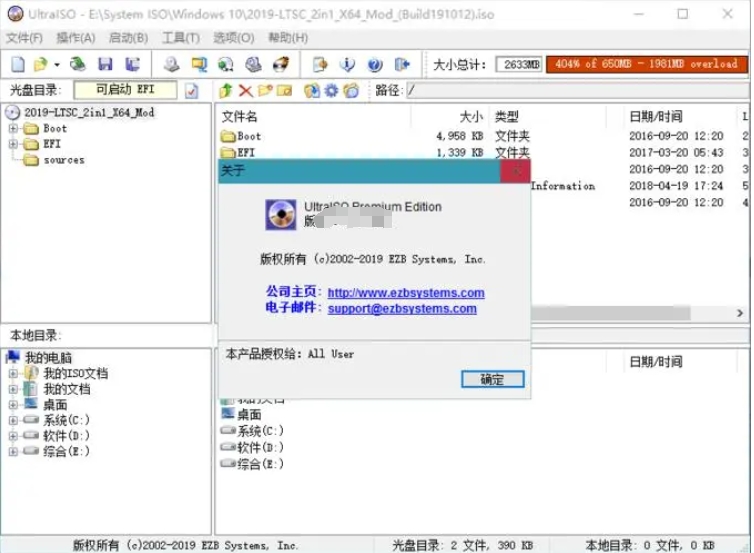
Method: Create a new ISO file, drag the file or directory from the "Local" browser at the bottom of the interface to the "CD" browser at the top, and finally save it.
Key points: UltraISO can create 10GB DVD image files. If it is a CD-R, pay attention to the "Total size" at the top to avoid exceeding the capacity limit. In addition, it is recommended to choose "UDF" when making DVD images, and "Joliet" when making CD images.
4. Make a bootable CD
Purpose: To create a system CD that can be booted directly
Method: The file preparation is the same as above, the key is to set the correct "boot file". Windows 98 uses setup.img, Windows NT/2000/XP uses w2ksect.bin. If you don't have it at hand, you can download the supporting tool EasyBoot. There are these two files in the installation directory disk1ezboot. In addition, UltraISO can directly extract the boot file (.bif) from the boot CD, or make the bootable floppy disk into a boot file (.img).
Points: If you want to make an N-in-1 bootable CD, you need to use EasyBoot to make a graphical Chinese boot menu, add the 'ezboot' directory to the root directory of the CD, and select loader.bin as the "boot file". In addition, when making N-in-1, pay attention to selecting the "Optimize File" option, which can optimize the 1.5G Windows 20003-in-1 to about 700M.
5. Edit the contents of existing CD image files
Purpose: Edit existing CD files, add or delete some content
Method: Open the image file, add/delete/rename, etc., and save it.
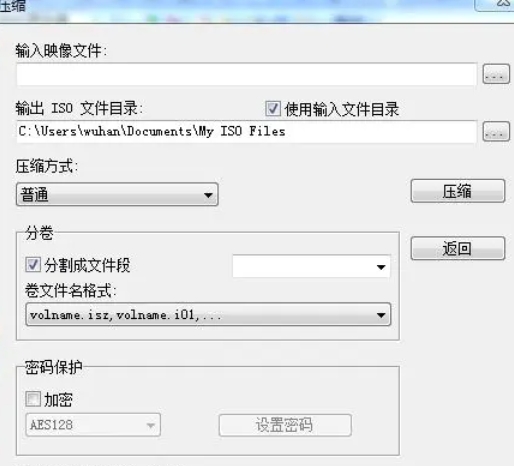
Key points: UltraISO can directly save standard ISO files; for other formats, you can choose ISO, BIN or NRG format. Note that when saving the ISO directly, the ISO size may not change even though the files are deleted; use "Save As" to compress the unused space, and the disc image file will become smaller.
6. Disc image format conversion
Purpose: Convert unprocessable formats to ISO, BIN or NRG format for use by burning/virtual software
Method: Use the "Convert" function, select the image file, specify the output directory and format, and click "Convert".
Key points: Select multiple files at one time to achieve the "batch conversion" function.
7. Create/edit audio track files
Purpose: To create your favorite music CD
Method: Use tools such as Nero and ISOBuster to extract .WAV audio track files from music CDs, use UltraISO to make image files in .NRG format, and burn them with Nero.
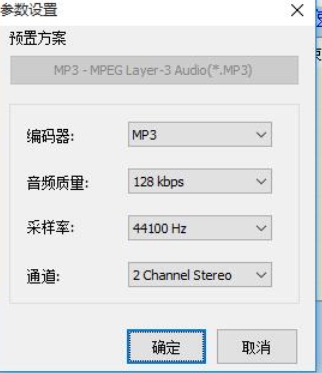
Key points: .wav files must be in CD-quality format (16bit/2channel/44.1Khz).
8. UltraISO supporting tools
EasyBoot: can create multi-boot CD Chinese menu
SoftDisc Free Disc: Integrate UltraISO with Nero burning software and Daemon-Tools virtual optical drive software.
FAQ:
Write failed:
Before writing the hard disk image, make sure there is no important data in the USB flash drive, because the process of making a boot disk will format the USB flash drive.
If an error occurs during the writing process, the ISO file may be damaged or there may be a problem with the USB flash drive. Try to re-download the ISO file and check its integrity, or replace the USB flash drive and try again.
Make sure UltraISO is running as administrator to avoid write permission issues.
Startup issues:
After the production is completed, if the USB flash drive cannot be booted, first check the BIOS settings to ensure that the USB flash drive is set as the first boot item.
If the BIOS settings are correct but the USB flash drive still cannot boot, the boot mode of the USB flash drive may be incompatible with the motherboard. You can try changing the writing method in UltraISO (such as USB-HDD+ to USB-ZIP+) and create a boot disk again.
UltraISO floppy disk update log
1.Fix several bugs;
2. Optimize detailed issues;
Huajun editor recommends:
UltraISO Floppy Disk Manager is very easy to use. It is one of the best software among them. I believe friends who have used it will say it is easy to use. If you don’t like it, we also have Nero BurnLite, Cloud Machine Manager, and Batch Manager.
Version: 2.7.1.5 | Update time: 2025-05-13
Similar recommendations







Latest updates





How to install and use UltraISO Floppy Disk Pass? UltraISO Floppy Disk Pass installation steps
How to burn a CD with UltraISO Floppy Disk Pass? How to burn a CD with UltraISO Floppy Disk Pass
Detailed operation explanation of burning disc with UltraISO floppy disk
Graphical steps for installing ISO files through UltraISO floppy disk
Operation process of installing win7 system through UltraISO floppy disk
UltraISO floppy disk pass review
-
1st floor Huajun netizen 2022-01-29 21:26:47The UltraISO floppy disk pass software is very easy to use, the download speed is very fast, and it is very convenient!
-
2nd floor Huajun netizen 2021-02-14 14:17:22UltraISO floppy disk pass is great! 100 million likes! ! !
-
3rd floor Huajun netizen 2022-01-31 06:19:35The overall feeling of UltraISO floppy disk pass is good, I am quite satisfied, the installation and operation are very smooth! It went very smoothly following the installation step-by-step guide!
Recommended products







- Diablo game tool collection
- Group purchasing software collection area
- p2p seed search artifact download-P2P seed search artifact special topic
- adobe software encyclopedia - adobe full range of software downloads - adobe software downloads
- Safe Internet Encyclopedia
- Browser PC version download-browser download collection
- Diablo 3 game collection
- Anxin Quote Software
- Which Key Wizard software is better? Key Wizard software collection