-
CrystalDiskInfo
- Size: 7.25M
- Language: Simplified Chinese
- Category: hardware tools
- System: Winall







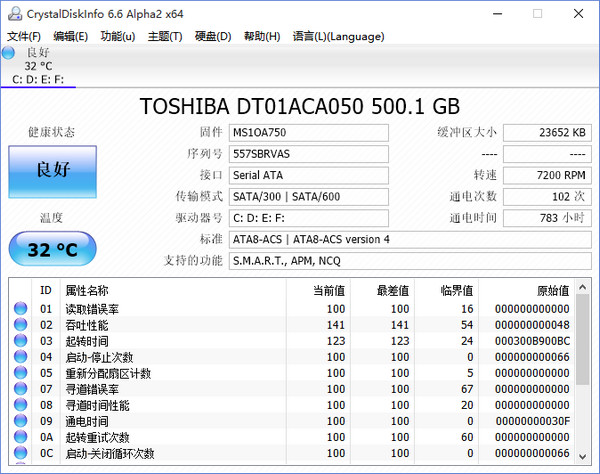
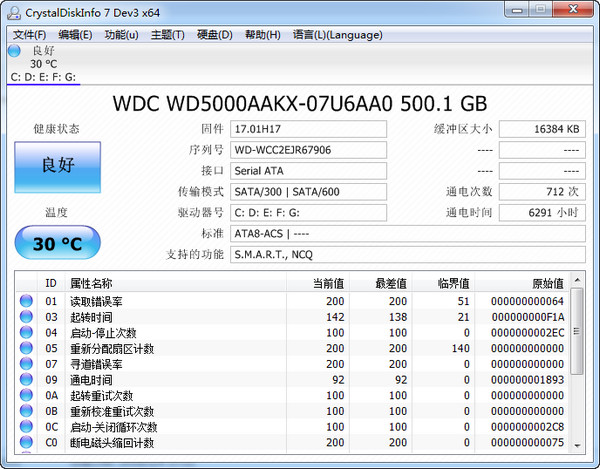
CrystalDiskInfoIt is a convenient tool for testing hard drive values and functions.CrystalDiskInfoThe content of the test is very comprehensive, includinghard drive, interface, speed, usage time and real-timetemperatureEtc., users can easily grasp the usage of hard disks. CrystalDiskInfo uses S.M.A.R.T. technology to monitor the health status of hard disks/solid-state drives, providing real-time data such as temperature, error count, and service life. The intuitive interface facilitates early detection of potential problems. Supports HDD/SSD, NVMe and specific RAID configurations, with temperature alarms and portable use
Provided by Huajun Software ParkCrystalDiskInfo official version and latest version download,needCrystalDiskInfoFriends, come to Huajun Software Park to download and experience it.

How to use CrystalDiskInfo
1. Open the CrystalDiskInfo obtained after decompression, and you can see the relevant computer information in the main page interface.hard driveall relevant information.
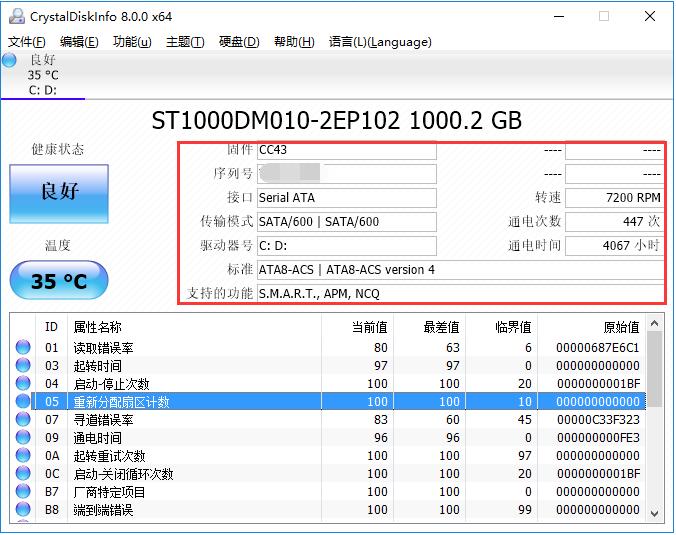
2. In the list below CrystalDiskInfo, you can see the working status of the hard drive and whether the values are healthy, allowing users to find the damage point faster.

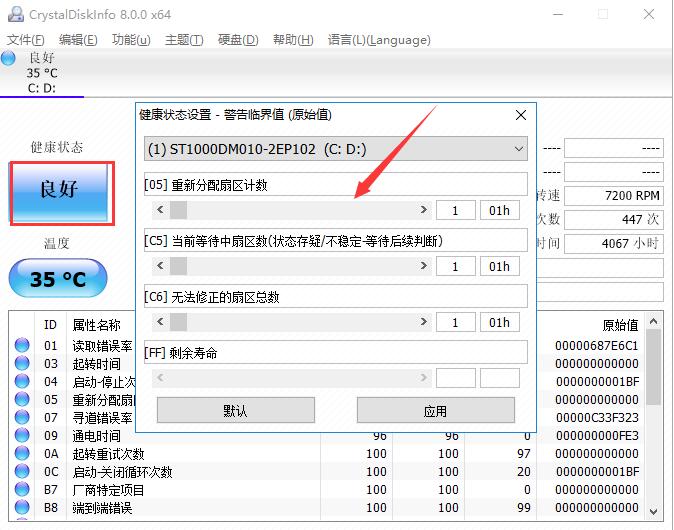
3. Click the "Health Status" icon on the left side of the software interface, and you can modify the warning threshold in the new window that opens. If the health status exceeds the threshold, a warning will be issued to remind the user.
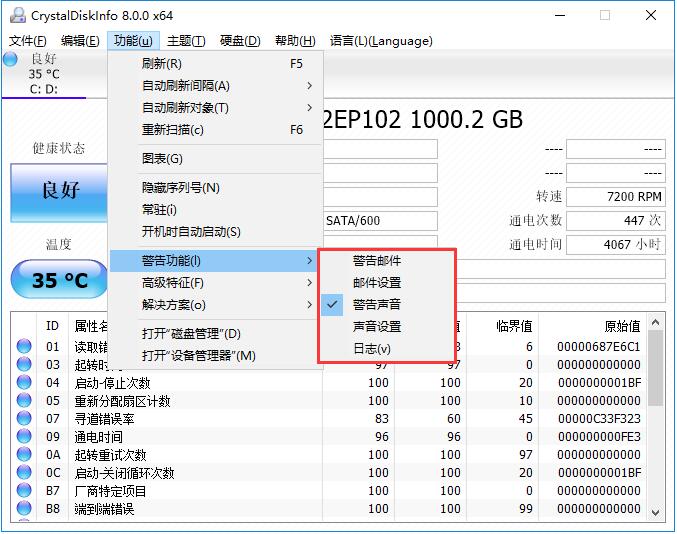
4. Click the "Function" button in the top menu bar, and in the open drop-down menu, point the mouse to the "Warning Function" column. You can set the warning method in the submenu.
5. In the "Advanced Features" column in the "Function" menu, you can control the most important ""AAM/APM.
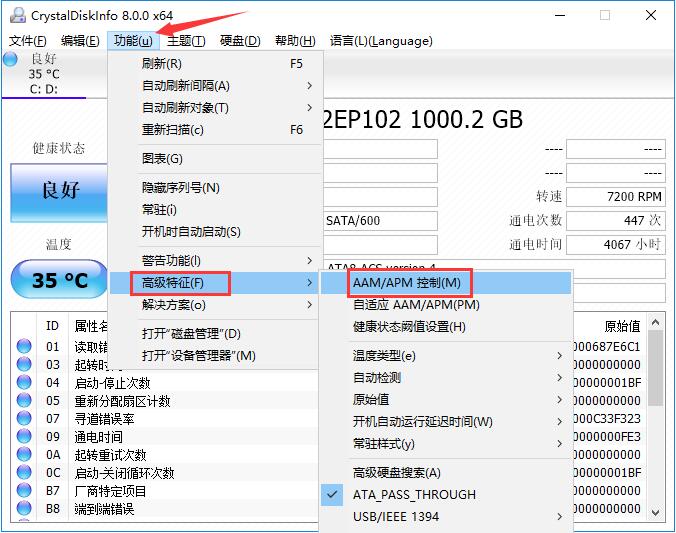
6. This function, as shown in the figure, can set the hard drive's properties such as noise and power supply to ensure that the most appropriate situation can be adjusted when using the computer.
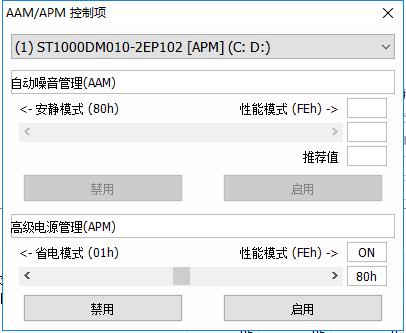
CrystalDiskInfo usage tips
Interpretation of CrystalDiskInfo parameters
The first column:
1. read[MB/s]: indicates the reading speed.
2. write[MB/s]: Indicates the writing speed.
3. mix【MB/s】: Indicates the mixing speed.
Second column:
1. read[Iops]: reading speed per second.
2. write[Iops]: writing speed per second.
3. mix[Iops]: mixing speed per second.
Parameter interpretation:
1. The first line "Seq Q32T1" is a continuous test, which can be understood as the reading and writing speed of audio and video files.
2. Generally speaking, the merchant’s nominal speed is this. If the test results are significantly different from the nominal speed, it is recommended to consult customer service.
3. The following three lines are all "4k random read and write", which basically shows the actual performance of the hard disk.
4. Generally speaking, this performance is closely related to system operations and determines the speed of file opening, closing, moving and other operations.
5. Q represents the queue and T represents the thread.
6. Therefore, the second line "4kQ4T8" is the performance of the hard disk under 4 queues and 8 threads.
7. The third line "4kQ32T1" is the performance of the hard disk under 32 queues and single thread.
8. In fact, we can manually set the number of test threads and queues according to our own needs.
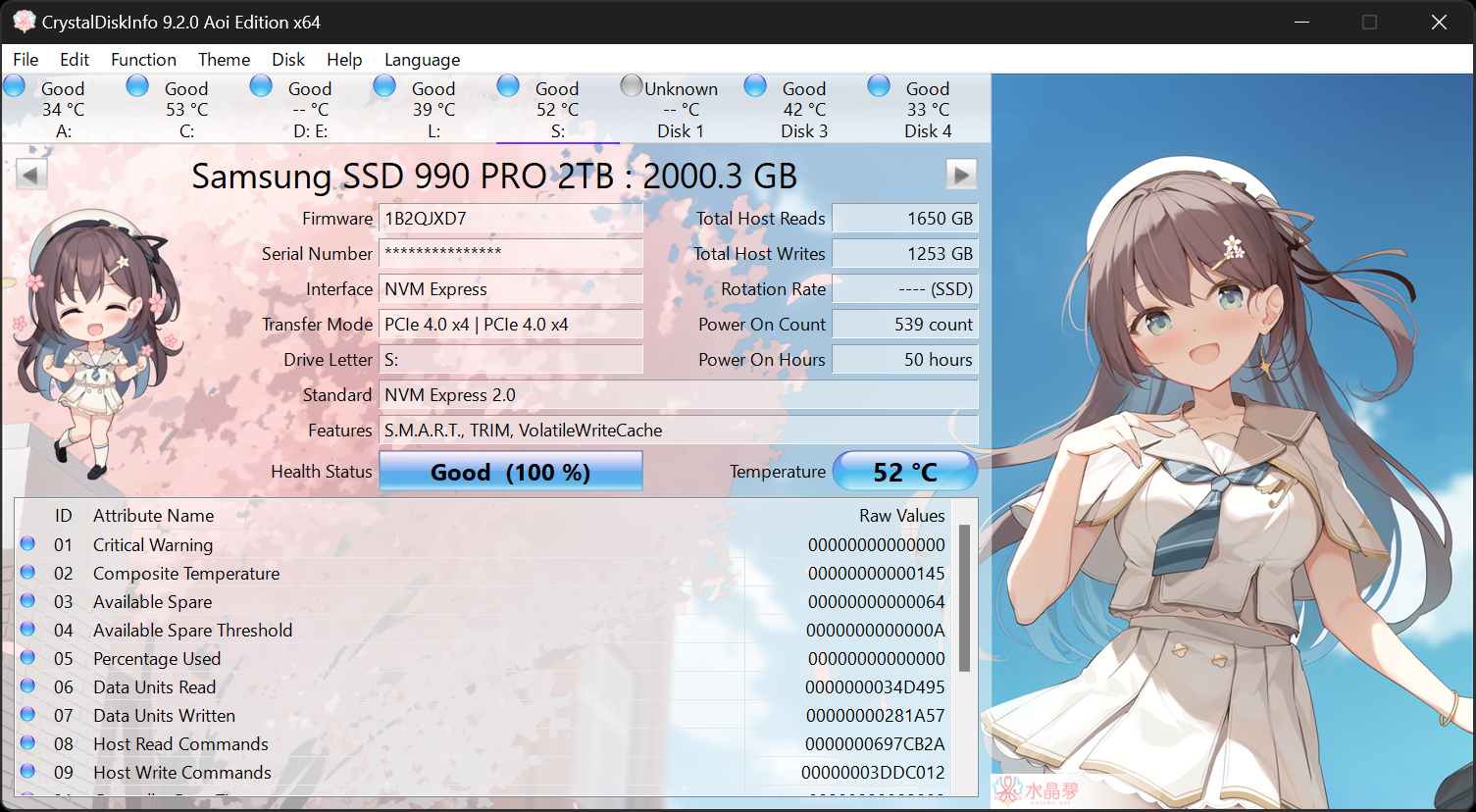
CrystalDiskInfo software features
1. Display the hard disk information, and you can see the changes in this information and display it with a line chart.
2. Display the health status of the hard drive and score the hard drive directly based on the collected data.
3. It has multiple languages and CrystalDiskInfoHard disk detectionThe tool is completely free.
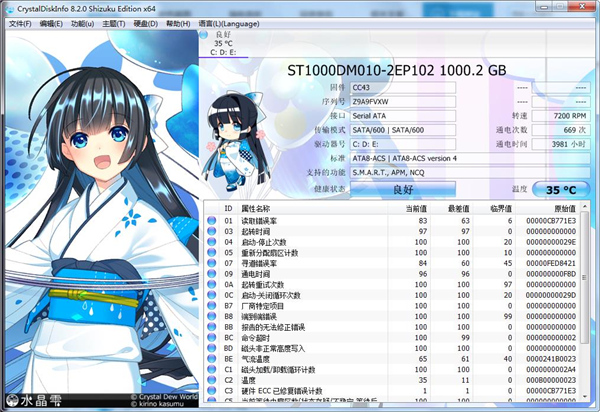
CrystalDiskInfo installation steps
1. Download the CrystalDiskInfo software package from Huajun Software Park, directly decompress the compressed package, and double-click with the left mouse button to open the startup program of the corresponding system version.
Note: To decompress the compressed package, you need to use a compression and decompression tool. WinRAR is recommended because the technology is mature and reliable. WinRAR download address:http://softwaredownload4.com/soft/5.htm
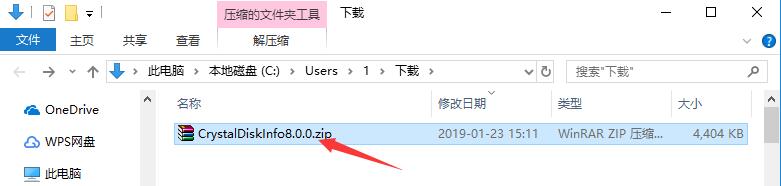
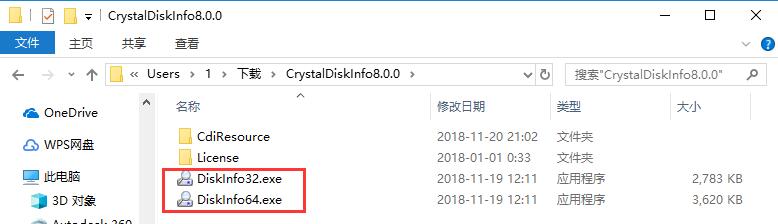
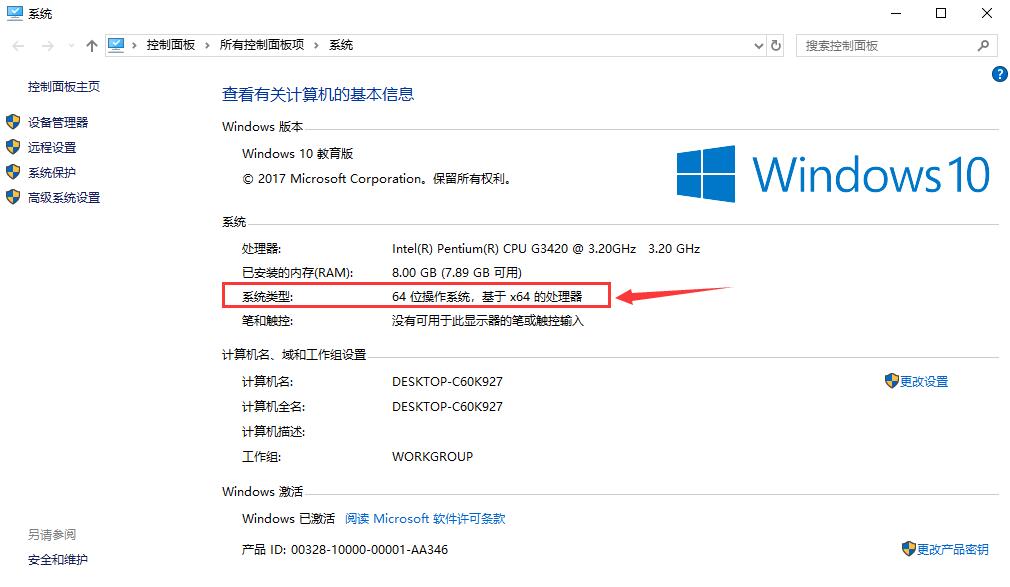
2. If you don’t know how to check the system version, you can right-click "My Computer" on the desktop, click the "Properties" option in the right-click menu, and in the new window that opens, find the "System Type" column to find the system version you are using.

CrystalDiskInfo FAQ
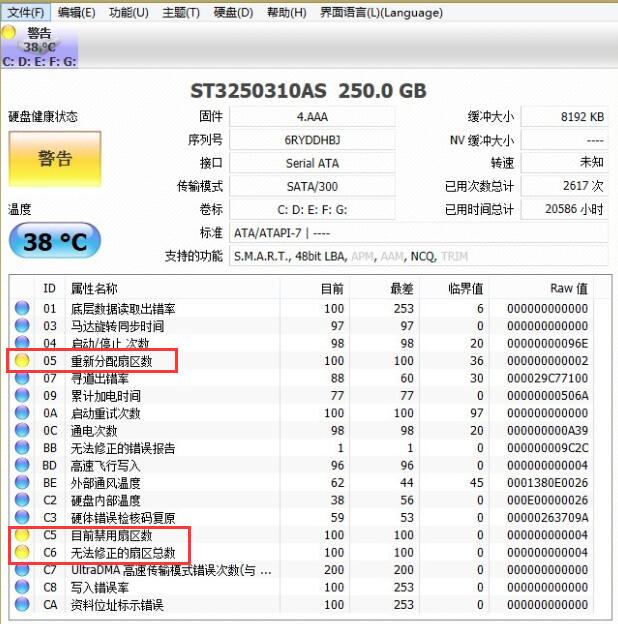
1.What should I do if the health status of CrystalDiskInfo displays "Warning"?
When the user opens the CrystalDiskInfo software, "Warning" may be displayed in the "Health Status" in the upper left corner, indicating that the hard disk is damaged. Then we see the list below. If there are abnormal items, they will be displayed as yellow circles. The picture shows bad sectors on the disk. If there are other errors, you can refer to the help function in the software.
2. How does CrystalDiskInfo adjust the hard disk speed?
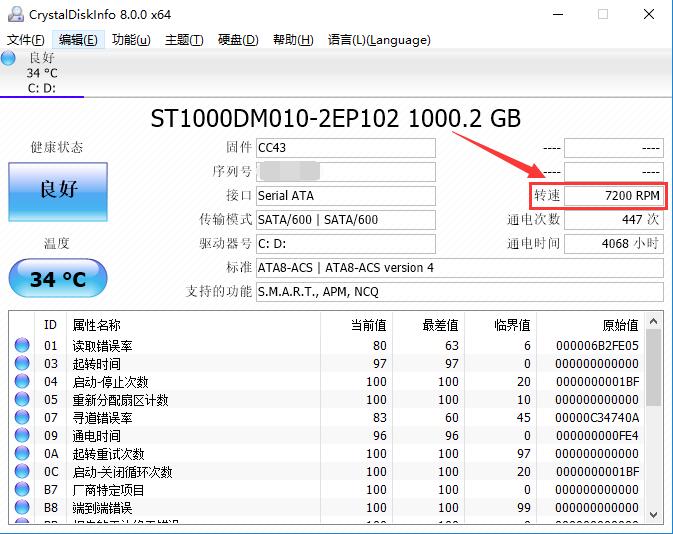
Open the CrystalDiskInfo software and find the "speed" item in the hard disk parameter column above. The value displayed at the back is the hard disk speed.
What should I do if crystaldiskinfo cannot read the hard disk?
1. Perform hard disk shielding in CMOS settings.
2. Then start the computer with the DM boot disk and select "(A) advanced Options".
3. Then click "(M)aintenance Options", then click "(U)tilities Utilities)",
4. Finally, select "Zero Fill Drive" to zero-fill the hard disk. You can find the hard disk after repartitioning.
Comparison between CrystalDiskInfo and similar software
DiskGeniusIt is a comprehensive hard disk tool. In addition to hard disk detection and repair, it can also perform hard disk partitioning, formatting and other operations. It is a good hand in managing hard disks, and it is very easy to get started.
As a hard disk detection tool, CrystalDiskInfo’s greatest feature is its simplicity and clarity. After opening the software, the user can know all the current parameters of the hard disk. If there is a warning status, the damaged area can be found immediately.
DiskGenius download address:http://softwaredownload4.com/soft/9570.htm
CrystalDiskInfo update log
Re-supported Samsung SATA SSD life report
Added support for ZHITAI SC001
Added SK hynix Gold S31 support
Added support for KLEVV NEO N610.
Improved Micron/Crucial SATA SSD support
Changed The uninstaller will display a confirmation dialog to remove the settings.
|
The editor recommends: In your imagination, the hard disk tool has a variety of values, and the test items can turn through many pages. If you are worried that you cannot understand so much data, then download CrystalDiskInfo. This software can list all hard disk parameters in one interface and can detect them at any time, so that users can find problems in time. This site also provides downloads of DiskGenius and AS SSD Benchmark. Come and download them. |
Version: V9.4.4 | Update time: 2025-10-23
Similar recommendations




Latest updates




How to set font in CrystalDiskInfo-How to set font in CrystalDiskInfo
How to set up email in CrystalDiskInfo-How to set up email in CrystalDiskInfo
How to check the parameters of CrystalDiskInfo - How to check the parameters of CrystalDiskInfo
Interpretation of crystaldiskinfo parameters - How to repair bad crystaldiskinfo?
CrystalDiskinfo usage tutorial-What software is CrystalDiskinfo?
How to set English for CrystalDiskInfo - How to set English for CrystalDiskInfo
CrystalDiskInfo Review
-
1st floor Huajun netizen 2022-03-27 21:11:57The interface design of CrystalDiskInfo is easy to use and has rich functions. I highly recommend it!
-
2nd floor Huajun netizen 2022-03-30 05:35:20CrystalDiskInfo is awesome! 100 million likes! ! !
-
3rd floor Huajun netizen 2022-03-20 08:46:58The overall feeling of CrystalDiskInfo is good and I am quite satisfied with it. The installation and operation are very smooth! It went very smoothly following the installation step-by-step instructions!
Recommended products









- Diablo game tool collection
- Group purchasing software collection area
- p2p seed search artifact download-P2P seed search artifact special topic
- adobe software encyclopedia - adobe full range of software downloads - adobe software downloads
- Safe Internet Encyclopedia
- Browser PC version download-browser download collection
- Diablo 3 game collection
- Anxin Quote Software
- Which Key Wizard software is better? Key Wizard software collection