-
seewo teaching assistant
- Size: 54.28M
- Language: Simplified Chinese
- Category: Educational Management
- System:winall








Seewo Teaching Assistant official version is a teaching assistant. The latest version of seewo Teaching Assistant can realize interconnection between handheld mobile terminals and multiple platforms such as PCs and smart tablets through applications running on mobile terminals. Seewo Teaching Assistant is a large- and small-screen interactive software designed specifically for education. It is designed to interact and cooperate with mobile software to achieve free and flexible teaching.
Highlights of seewo Teaching Assistant Software
Classroom teaching: Seewo Teaching Assistant can be widely used in classroom teaching, such as homework display, courseware demonstration, experimental demonstration and other scenarios, to improve classroom interactivity and efficiency.
Conference presentation: During a conference, users can use Seewo Teaching Assistant to share materials on their mobile phones to the big screen for discussion and collaboration, improving conference efficiency.
Remote teaching: Through seewo Teaching Assistant, teachers can implement remote teaching, transmit classroom content to student devices in real time, and achieve remote interaction and learning.
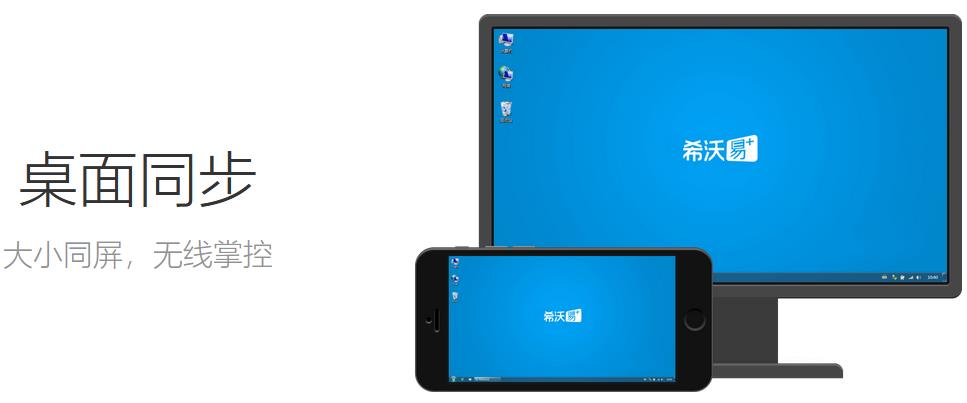
Seewo teaching assistant software functions
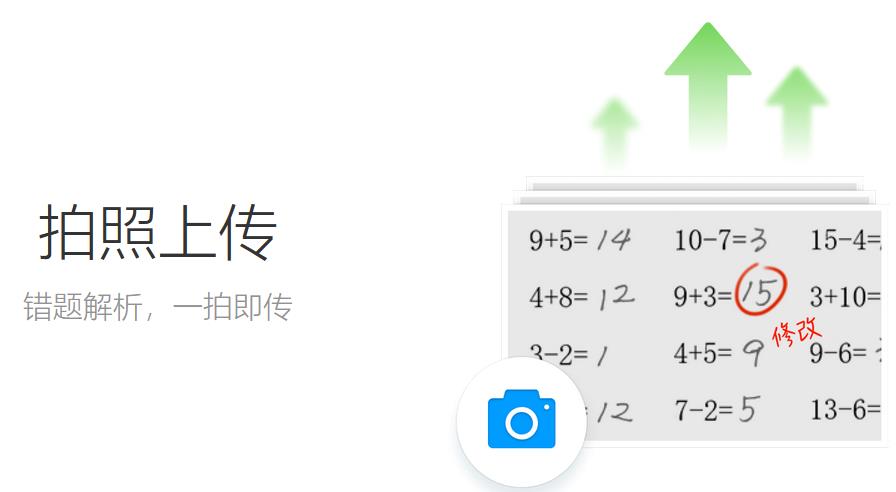
Photo upload: Users can take photos of physical objects through mobile terminals and quickly upload them to PC for display. This function is especially suitable for classroom assignment display, student work sharing and other scenarios. Teachers can take pictures of students' works anytime and anywhere and share them with the whole class with one click, improving classroom interactivity and efficiency.
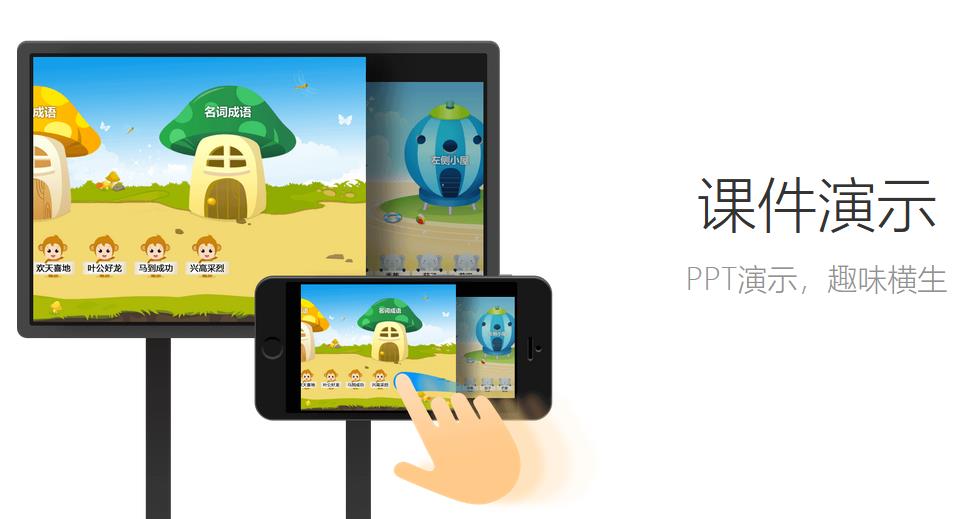
Remote operation of PPT presentation courseware: Users can remotely open PC-side PPT and perform slide play, exit, page turning, annotation, laser pointer, spotlight and other operations. This function enables teachers to get rid of the constraints of the podium and walk among students to teach, improving teaching effectiveness.
Simulate laptop touchpad: Users can use the touchpad to simulate the laptop touchpad function to operate the PC side, and at the same time use the simulated buttons to operate the PC side shortcut keys. This function provides teachers with a more convenient operation method and improves teaching efficiency.
Wireless file transfer: Users can quickly transfer files from mobile devices to PC via wireless network and open presentations. This function supports file transfer in multiple formats, including pictures, videos, documents, etc., making it convenient for teachers to share and display teaching resources.
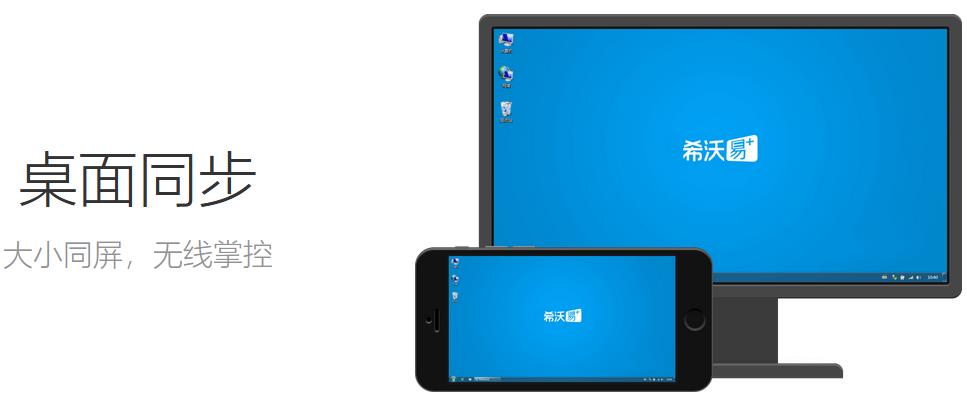
Desktop synchronization: Project the large screen to your mobile phone or iPad in real time for wireless control. This feature enables teachers to view and control the PC desktop anytime and anywhere, improving teaching flexibility.
Mobile booth: Images recorded through mobile phones can be directly and simultaneously projected onto the computer screen to achieve real-time same-screen transmission. This function is especially suitable for scenes that need to display dynamic processes, such as experimental demonstrations, student operation demonstrations, etc.
Seewo Teaching Assistant FAQ
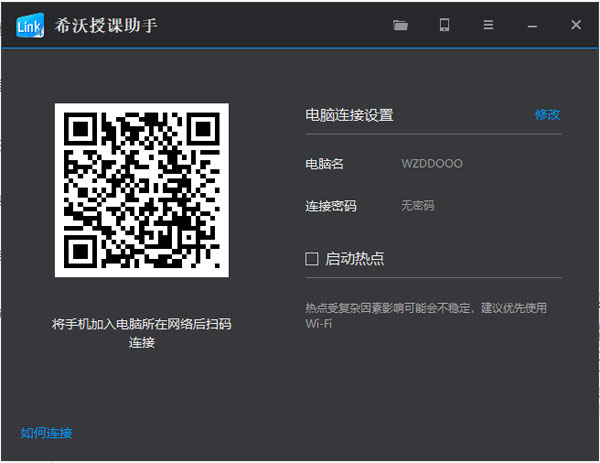
1 How to connect mobile App and computer
a. First make sure that the mobile App and computer are connected to the same network:
When Wifi is available, connect your phone and computer to the same Wifi;
When there is no Wifi, open the computer, activate the hotspot, and connect your phone to this hotspot.
b. Open the mobile App, select the computer to be connected and click to connect, or click "Scan to connect" to scan the connection QR code on the computer.
2 What to do if the hotspot fails to start
a. First, please confirm that the wireless network card and network card driver are installed on the computer, and the wireless network card is turned on;
b. Please turn off Cheetah Wifi, 360 Guard and other products;
c. If the startup still fails after completing the above steps, please try restarting the computer.
3 What to do if the connection is unstable
a. If you are using a smart tablet, please first confirm that the tablet has an antenna installed and that the antenna is not blocked by partitions or other objects;
b. If the connection is still unstable after installing the antenna, it is recommended to use it on a network with better signal and less interference.
Seewo Teaching Assistant update log
1. Sweep the bug out and carry it out to the end
2. The most stable version ever
Huajun editor recommends:
Seewo Teaching Assistant is a high-performance software that meets everyone's requirements. The software is free and non-toxic, and has absolutely positive reviews. Our Huajun Software Park has the most authoritative software, green and free, officially authorized, and there are also software like Spark Thinking Student Terminal, Chinese Idiom Dictionary electronic version, and Cloud Machine Manager. I hope everyone will come and download it!
Version: 3.0.20.3226 | Update time: 2025-12-01
Similar recommendations




Latest updates





Pixel Naruto online play entrance-Pixel Naruto web version online play-Huajun Software Park
How to add background music in python-How to add background music in python
How to configure environment variables in python - How to configure environment variables in python
How to run python - How to run python
How to create a project in python - How to create a project in python
How to make a blue sky background with scratch-How to make a blue sky background with scratch
Seewo Teaching Assistant Reviews
Recommended products
-

Yida school textbook management software
-

Class scheduling system for primary and secondary schools
-

Yukeyun Home School 2017 (Statistical Analysis of Score Management WeChat Home School)
-

Intelligent broadcast bell system (campus version)
-
Yijie question bank management and examination system
-

Future Education Level 2 MS Office paperless exam simulation software
-

seewo class optimization master
-

Student performance management system
-

Yida student admission ticket printing system software
-

Primary and secondary school library management system
- Diablo game tool collection
- Group purchasing software collection area
- p2p seed search artifact download-P2P seed search artifact special topic
- adobe software encyclopedia - adobe full range of software downloads - adobe software downloads
- Safe Internet Encyclopedia
- Browser PC version download-browser download collection
- Diablo 3 game collection
- Anxin Quote Software
- Which Key Wizard software is better? Key Wizard software collection