Adobe Photoshop CS6 is the iconic image processing software launched by Adobe and is known as the industry benchmark in the field of digital creativity. This version revolutionizes the visual experience with a dark interface and is equipped with a revolutionary content-aware toolset (such as content-aware fill, move and patch) to achieve pixel-precise editing through intelligent algorithms. Its Mercury graphics engine relies on 64-bit architecture to bring significant performance improvements, supporting real-time rendering filters, smooth processing of large files, and instant response to complex operations. Next, let the editor of Huajun explain to you how to soften skin in Photoshop CS6 and how to soften skin in Photoshop CS6!
first step
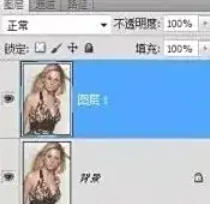
Open the image and copy the layer, then open the photo you want to process (Ctrl+O / Cmd+O). Duplicate the background layer (Ctrl+J / Cmd+J) to avoid modifying the original image directly.
Step 2
Invert layer (optional)
Purpose: Provide contrast for subsequent blending modes, but this step is not required.
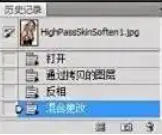
Operation: Select the copied layer and press Ctrl+I (Cmd+I) to invert the color (the image will become a negative effect).
Tip: If you do not want to invert the phase, you can jump directly to step 3 and change the subsequent blending mode to "Overlay" or "Soft Light".

Step 3
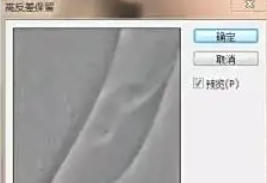
Select the copied layer and click "Filter" → "Others" → "High Contrast Preservation" in the menu bar. Adjust the radius value in the pop-up window (usually 3-10 pixels, the larger the value, the more obvious the detail). Click OK. The image will now turn gray, with edges and texture highlighted.
Step 4
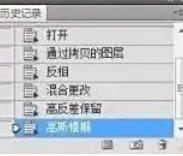
Keep the layer selected and click "Filter" → "Blur" → "Gaussian Blur". Adjust the radius value (usually 1-3 pixels, the smaller the value the more detail will be retained). Click OK.
Step 5
In the Layers panel, change the blending mode of the copied layer to "Linear Light" (or "Overlay" or "Soft Light", adjust according to the effect). The image returns to its natural tones, but the skin texture is softened.
Step 6
Click the Add Layer Mask button (white mask) at the bottom of the Layers panel. Select the Brush Tool (B), set the foreground color to black, and set the hardness to 0% (soft-edged brush). Paint non-skin areas such as eyes, eyebrows, lips, etc. on the mask (the black brush will hide the soft skin effect). Switch the foreground color to white and paint the skin area (restore the soft skin effect).

Step 7
Lower the opacity of the copied layer in the Layers panel (usually 50%-80%, depending on the effect).

The above is what Huajun editor has compiled for you on how to soften skin in Photoshop CS6 and how to soften skin in Photoshop CS6. I hope it can help you!