Microsoft Excel 2016 is a professional spreadsheet processing software launched by Microsoft. As one of the core components of Office 2016, it is widely used in data analysis, financial management, statistical modeling and daily office work. It provides a powerful calculation engine (supporting hundreds of functions and formulas), intelligent data analysis tools (such as pivot tables, Power Query data integration, forecast worksheets), and new visualization functions such as 3D maps and quick chart recommendations. It supports multi-person online collaboration (via OneDrive/ShareOffice), cross-platform synchronization, is compatible with multiple data formats, and takes into account ease of use and professional depth. It is a benchmark tool to improve the efficiency of personal and enterprise data processing. Next, let Huajun editor explain to you how to set data validity in Excel 2016 and how to set data validity in Excel 2016!
first step
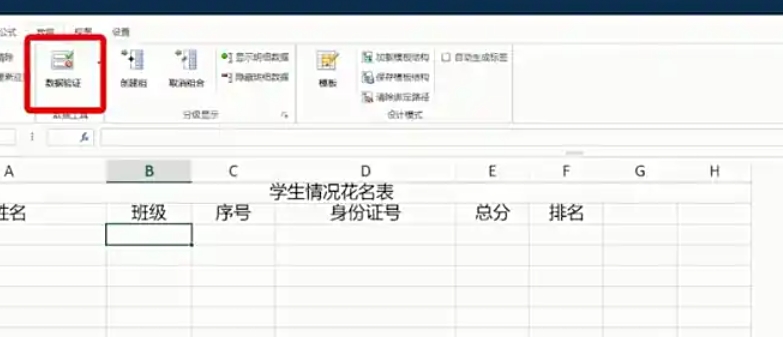
Select the target cell range
Step 2
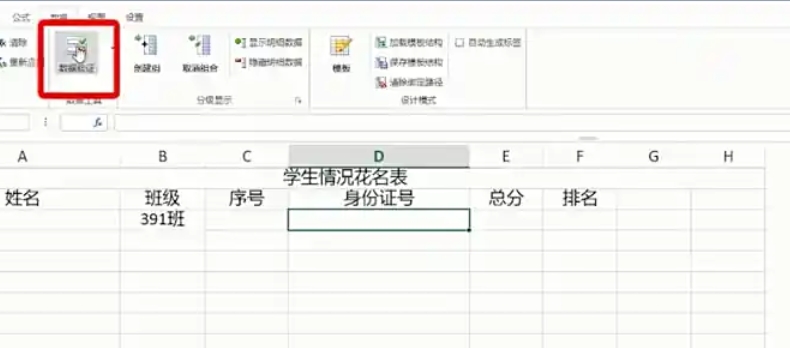
Click [Data] → [Data Validation] on the top menu bar (or press the shortcut keys Alt + D + L).
Step 3
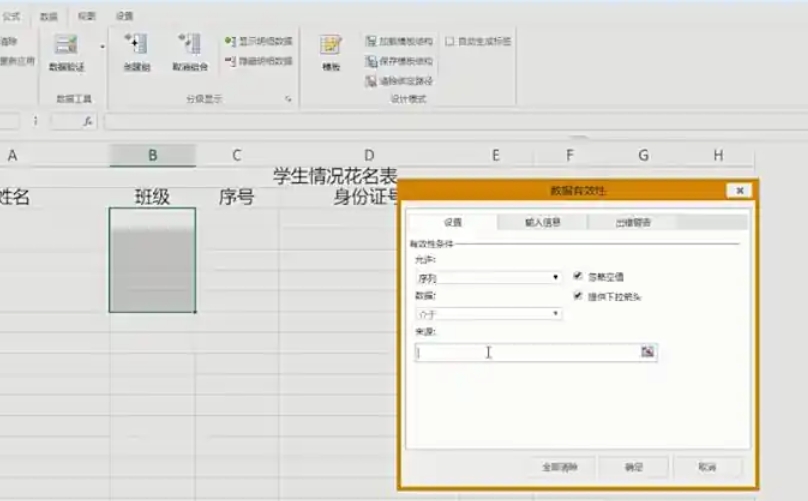
Select [Sequence] in the [Allow] drop-down menu.
Step 4
Enter the options in the [Source] box, separated by English commas (for example: Class 1, Class 2, Class 3).
Step 5
Check [Provide drop-down arrow] (checked by default).
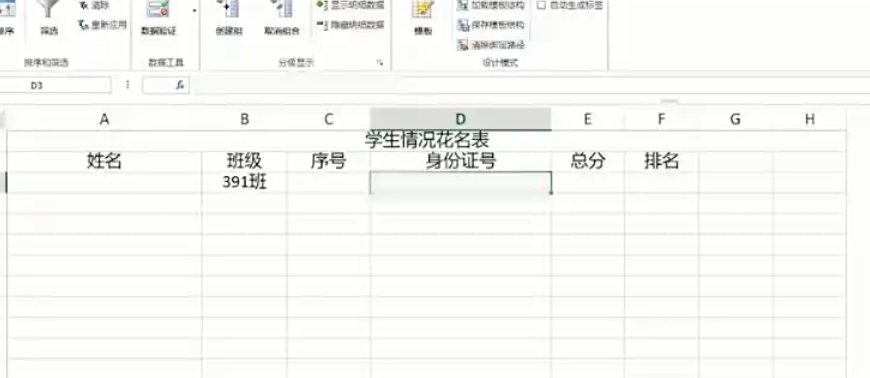
Step 6
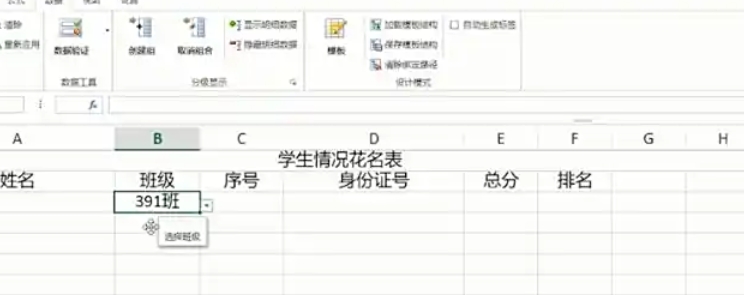
Click [OK], and a drop-down arrow will appear in the selected cell. Click to select the preset option.
The above is what Huajun editor has compiled for you on how to set data validity in Excel 2016 and how to set data validity in Excel 2016. I hope it can help you!