Realtek High Definition Audio Manager is a software interface with a hierarchical layout. The main interface is divided into four modules: "Speaker", "Microphone", "Sound Effect" and "Advanced Device Settings". Users can quickly switch configurations through sliders, drop-down menus or preset modes. In the "Sound Effects" tab, users can enable "Cinema Mode" or "Game Mode" with one click, and the system automatically adjusts reverberation, bass enhancement and other parameters without manual fine-tuning, making it suitable for non-professional users to get started quickly. Next, let the editor of Huajun explain to you about Realtek How to set up a hidden method in HD Audio Manager!
first step
In the taskbar notification area in the lower right corner, find the Realtek High Definition Audio Manager icon (usually a red circle or speaker icon). If the icon is not displayed, you can click the taskbar arrow to expand the hidden icon list, or right-click the taskbar → Taskbar Settings → Select which icons are displayed on the taskbar to ensure that the Realtek icon is not turned off.
Step 2
Right-click the Realtek icon in the taskbar and select "Open Sound Manager" or "Audio Device Settings". If there is no such option when right-clicking, you can directly double-click the icon to open the main interface.
Step 3
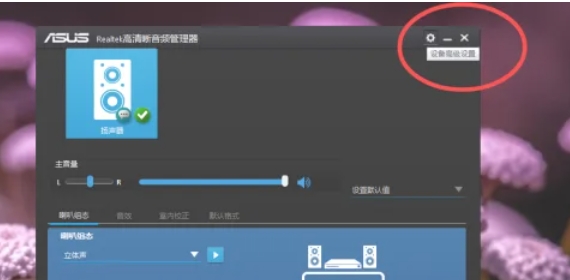
In the Realtek High Definition Audio Manager window, find and click "Device Advanced Settings" (it may be in the upper right corner or the left menu).
Step 4
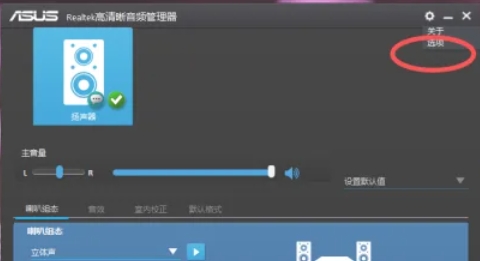
On the Advanced Device Settings page, click the Options button (or a similarly named button, such as More Settings).
Step 5
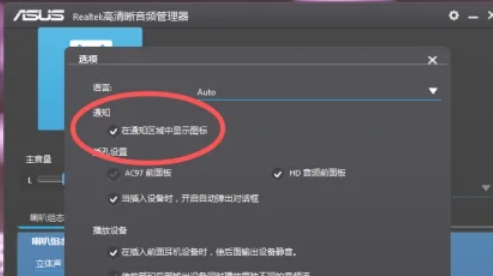
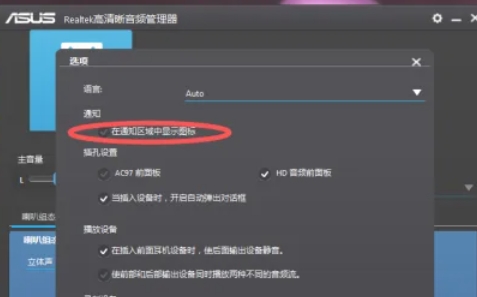
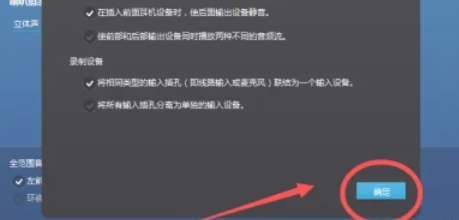
In the settings window that pops up, find the option: "Show icon in notification area" and uncheck this option (remove the √).
Step 6
Click the "OK" or "Apply" button in the lower right corner of the window to save the settings. The Realtek icon in the taskbar will disappear immediately.
The above is the method of how to set up the hidden Realtek HD Audio Manager compiled by Huajun editor for you. I hope it can help you!