How to adjust the clarity of Audio and Video Pioneer? - How to adjust the clarity of audio and video pioneers
Time: 2024-03-19Source: Huajun Software TutorialAuthor: Huajun Information
Many friends have encountered the following problem, which is the method of adjusting the clarity of graphics and text in the pioneer xfplay player. In response to this problem, today the editor of Huajun compiled some methods for everyone and gave you an answer to the graphic method of adjusting the clarity of the audio and video pioneer xfplay player. I hope that after reading this tutorial, everyone can solve the problems related to the image and text method of adjusting the clarity of the audio and video pioneer xfplay player.
This tutorial is to explain to you the graphic and text method of adjusting the definition in the audio and video pioneer xfplay player. I hope it can help you.
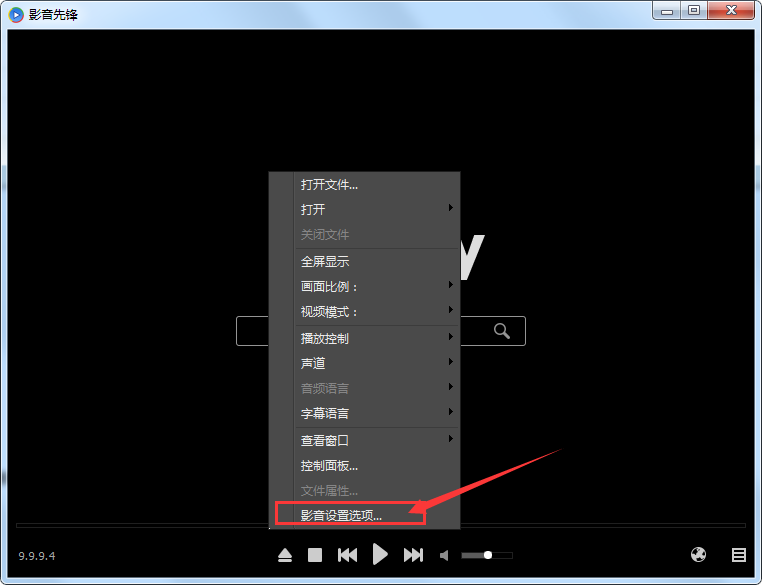
1. Open the audio and video pioneer xfplay player, right-click the mouse on its playback interface, and then open the "Audio and Video Settings Options" in the pop-up menu;
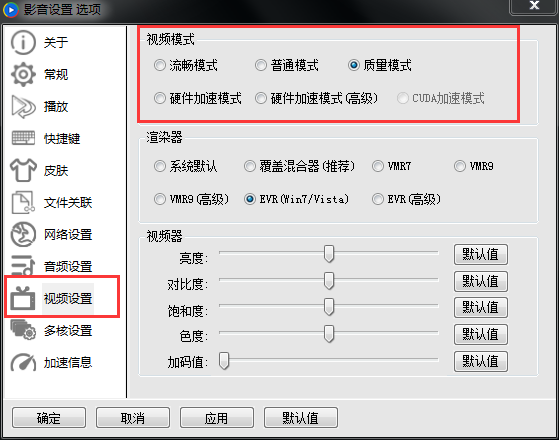
2. After opening the audio and video settings interface, find "Video Settings" on the left, and then you can see the video definition on the right, where you can also turn on hardware acceleration.
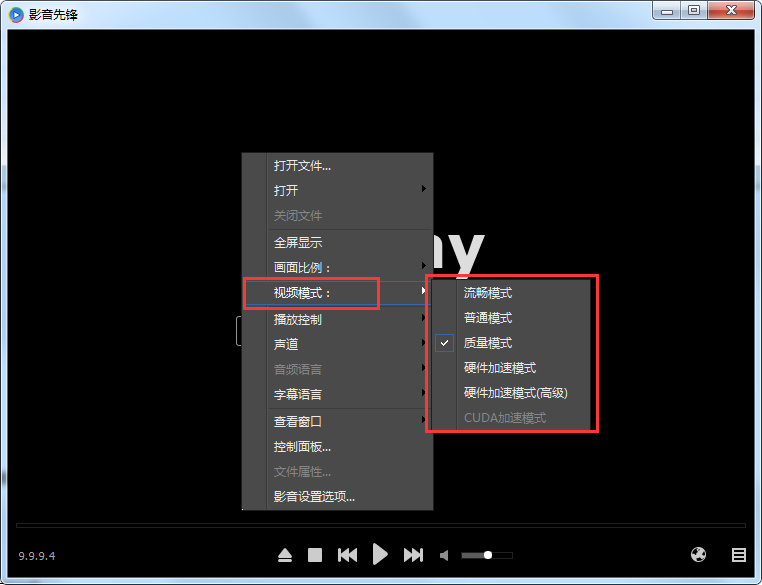
3. You can also right-click the mouse directly on the audio and video Pioneer playback interface, and then open "Video Mode" in the pop-up menu, and then you can directly adjust the definition of the video.
The above is the method of adjusting the clarity of the audio and video pioneer compiled by the editor of Huajun. I hope it can help you~ You can pay attention to the Huajun Software Park, and there are more software strategies to help you solve your doubts!
Popular recommendations
-
Visual Studio
Version: 18.0.2Size: 4.24 MB
VisualStudio is the latest professional VS programming development tool officially launched by Microsoft. It has added
LiveCode and IntelliCode...
-
Visual Studio
Version: 18.0.2Size: 4.24 MB
Visual Studio is a powerful and comprehensive integrated development environment (IDE) launched by Microsoft. It supports multiple programming languages and development scenarios and is suitable for personal...
-
Visual Basic
Version: 6.0 latest versionSize: 96.44MB
Visual Basic 6.0 Chinese version is an event-driven programming language developed by Microsoft that includes an assisted development environment. It is derived from the BASIC programming language...
-
Redis Desktop Manager windows
Version: 2021.3.0Size: 10.6MB
The official version of RedisDesktopManagerwindows is an efficient and practical Redis desktop management software. RedisDesktopManagerwindows...
-
jdk1.8
Version: Official versionSize: 380.57 MB
JDK1.8 (JavaSE8) is a milestone version released by Oracle on March 18, 2014. It brings revolutionary new features and...