How to set the locked toolbar in xftp5-xftp5 usage tutorial
Time: 2021-09-02Source: Huajun Software TutorialAuthor: dim sum
Don’t know how to set up the locked toolbar in xftp5? If you don’t know yet, please come and take a look at the method of setting up the locked toolbar in xftp5 that the editor shared. I hope that through the study of this tutorial, it can help all of you.
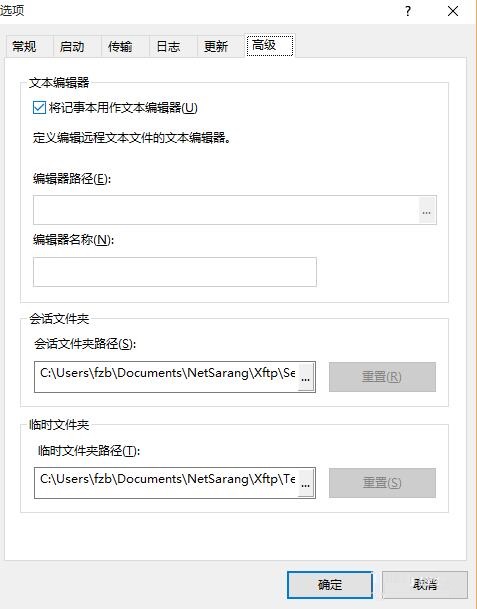
First, open the Xftp5 client software, enter the client main interface, and click View Options

Click on Advanced Options
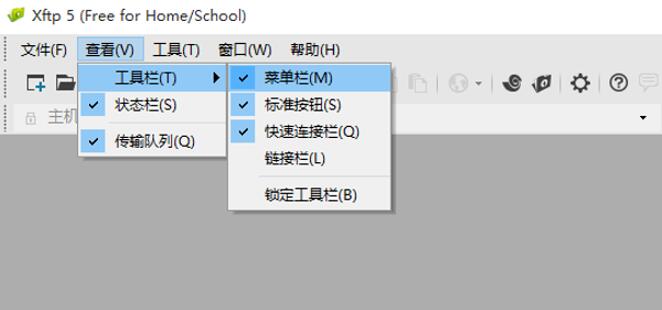
Expand tool options

You can see the lock toolbar on the right
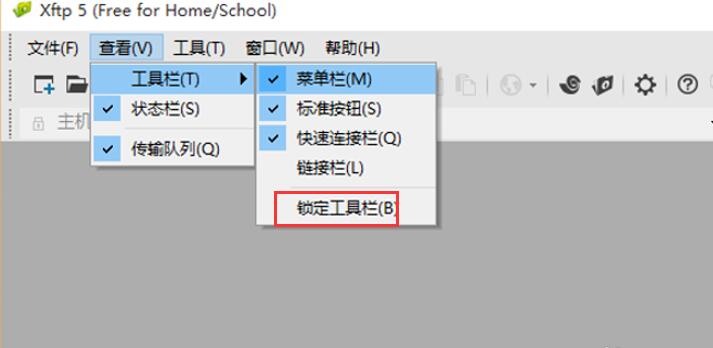
Click the Lock Toolbar option, and the toolbar will be locked on the main interface.
The above is the method of setting the locked toolbar in xftp5 discovered by the editor. Friends in need should not miss this article.
Popular recommendations
-
FileZilla
Version: 3.69.3Size: 12.28 MB
FileZilla is a free, open source and cross-platform FTP client software that supports FTP, FTPS (FTP based on SSL encryption) and SFTP (based on SSH...
-
Serv-U
Version: 15.4.0.147 Chinese versionSize: 18.77MB
Serv-U Chinese version is an FTP server software. The latest version of Serv-U can set up any PC as an FTP server, so that users or other users...
-
8UFTP
Version: 3.8.2.0 official versionSize: 604KB
8UFTP tools are divided into 8UFTP client tools and
8UFTP intelligent extension server tool covers all the functions of other FTP tools. Does not occupy memory, size...
-
Tftpd64
Version: 4.64 official versionSize: 633.21KB
The official version of Tftpd64 is a service pack software built for network locks. The TFTP network protocol is provided in Tftpd64. Users can set...
-
Simple FTP Server
Version: 1.0 official versionSize: 459KB
The official version of Simple FTP Server is a professional FTP server tool. Simple FTP
The official version of Server software has complete functions and supports setting permissions, identities...