did not add lyrics and subtitles to the MV in VideoStudio
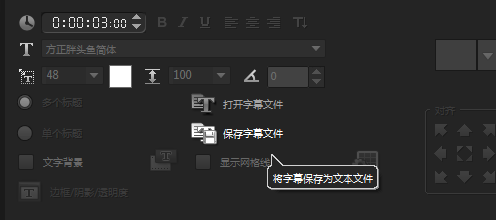
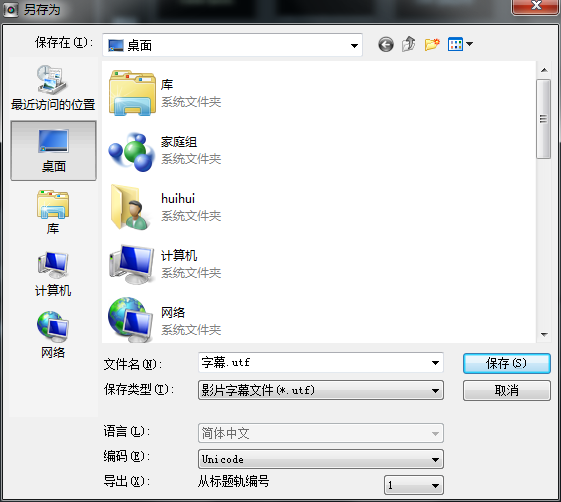
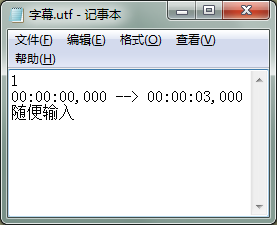
1. Open the VideoStudio x7 editor, click the "Title" button, double-click the preview panel, enter any text, then find "Save Subtitle File" in the "Edit" option in the option bar, click it, name it and save it in .utf format.
2. Find the corresponding lyrics in LRC format on the Internet and copy them
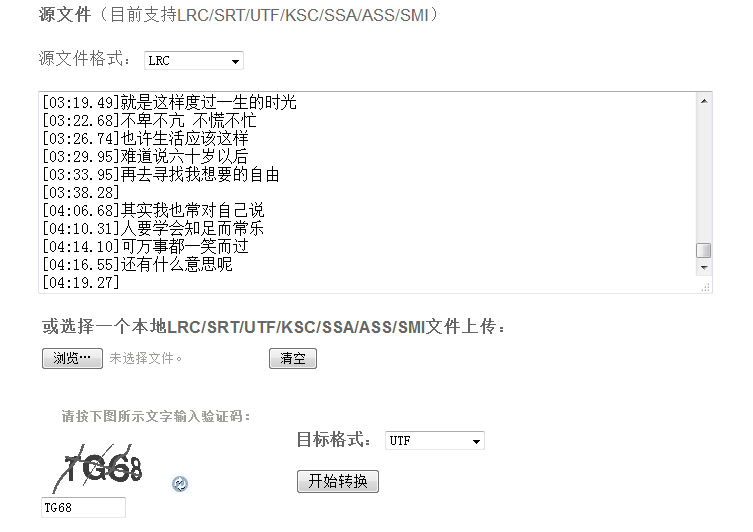
3. Search the Internet for online conversion of lyrics and subtitles, paste the copied lyrics in LRC format into the text box, select the utf format in the drop-down list on the lower right, and then click Convert.
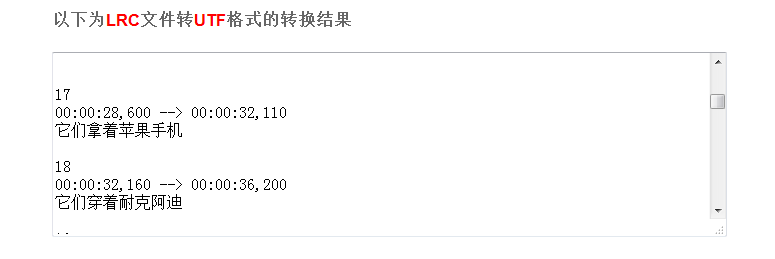
4. Copy and replace the converted lyrics into the subtitle file you just saved. Be careful not to change the format, it is still in UFT format.
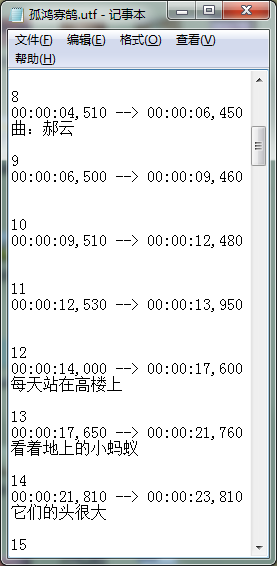
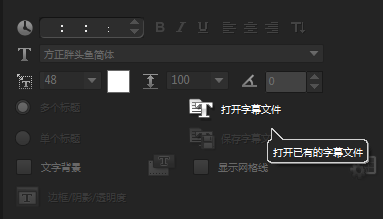
5. Insert the audio file in VideoStudio x7, and then select "Open subtitle file" in the editing bar of the title to open the file you just replaced.

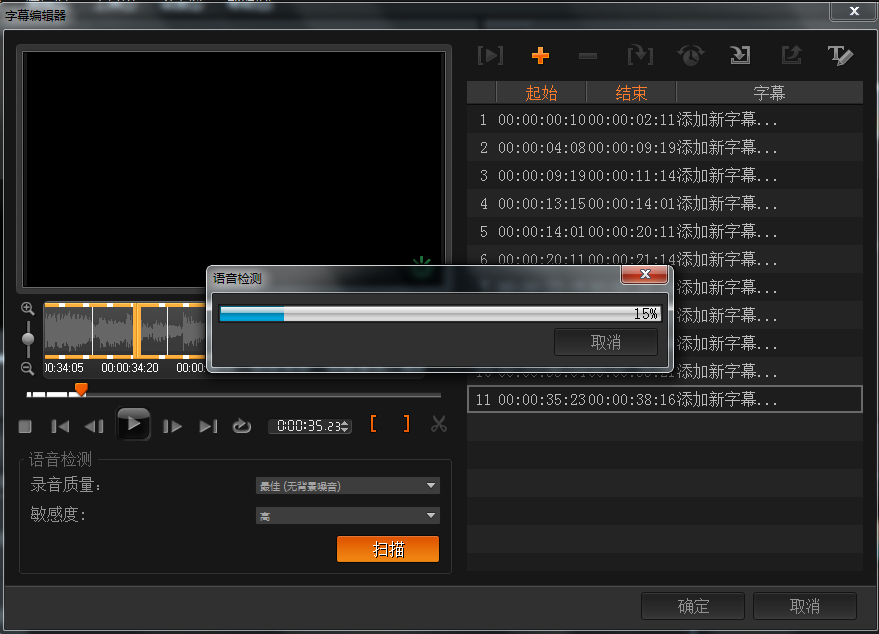
6. Import the edited video into the video track, click play, and you will see that the lyrics and the sound are synchronized. In fact, VideoStudio has its own subtitle editor. After importing the audio, select it, click the subtitle editor on the timeline, and in the pop-up editing box, select the best recording quality and sensitivity. Click scan, and many paragraphs will appear. However, it is troublesome to enter the lyrics yourself, so the import method is generally used.
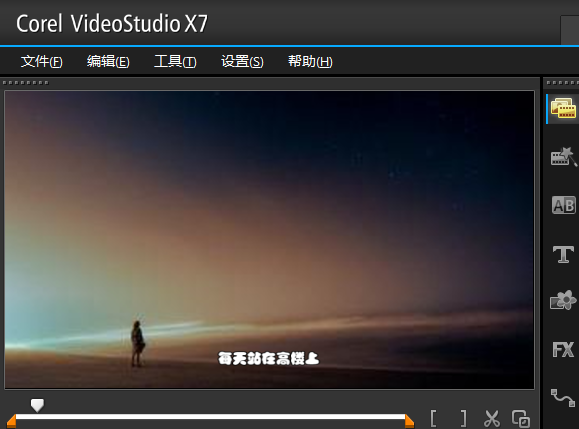
The above is the detailed operation of adding lyrics and subtitles to MV in VideoStudio X7. Let’s learn together. I believe it can help some new users.