How to use Xiaomi Mobile Assistant to import photos to the computer? How to do it specifically? So today I will explain to you how to use Xiaomi Mobile Assistant to import photos to the computer. Friends in need can come and take a look.
1. Open Xiaomi Mobile Assistant, and then connect the mobile phone and computer with a data cable. After the connection is successful, the information shown in the figure below will be displayed on the main interface of Xiaomi Mobile Assistant, including the number of photos.
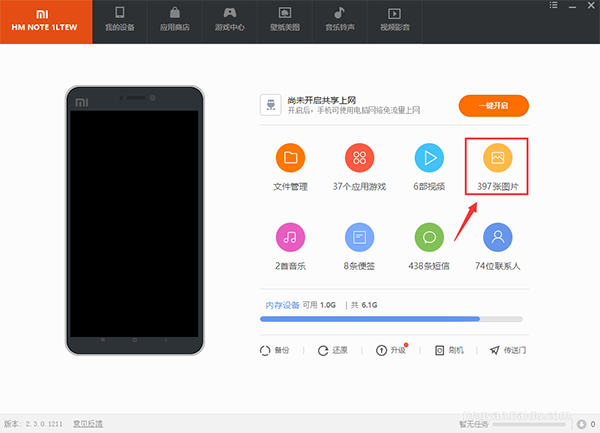
2. Click on the picture to enter the gallery interface. You can view all photos stored on the phone through the Xiaomi Mobile Assistant software.
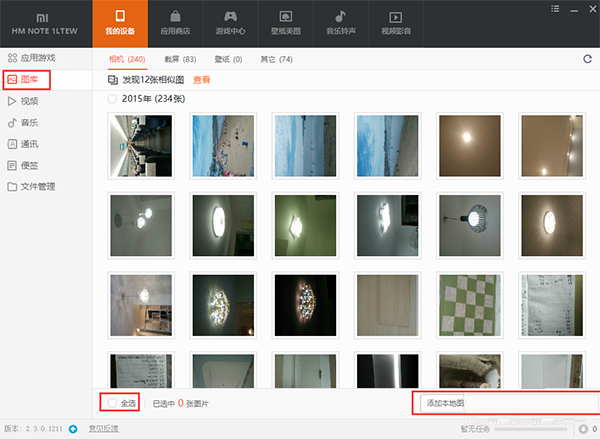
3. Next, click the "Select All" button at the bottom left of the interface, and then select the "Export" option to pop up the folder selection dialog window.
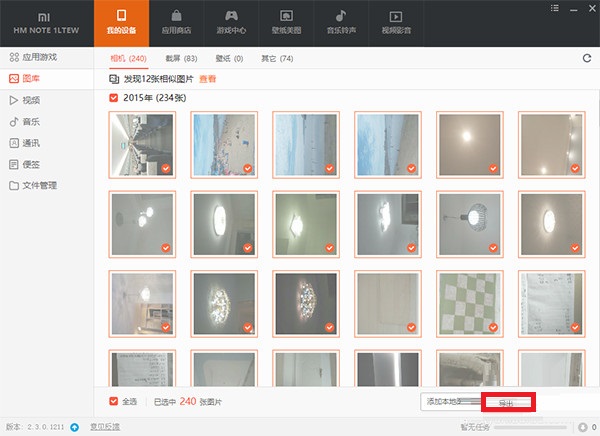

4. After selecting the appropriate saving path, click the "Save" button to start exporting the photos on your phone to your computer in batches, as shown in the figure below.


5. After the export is successful, you can directly delete the photos on the phone through Xiaomi Mobile Assistant, as shown in the figure below

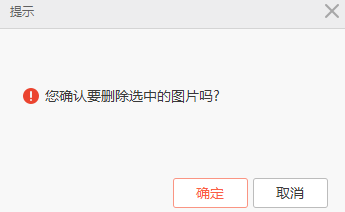
6. It should be noted that there are multiple folders in the Xiaomi Assistant Gallery. If you want to save all the pictures on your phone to your computer, you need to operate according to different folders, as shown in the figure below.

The above is the method explained by the editor to import photos into the computer using Xiaomi Mobile Assistant. I hope it can help everyone.