Graphical steps for loading multiple images in Windows virtual optical drive (Daemon Tools Lite)
Time: 2019-10-17Source: Huajun Software TutorialAuthor: blue thin mushroom
Recently, many partners who use Windows virtual optical drive (Daemon Tools Lite) said that they cannot load multiple images. Below, the editor will share the graphic and textual steps on loading multiple images with Windows virtual optical drive (Daemon Tools Lite). I believe it will be helpful to everyone.
First open the Windows virtual optical drive (Daemon Tools Lite) and find that only one virtual optical drive exists.
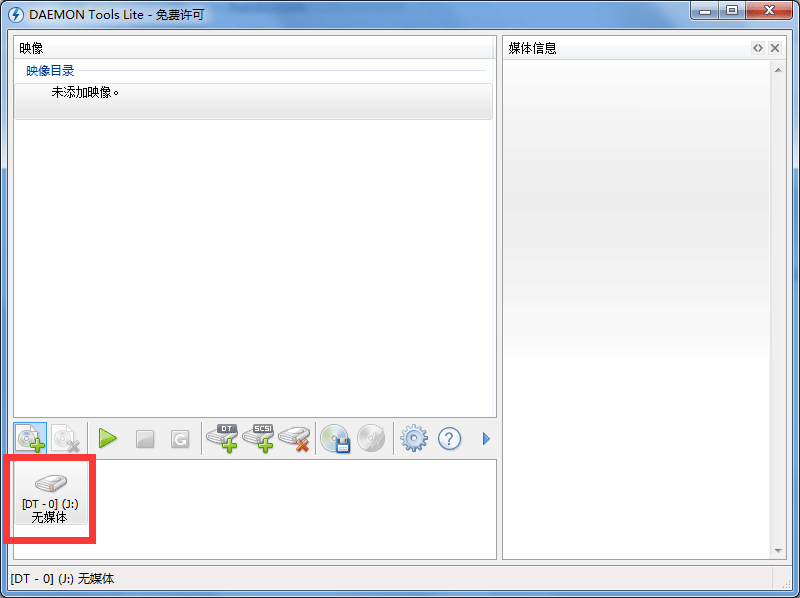
Then add virtual image files, but only one
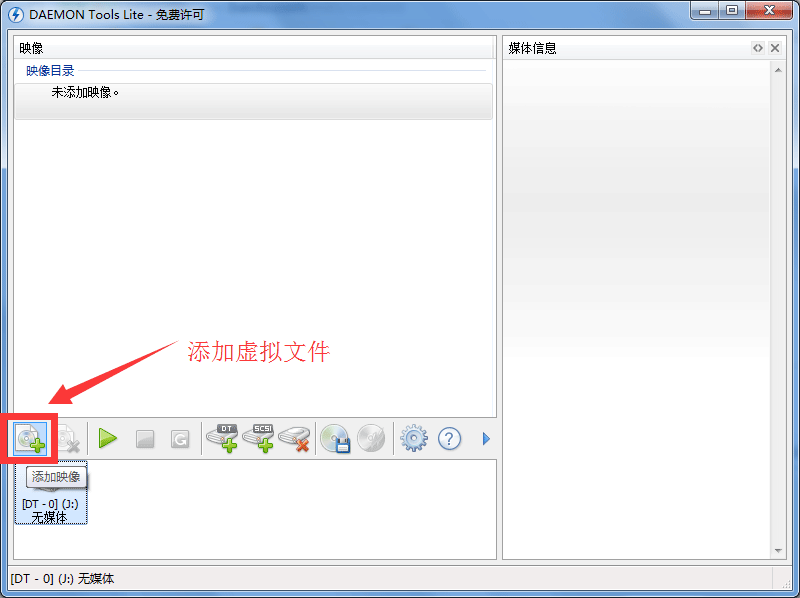
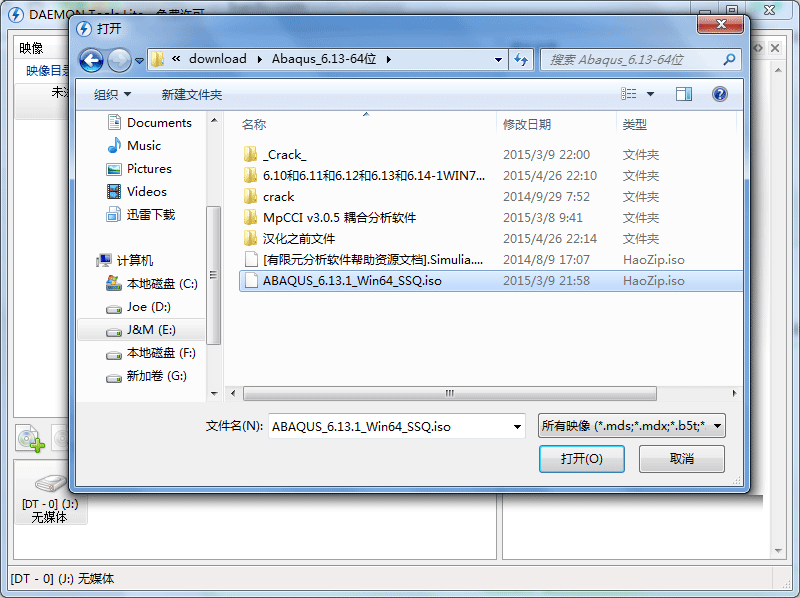
Then browse and open
Double-click to load the image file
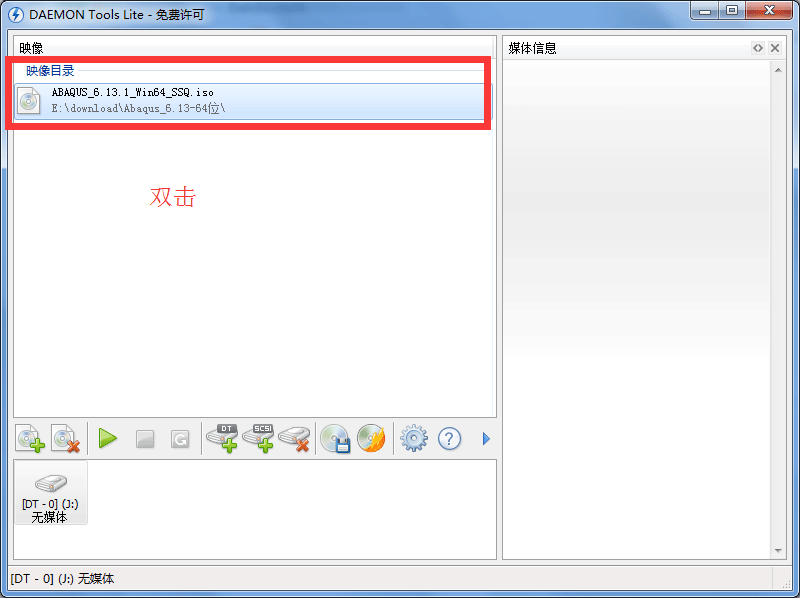
You can see that it has been loaded
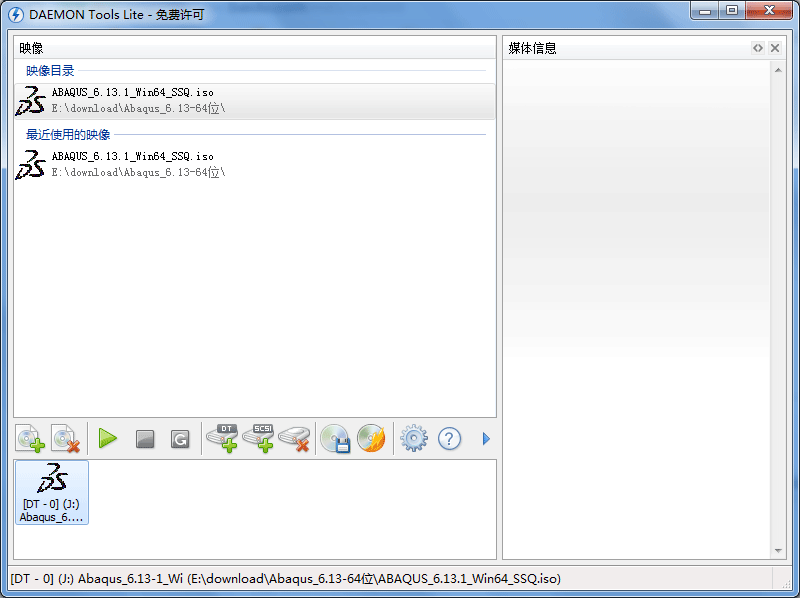
Now create a new optical drive and repeat the above steps.
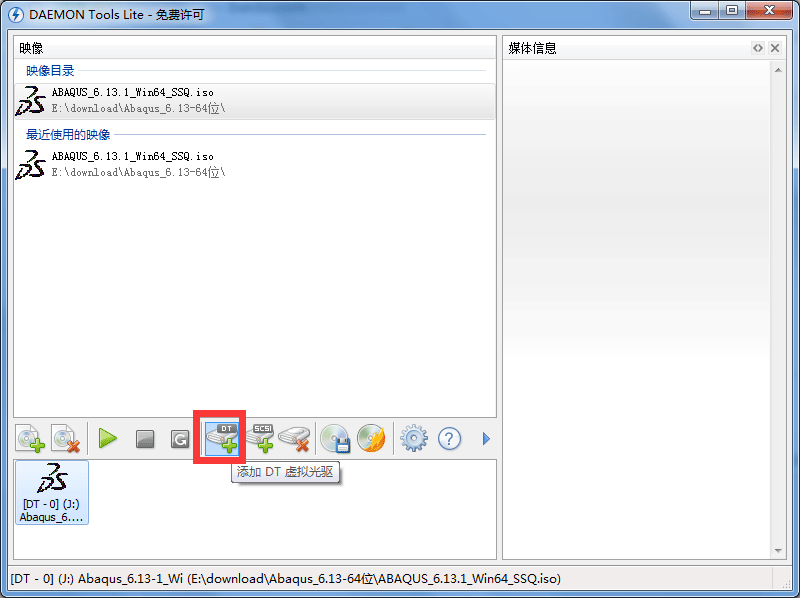
Dear friends, after reading the above exciting content, you all know the steps for loading multiple images in the Windows virtual optical drive (Daemon Tools Lite)!
Popular recommendations
-
App treasure
Version: 3.0.2.15Size: 6.22MB
Yingyingbao is a mobile application acquisition software officially created by Tencent, which brings rich mobile application resources to the majority of users. You can...
-
App treasure 2021
Version: 2021 official versionSize: 45.94MB
App Store 2021 Official Version is a powerful and practical Android application download software. App Store 2021 Official Version can find the best quality application resources, all-round...
-
drive life
Version: 10.0.19.56Size: 65.33MB
Driver Life 10 is a software that professionally solves computer driver problems and contains millions of hardware drivers. Perfectly supports 32-bit and 64-bit Wi...
-
drive life
Version: 10.1.35.90Size: 65.33MB
Driver Life 10 is a software that professionally solves computer driver problems and contains millions of hardware drivers. Perfectly supports 32-bit and 64-bit Wi...
-
Classic Shell Simplified Chinese version
Version: 4.4.170Size: 5.74 MB
The latest version of ClassicShell Simplified Chinese version is a start menu enhancement tool built for computer systems. Classic
The official version of Shell contains classic...