We all know that the fastest and best-performing hard drive at present is the solid-state drive, but the disadvantage is that the solid-state drive has a small capacity. If Win7 system users are using limited-capacity SSDs, they should learn how to optimize SSDs? So how should you optimize your solid-state drive? Today, the editor of Huajun brings you a simple and easy-to-understand solution. I hope you will support and share the carefully selected content. If you like it, hurry up and get it!
The specific method is as follows:
1. AHCI hard drive mode can improve hard drive performance. Make sure your solid-state drive is running in AHCI mode and open "HKEY_LOCAL_MACHINESYSTEMCurrentControlSetServicesmsahci". Right-click to change the disk mode to "0" and restart, as shown below:
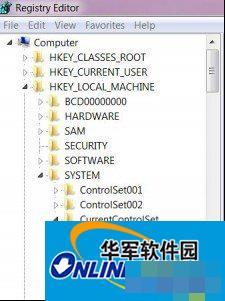
Modify the registry to enable AHCI mode
2. Turn on the Trim function to reduce disk erasing operations and extend the FLASH life of the solid-state drive. The Trim command is enabled by default in Windows 7. If you want to query the current Trim command status, we can enter the command prompt interface with administrator privileges and enter "fsutil behavior QUERY DisableDeleteNotify", and then you will get feedback on the relevant query status. Here, if the prompt is "DisableDeleteNotify = 0", it means the Trim command is enabled; if the prompt is "DisableDeleteNotify = 1", it means the Trim command is not enabled. If Trim is not enabled, please update the driver and system patches in time.

Turn on Trim function
3. Turn off the system recovery function. This function will affect the normal operation of the SSD or TRIM, thereby affecting the SSD's read and write capabilities.
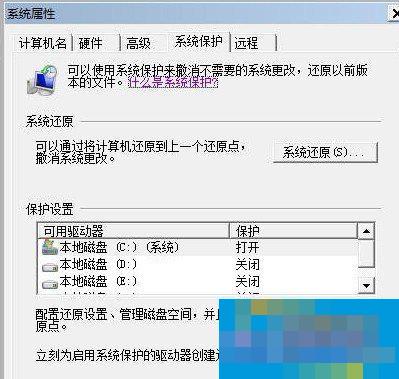
Turn off system recovery
4. Turn off the disk index. The response time of the solid state drive is very low and this function is not needed. It is beneficial to the solid state drive to minimize unnecessary read and write operations.
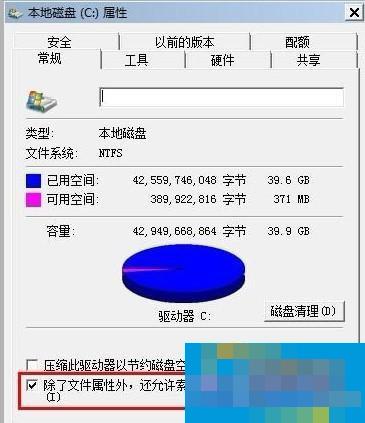
Turn off disk indexing
5. Turn off the disk defragmentation plan, which will increase disk read and write operations. SSDs will not generate disk fragmentation. This function will only increase the number of read and write operations.
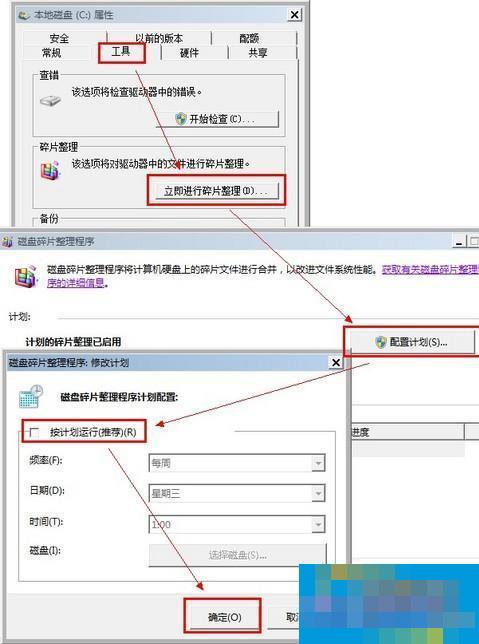
Turn off disk defragmentation schedule
6. Turn off disk paging. It is not recommended for students with less than 4G of memory to turn off this support, but turning off disk paging will save 3-5G of disk space.
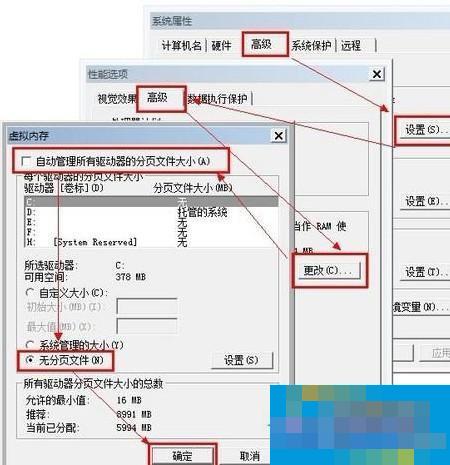
Turn off disk paging
7. Turn off system hibernation. For solid-state drives, the reading speed is very fast. It is not necessary and can save 3GB of disk space.
The method is to enter the Start Running Command dialog box, then enter the following command in the CMD command box, and then press Enter to confirm.
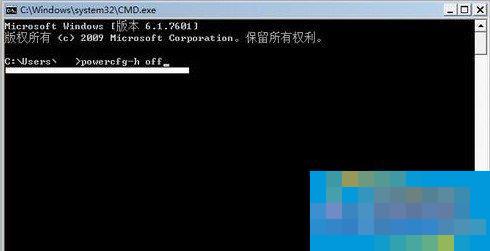
Turn off system hibernation
8. Turn off Prefetch (prefetch) and Superfetch (super prefetch). In terms of 0.1ms level delay, this technology is completely unnecessary. Therefore, performance will improve after turning it off. Find HKEY_LOCAL_MACHINESYSTEMCurrentControlSetControlSessionManagerMemory ManagementPrefetchParameters, right-click EnablePrefetcher and EnableSuperfetch, modify these data from (1 or 3) to 0, and then restart.
9. Quickly start the system. This function is to close the screen when the system is entered. It can probably save you 2-3 seconds of startup time. Do not touch other options as it may have negative effects. Press win+R on the keyboard and enter Msconfig. Check whether GUI-less boot is checked. If not, please check it and confirm.
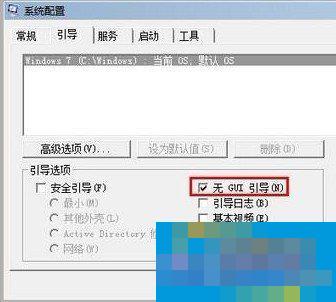
Check whether GUI-free boot is checked
The above is the method for optimizing Win7 SSD. If you are interested, you can refer to the above method. I hope it will be helpful to more and more computer users who use solid-state drives. Optimizing the solid-state drives in Win7 can effectively help us improve system speed and extend the life of the solid-state drives.